
Transfer files between file hosts
Move files from one file host to another without handling them yourself. The panel gets each file from the source host, uploads it to your account on the target host and swaps the old link for the new one on your sites. Runs keep going in the background on the server, so you can close the page.
On this page
Where to find it: Links & files → Transfer & replace → tab “Transfer”.
Before you start
- A target account on the File Hosters page that takes uploads and returns a link: a Keep2Share-family account with its key, or an XFileSharing account with its API key and API URL. See File host accounts.
- A way to get the source files: your API key on the source host (it opens your own files), your premium login for that host (on the Downloads page, or
email:passwordfor Keep2Share), or WPManager’s shared premium, paid per GB. See Premium accounts and premium download prices. - For “My sites”: the sites have been scanned in the Scanner — the transfer takes their links from the scan.
- The WPManager plugin on the sites whose links should change.
The Transfer tab
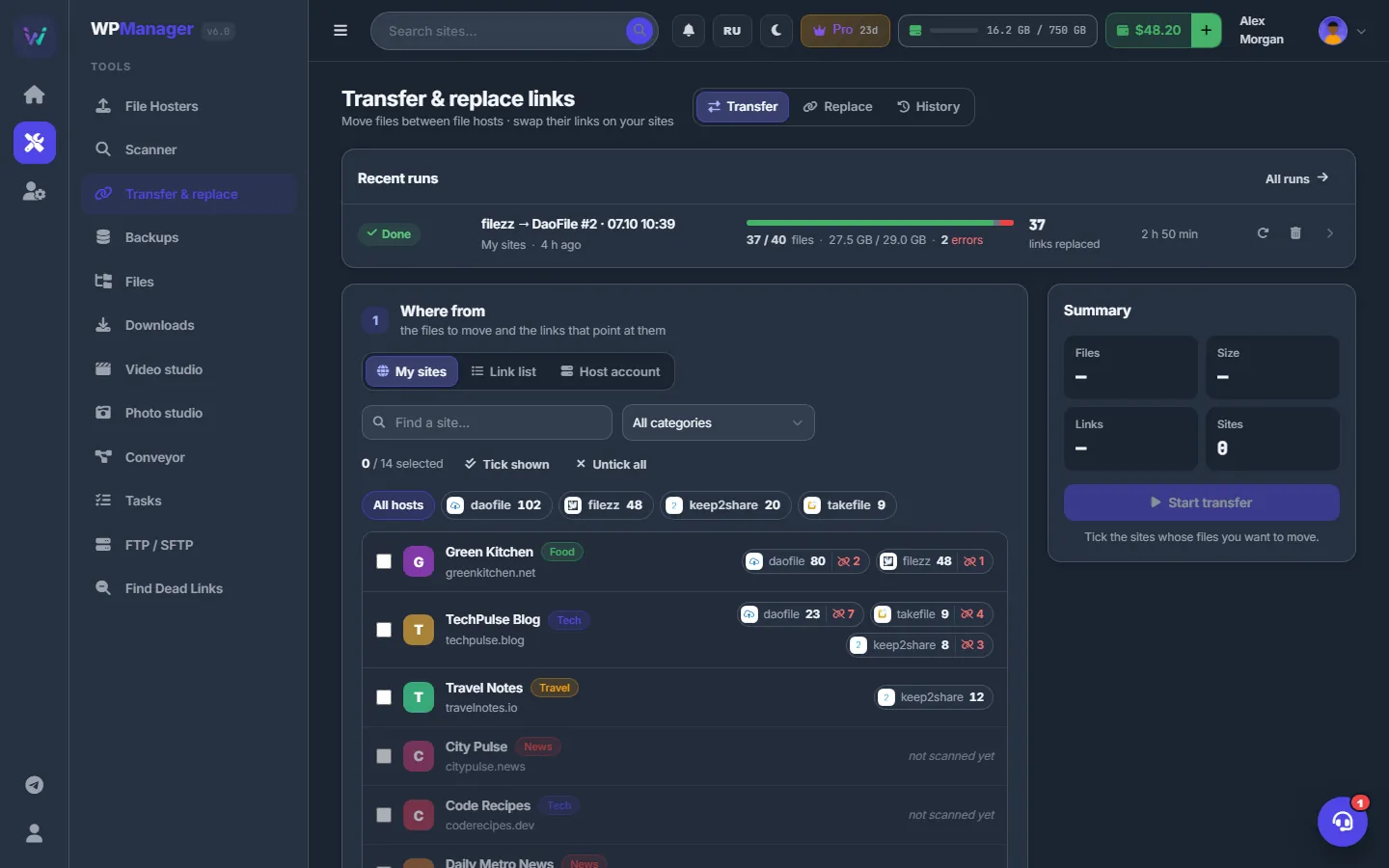
Open Links & files → Transfer & replace. The page “Transfer & replace links” has four tabs: Transfer, Replace, Repair and History (the Repair tab is described in the link replacement section); a small number on “Transfer” counts the runs in progress. On the Transfer tab, three step cards on the left — Where from, Where to, How — build the plan, and the “Summary” on the right checks it. Your recent runs are listed above them.
Build a transfer
-
Where from: pick your sites
In step 1 choose “My sites”. Every site shows chips for the hosts its posts link to: the host, the number of files and, in red, the dead links. “not scanned yet” or “no file links” means there is nothing to move from that site.
Narrow the list with “Find a site…”, the category select or the host chips (“All hosts” and one chip per host). Tick the sites — “Tick shown” and “Untick all” help — and watch the counter “N / M selected”.
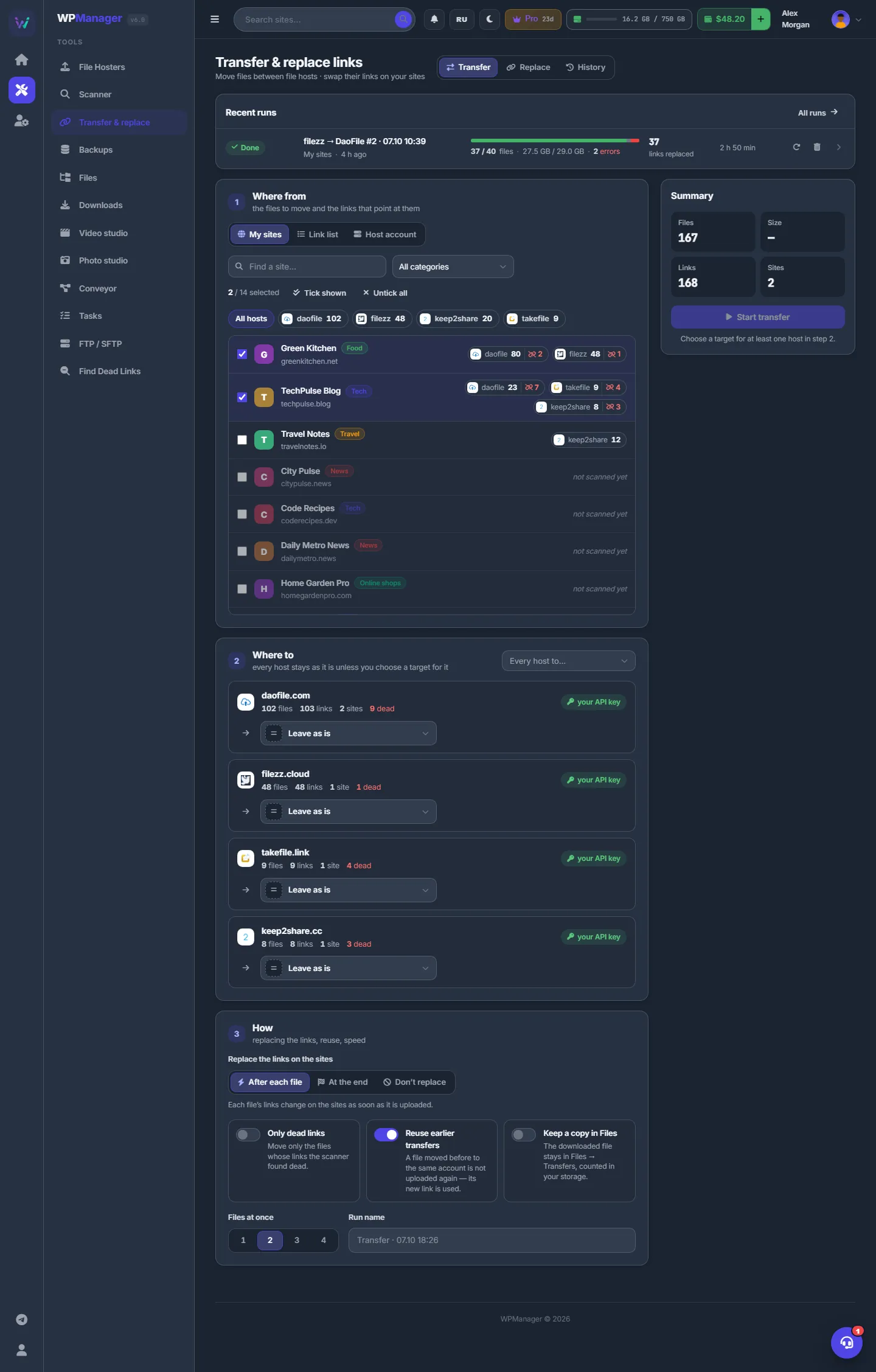
Fig. 2 Two sites ticked. Step 2 lists their hosts, and each row says how its files will be fetched. -
…or paste a link list, or pick from a host account
“Link list”: paste the links, one per line, or click “Load a .txt file” (up to 8 MB). The panel reads them and shows a chip per host with its number of links; lines that are not links are listed under “N lines are not links”.
“Host account”: choose one of your accounts with an API key and open its folders — the path starts at “Root”. Tick files, or a whole folder with the folder checkbox. The line above shows how many files, how much data and how many folders you picked; “Clear” resets the choice.
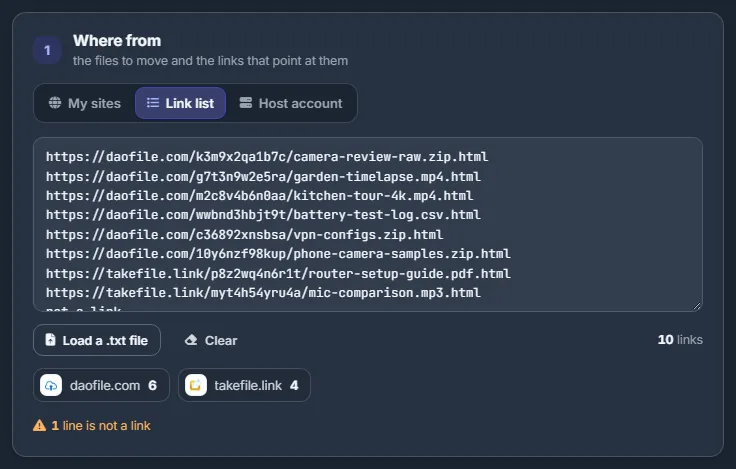
Fig. 3 A pasted link list, grouped by host. The line that is not a link is set aside. -
Where to: pick a target per host
Step 2 has one row per source host: its icon, files, links, sites and dead links, and how its files will be fetched — “your API key”, “your premium”, “shared premium” with the price per GB, “direct link” or “no access”.
Every host starts as “Leave as is”. In the row’s picker choose the target account; Keep2Share targets carry the badge “by URL” — the host pulls the file itself. The folder button (“Root”) opens the target’s folders; pick one with “Choose this folder”. With several hosts, “Every host to…” sets one target for all rows in one go; rows of the target’s own host stay as they are.
-
Choose on which sites the links change
A row with a target shows a sites button (“N sites”). Click it: the panel “Where this host’s links change” lists the sites with their number of links. Untick the sites whose links should stay as they are; “All” and “None” are there for quick choices. A partial choice shows “n / N” on the button.
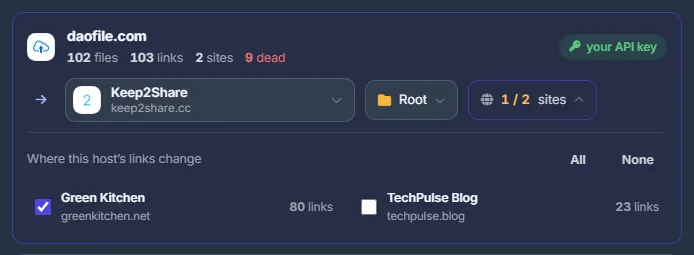
Fig. 4 One of two sites unticked: its links to this host stay unchanged. -
How: set the options
In step 3, “Replace the links on the sites” has three choices:
- “After each file” — each file’s links change as soon as it is uploaded;
- “At the end” — the links change once every file has been moved;
- “Don’t replace” — nothing changes on the sites; you get the list of old and new links.
Then the switches “Only dead links” (only with “My sites”), “Reuse earlier transfers” (on by default), “Keep a copy in Files” and “Allow paid platform premium if my account fails” (off by default and not remembered between visits: it lets WPManager’s shared premium fetch a file your account cannot open; such a file is paid per GB from your balance, and the price shows in the Summary), the number of “Files at once” (1–4, default 2) and the “Run name”. Leave the name empty for an automatic one such as “daofile, takefile → Keep2Share · 05.10 19:40”. Your choices are remembered in this browser, except the paid platform premium switch, which is off again on each visit.
-
Check the summary
The “Summary” card checks the plan on the server as you change it. It shows Files, Size (≈), Links and Sites; one line per route “host → target” with its files and size; “N files were moved before” when earlier transfers are reused; the estimated “Shared premium ≈ $X — paid from your balance per GB fetched”; and warnings. When something is missing, the reason is written under the button.
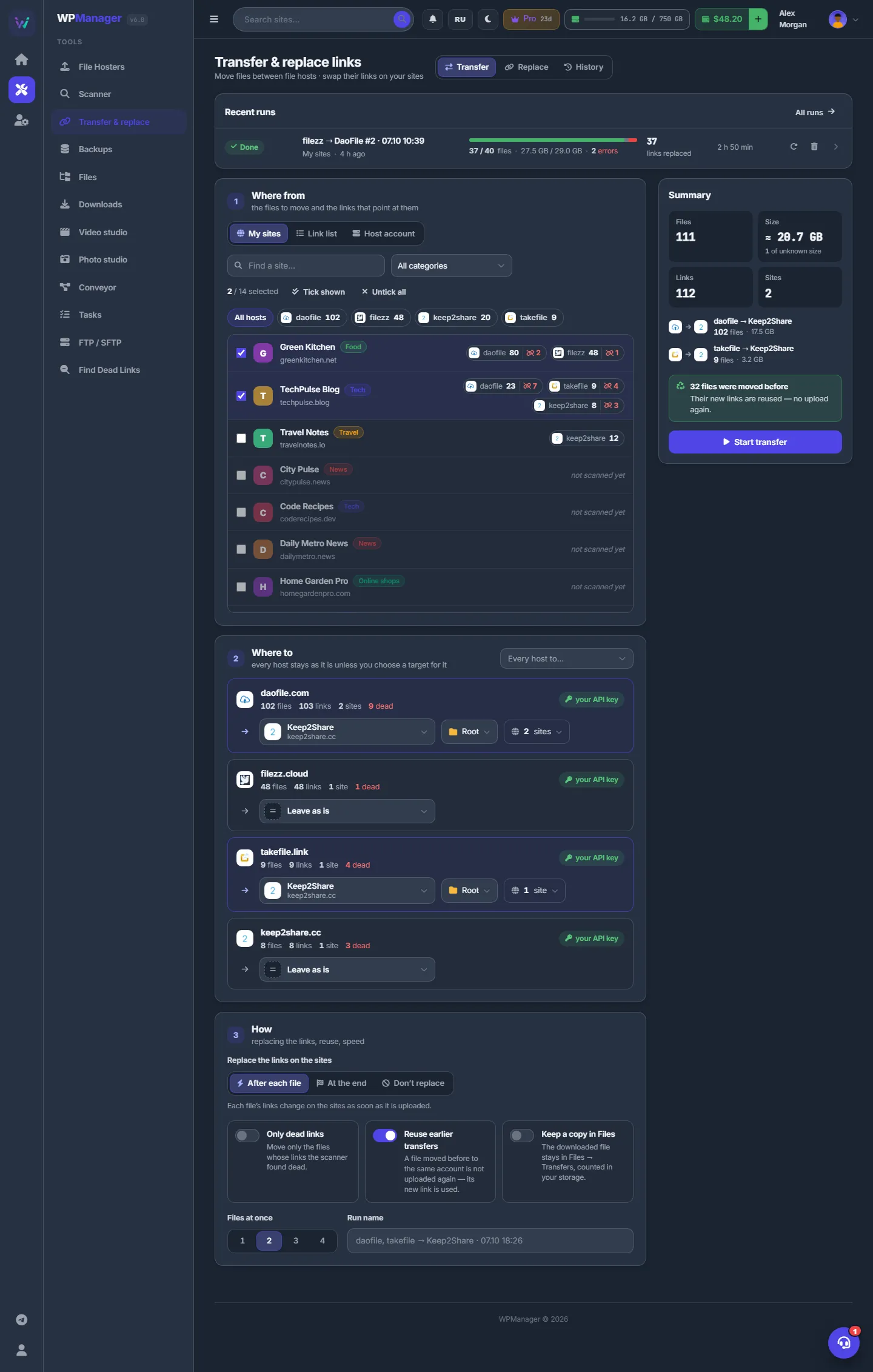
Fig. 5 Two hosts sent to Keep2Share. The summary shows the routes and how many files are reused from earlier transfers. -
Start
Click “Start transfer”. The confirmation lists the Files, every Route, what happens On the sites, the Sites, the Shared premium and the Name. Click “Start transfer” again: you see “Transfer started”, and the run opens. Follow it as described in Transfer runs and history.
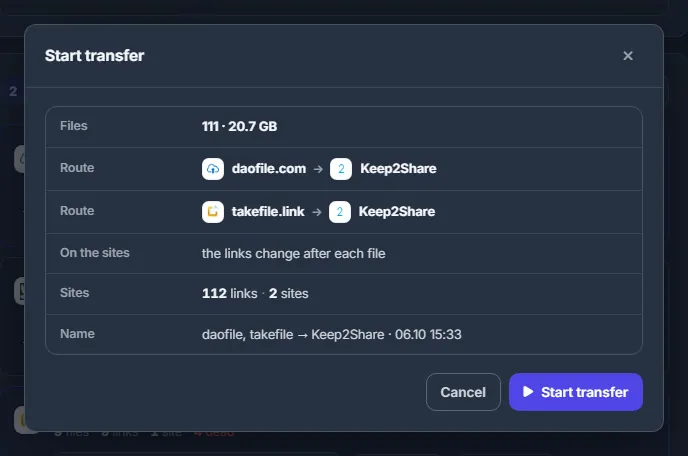
Fig. 6 The last check before the run starts.
How one file is moved
- Reuse — if this file was already moved to the same target account, its new link is taken and nothing is uploaded.
- Resolve — the panel gets a download link: through your API key, your premium login or WPManager’s shared premium, in that order.
- Transfer — to a Keep2Share-family target the file is sent “by URL” when possible, and the host fetches it. Otherwise it goes “through the panel”: downloaded to the server and uploaded to the target.
- Replace — on every chosen site, all address variants of the file (with or without “.html”, with or without the file name) are replaced in the post text and the custom fields. The panel’s copy of the posts and links is updated, and if Cloudflare is connected, the site’s Cloudflare cache is purged — at most every 15 minutes and once more at the end of the run.
How source files are fetched
| Badge in step 2 | What it means |
|---|---|
| your API key | Your account on that host. It opens your own files; other files fall through to your premium or to the shared premium (then the price is shown). |
| your premium | Your premium login for that host, from the Downloads page. |
| shared premium $X/GB | WPManager’s shared premium account, paid per GB from your balance. |
| direct link | A host the panel does not know: the link is downloaded as it is. |
| no access | Nothing can fetch these files yet. Add an API key on File Hosters or a premium login on Downloads. |
Settings
| Setting | What it does |
|---|---|
| Replace the links on the sites | After each file / At the end / Don’t replace. |
| Only dead links | Move only the files whose links the Scanner found dead. Only with “My sites”. |
| Reuse earlier transfers | A file moved before to the same account is not uploaded again — its new link is used. On by default. |
| Keep a copy in Files | Files that pass through the panel stay in Files → Transfers/<run name> and count towards your storage. See Files. |
| Files at once | 1–4 files of this run at the same time (default 2). |
| Target folder | The folder in the target account; “Root” by default. |
| Run name | Up to 120 characters; automatic when empty. |
Limits
- Up to 20,000 files in one run; from 1,000 files the summary warns that the run will take a while.
- A pick in a host account takes up to 5,000 files from the chosen folders.
- Up to 20 unfinished runs (queued, running or paused) per account.
- “Files at once”: 1–4 per run.
Costs
Moving files is free in the panel, with one exception: files fetched through WPManager’s shared premium are charged per GB from your USD balance.
- The price per GB can differ between hosts. Step 2 shows the price for each host.
- Premium GB included in your plan are used first.
- The summary and the confirmation show an estimate; the balance is checked before the files are fetched.
- Space and fees on your own target account are a matter between you and that host.
See also What you pay for.
Troubleshooting
| What you see | What to do |
|---|---|
| “Nowhere to move files yet” | Add a target account on File Hosters: Keep2Share family with its key, or XFileSharing with API key and API URL. |
| A host shows “no access” | Add your API key for that host (File Hosters) or a premium login (Downloads); otherwise its files cannot be fetched. |
| “Choose a target for at least one host in step 2.” / “Nothing to move with these choices.” | Pick a target in at least one row. With “Only dead links”, make sure the chosen hosts have dead links on the ticked sites. |
| “This account takes files by FTP only, which gives no link back — add its API key to make it a target” | Add the API key (and API URL) of that account on File Hosters. |
| “N transfers are not finished yet — let them finish or stop some first” | Up to 20 unfinished runs are allowed. Wait, or stop some on the History tab. |
| “… files — one run takes at most 20000” | Choose fewer sites, hosts or links and split the work into several runs. |
FAQ
Do I have to keep the page open?
No. Runs keep running on the server; the page only shows their progress.
What if a file is linked on several sites?
It is moved once, and its links are replaced on every chosen site, in all their address variants.
Can I move files without changing the sites?
Yes — choose “Don’t replace”. The run gives you the list of old and new links as a CSV on the run page.
How is this different from the Replace tab?
Transfer moves the files and then changes the links. Replace only changes links, for files you have already uploaded yourself.