
Archives, image conversion and checksums
Server-side tools for the files in your storage: pack into ZIP, 7z or RAR (with volumes for file hosts), unpack, convert pictures to WebP, AVIF, JPG or PNG, compute checksums and change the MD5 of files.
On this page
Where to find it: Links & files → Files → select items → “Archive”, “Images” or “MD5” on the action bar.
Before you start
- Files in your storage.
- The tools behind each format on the server: 7z needs 7-Zip, RAR needs WinRAR, AVIF needs ffmpeg. If one is missing, the dialog marks that option (“no 7-Zip”, “not installed”, “no ffmpeg”).
Pack into an archive
-
Open the dialog
Select files or folders and press “Archive”.
-
Choose the format and compression
Set the “Archive name”, the “Format” — ZIP, 7z or “RAR (WinRAR, RAR5)” — an optional “Password” and the “Compression”: “Store” (fastest, best for video), “Fast”, “Normal” or “Maximum”.
-
Split for file hosts if needed
Enter “Split into volumes, MB”, or pick a “Volume size for file hosts” from 500 MB to 10 GB. 0 keeps a single file.
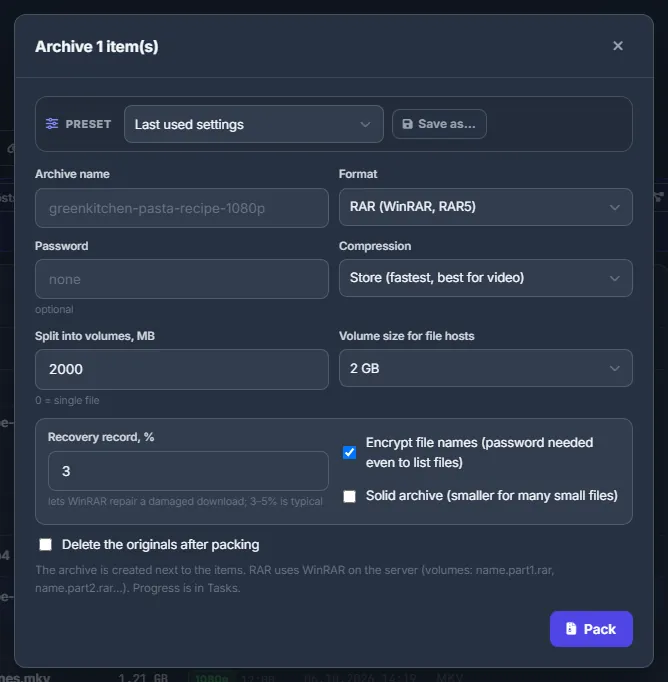
Fig. 1 A video packed into 2 GB RAR volumes without compression, with a 3 % recovery record. -
Press “Pack”
The archive is created next to the items. Progress is on the Tasks page.
RAR-only options
With the RAR format you also get:
- “Recovery record, %” — lets WinRAR repair a damaged download; 3–5 % is typical.
- “Encrypt file names” — the password is needed even to see the list of files.
- “Solid archive” — smaller when you pack many small files.
RAR volumes are named name.part1.rar, name.part2.rar and so on.
Unpack an archive
-
Open the archive
Click an archive, or its “Unpack” button, or right-click → “Unpack”. For a split archive (
name.part1.rar,name.7z.001,name.part1) open the first part — the other parts are picked up automatically.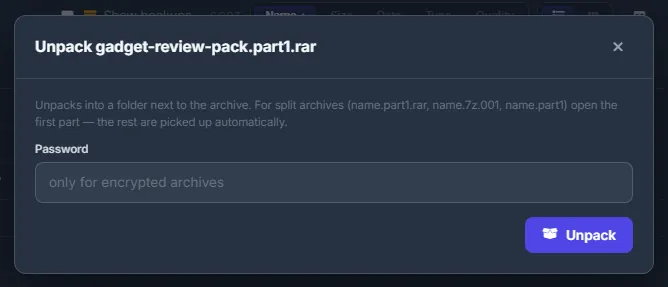
Fig. 2 The first part of a split RAR: the rest of the volumes are found by themselves. -
Enter the password only if needed
Leave “Password” empty unless the archive is encrypted, then press “Unpack”. The archive is unpacked into a folder next to it.
If you select several archives together, each one is unpacked by its own task.
Convert pictures
-
Open the dialog
Select pictures or folders and press “Images” (or right-click → “Convert images”).
-
Choose the format and size
Pick the “Format” — WebP, AVIF, JPG or PNG — and the “Quality” (30–100, default 82). Enter “Max width, px” to shrink big pictures; leave it empty to keep the size. Tick “Include subfolders” for folders and “Delete originals after conversion” if you really want that.
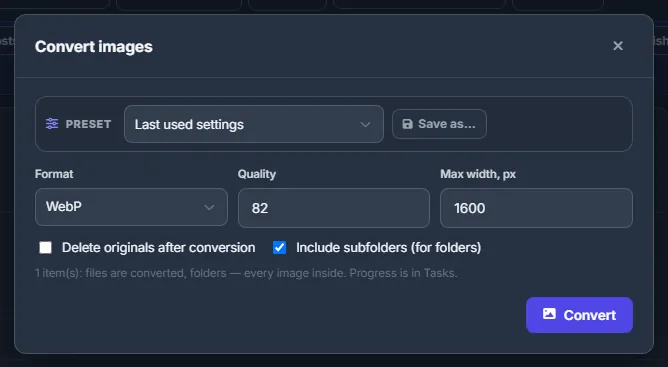
Fig. 3 A whole folder of photos to WebP at quality 82, no wider than 1600 px. -
Press “Convert”
New files are written next to the originals with the new extension. A picture converted into its own format gets
-<width>added to its name, so the original is not overwritten.
Compute checksums
-
Open the dialog
Select files or folders and press “MD5” (or right-click → “MD5 / checksums”).
-
Choose and compute
Choose the “Algorithm” — MD5, SHA-1 or SHA-256. Tick “Write <name>.md5 next to each file” if you want .md5 files in the storage. Press “Compute”.
-
Copy the results
Hashes appear in the list as they are ready. “Copy all” copies them in the usual
hash *nameformat.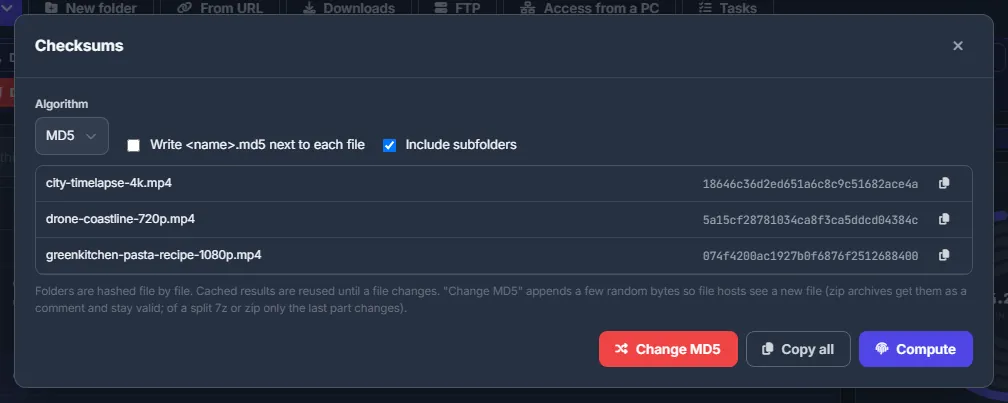
Fig. 4 MD5 of three videos, ready to copy.
Folders are hashed file by file. Results are cached until a file changes, so a second run on the same files is instant.
Change the MD5 of files
In the same “Checksums” dialog press “Change MD5” and confirm. A few random bytes are added to the end of each file, so file hosts see it as a new file. Videos still play and archives still unpack:
- a ZIP archive gets the bytes as an archive comment and stays valid;
- of a split 7z or ZIP, only the last part changes;
- RAR volumes all change — RAR ignores the extra bytes.
Existing .md5 files are rewritten, and the new MD5 goes into the checksum cache.
Deleting the originals
The archive dialog has “Delete the originals after packing”, the conversion dialog has “Delete originals after conversion”. Both are off by default and are never stored in presets — tick them each time you really want it.
Settings
| Setting | What it does |
|---|---|
| Compression | Store, Fast, Normal, Maximum. Video and pictures barely compress — “Store” is the fastest for them. |
| Split into volumes, MB | 0 makes a single file. Most file hosts need volumes for big archives. |
| Quality (conversion) | 30–100; 82 is a good balance for WebP and JPG. |
| Algorithm (checksums) | MD5, SHA-1 or SHA-256. |
All four dialogs can save their settings as presets — see Presets in dialogs.
Costs
Free. The new files count against your storage quota; a task does not start if its result would not fit.
Troubleshooting
| What you see | What to do |
|---|---|
| Unpacking failed | Check the password and that all parts of a split archive are in the same folder; open the first part. The reason is shown on the failed task on the Tasks page. |
| “WinRAR is not installed on the server” | Use ZIP or 7z, or ask in the support chat. |
FAQ
Does “Change MD5” damage videos?
No. The bytes go to the end of the file, where players and unpackers ignore them. Inner parts of a split archive are never touched.