
Access from a PC: SFTP, FTP and WebDAV
Open your storage from your computer: upload and download with FileZilla, WinSCP or Cyberduck, or connect it as a network drive. You get a login of your own; only your folder is visible, and the usual quota applies.
On this page
Where to find it: Links & files → Files → “Access from a PC”.
Before you start
- A plan that includes it — the plan card lists “Storage over FTP / SFTP / WebDAV” (see Plans & Pricing).
Set up access
-
Open the dialog
On the Files page (or on FTP / SFTP) press “Access from a PC”.
-
Pick a login and create the password
The “Login” is suggested from your email; change it if you like — 3 to 32 characters: Latin letters, digits, dot, dash and underscore. Press “Create password”. The password — 16 random characters — is shown only once: press “Copy” and save it in your program or password manager.
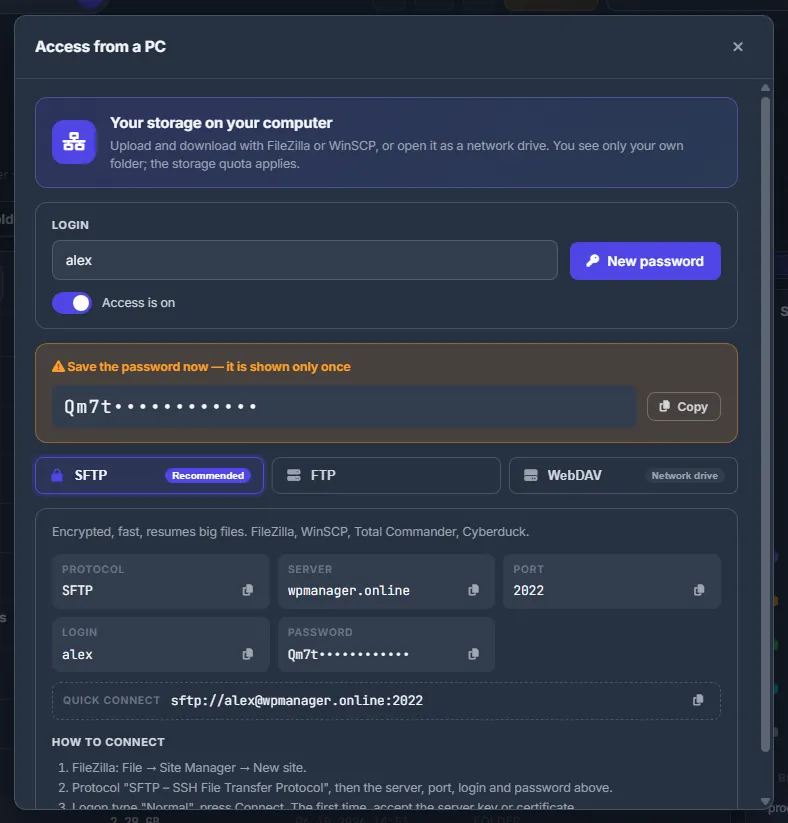
Fig. 1 Your login, the on/off switch and the new password, shown only once. -
Choose how to connect
Pick a tab:
- SFTP (“Recommended”) — encrypted, fast, resumes big files.
- FTP — for programs that speak only FTP; choose explicit TLS if your program offers it.
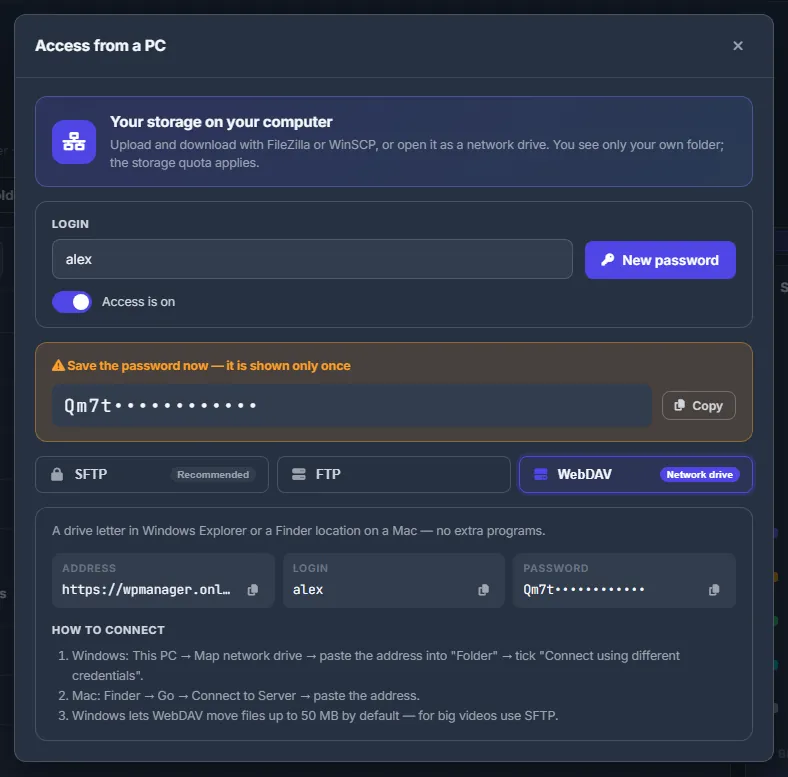
- WebDAV (“Network drive”) — a drive letter in Windows Explorer or a Finder location on a Mac.
Each tab shows the “Server”, “Port”, “Login” and “Password” with copy buttons, a “Quick connect” address and “How to connect”.
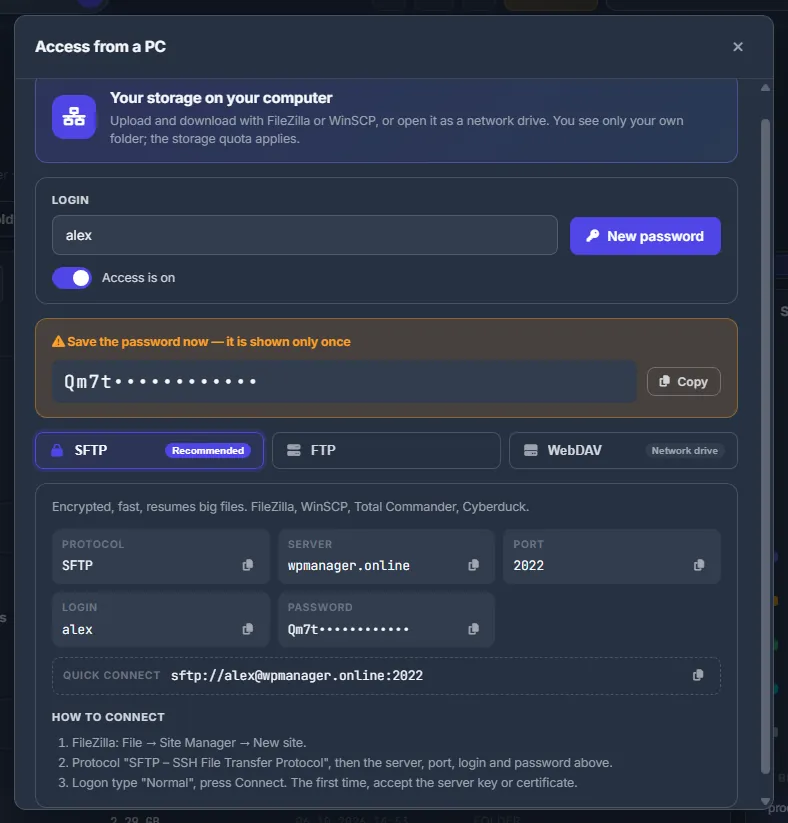
Fig. 2 Everything FileZilla needs for SFTP, with a ready quick-connect address.
Connect with FileZilla (SFTP or FTP)
-
Create a site
In FileZilla open File → Site Manager → New site.
-
Fill in the connection
Protocol “SFTP – SSH File Transfer Protocol” — or “FTP” with “Use explicit FTP over TLS if available”. Then copy the server, port, login and password from the dialog. Logon type “Normal”.
-
Connect
Press Connect. The first time, accept the server key or certificate.
Map a network drive (WebDAV)
- Windows: This PC → Map network drive → paste the address into “Folder” → tick “Connect using different credentials”, then enter the login and password.
- Mac: Finder → Go → Connect to Server → paste the address.
Switch access off or change the password
- The switch under the login turns access on or off. When it is off, the dialog says “Access is off — nobody can log in with this login”.
- “New password” makes a new password. The old one stops working in every program that uses it.
- The dialog also shows the last login and its protocol.
What applies
- You see only your own storage folder.
- Uploads count against the storage quota and are refused once it is full.
- One program can run several uploads at the same time — up to 8 by default; FileZilla and WinSCP use 2.
- The server name and the ports are always shown in the dialog.
Settings
| Setting | What it does |
|---|---|
| Login | 3–32 characters: a–z, 0–9, dot, dash, underscore. Must not be taken by another WPManager user. |
| Access is on / off | Blocks or allows logins with this account without changing the password. |
Costs
Included in the plans that list “Storage over FTP / SFTP / WebDAV”. The usual storage quota applies.
Troubleshooting
| What you see | What to do |
|---|---|
| “Access from a PC is not switched on yet on this platform” | Write to the support chat. |
| “Your plan does not include access from a PC” | Move to a plan with “Storage over FTP / SFTP / WebDAV” on Plans & Pricing. |
| “This login is taken — choose another” | Logins are unique across WPManager. Add a digit or your site name. |
| The program cannot log in | Check that access is on, that the port is the one from the dialog for that protocol, and that the password is the latest one. If you lost it, make a “New password”. |
FAQ
I lost the password. Can I see it again?
No, it is shown only once. Press “New password” and update it in your programs.
Which protocol should I choose?
SFTP in most cases: it is encrypted and resumes big files. Use FTP only for programs that cannot do SFTP, and WebDAV when you want the storage to look like a drive on your computer.