
Downloads: links, file hosts and the queue
A download manager that runs on the server: paste links from file hosts, direct links or magnets, and the files land in your storage at full speed over several connections — with a queue, pause and resume, automatic retries and details for every file.
On this page
Where to find it: Links & files → Downloads, or “Downloads” and “From URL” on the Files page.
Before you start
- Free space in your storage.
- For links from file hosts: a premium account of yours, or WPManager’s shared premium. See Premium accounts.
Add links
-
Open the add dialog
On Links & files → Downloads press “Add links”. Two shortcuts: paste links anywhere on the page (Ctrl+V outside a field) and the dialog opens with them; or press “From URL” in Files to open the same dialog with the open folder as the target.
-
Paste the links and check how each will download
Paste links one per line, or any text that contains links — up to 500. Under the box the panel groups them by host and shows how each will be downloaded (see the table below).
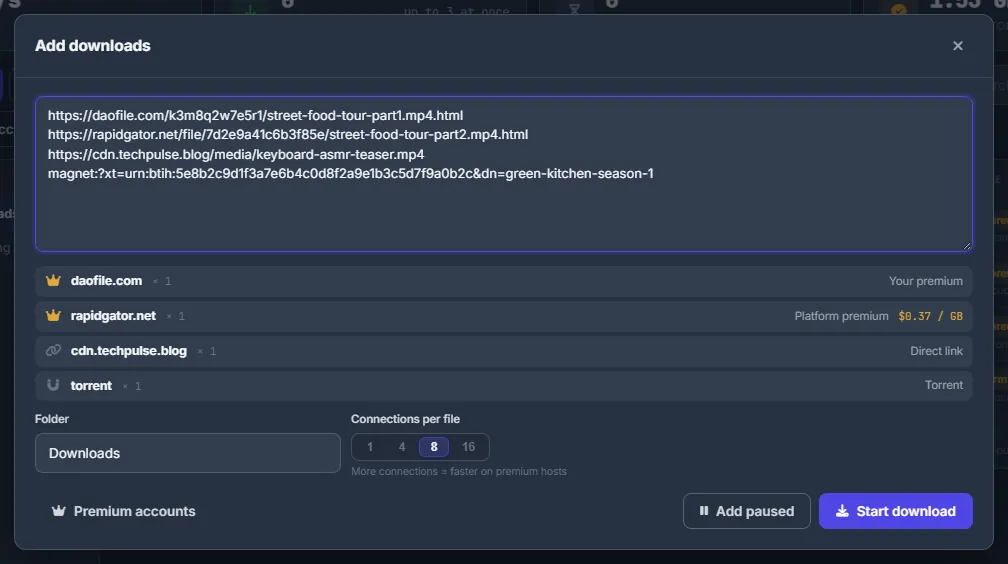
Fig. 1 Four links, four routes: your premium, WPManager’s shared premium with its price per GB, a direct link and a torrent. -
Choose the folder and connections
“Folder” is where the files go in your storage — Downloads by default; the last one you used is remembered, and the folders of the root are suggested. “Connections per file” is 1, 4, 8 or 16 (default 8); more connections download faster from premium hosts. “Save as (one link only)” sets your own file name; leave it empty to keep the name from the host.
-
Start, or add paused
Press “Start download”, or “Add paused” to put the links into the queue stopped. Magnets and .torrent links from the same text become torrents, and you choose their files next (see Torrents: magnets and .torrent files).
| What the dialog says | What it means |
|---|---|
| Your premium | Your own premium account on that host is used. Free in the panel. |
| Platform premium | WPManager’s shared premium is used; the price per GB is shown next to it and charged from your balance. |
| Your API key (own files only) | Your key from the File Hosters page is used. It opens only files uploaded to your own account. |
| Direct link | A plain http(s) link to a file. |
| Torrent | A magnet or a .torrent link. |
| No premium account for this host | Neither you nor WPManager has a premium account for this host. Press “Add account” next to it to add yours. |
Follow the downloads
The tiles on top show the “Speed” (with a live graph), “Downloading” (and how many may run at the same time), “In queue” and “Finished today”. On the left, filter by status — all downloads, downloading, queue, paused, finished, errors — and by type: video, archives, images, other, torrents.
Each row shows the file and its folder, the size, a segment bar with the percentage, the speed, the time left, the source (Direct, Your premium, Platform premium, Your API key, Torrent) and when it was added. “Search downloads…” filters by name, link or host.
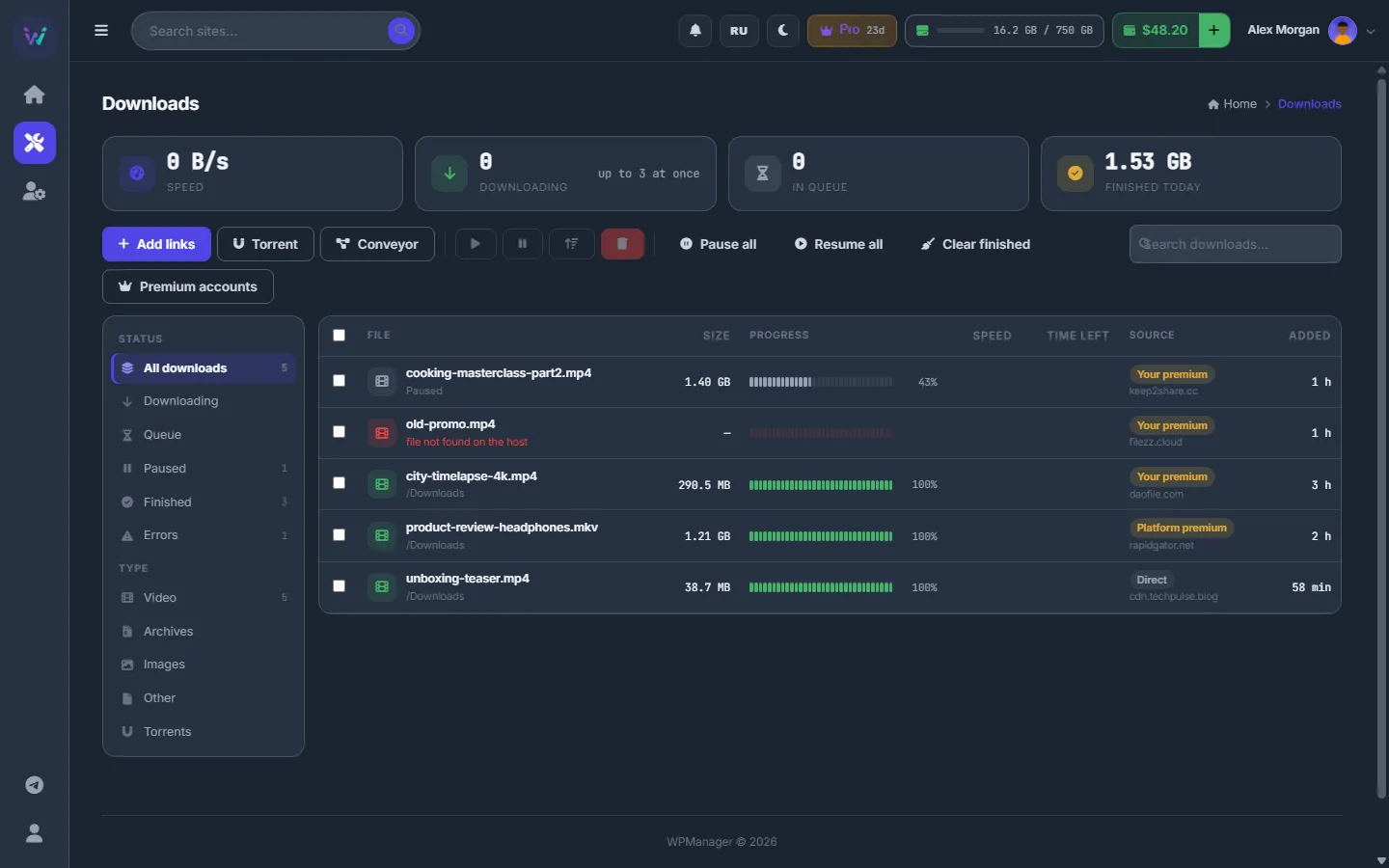
Details of a download
Click a row. The panel below shows “Downloaded”, “Speed”, “Time left”, “Connections”, “Source”, “Saved to”, “Added”, “Finished”, “Attempts”, “Charged” (for the shared premium), the “Link” with a copy button and the “Error”, if any. The buttons depend on the state:
- “Pause” / “Resume”;
- “Retry with a fresh link” — after an error;
- “Download next” — for a queued download;
- “Connections” (1/4/8/16) and “Speed” (Unlimited, 256 KB/s … 25 MB/s) — for an unfinished download;
- “Open in Files” — for a finished one; double-clicking a finished row does the same;
- “Delete”.
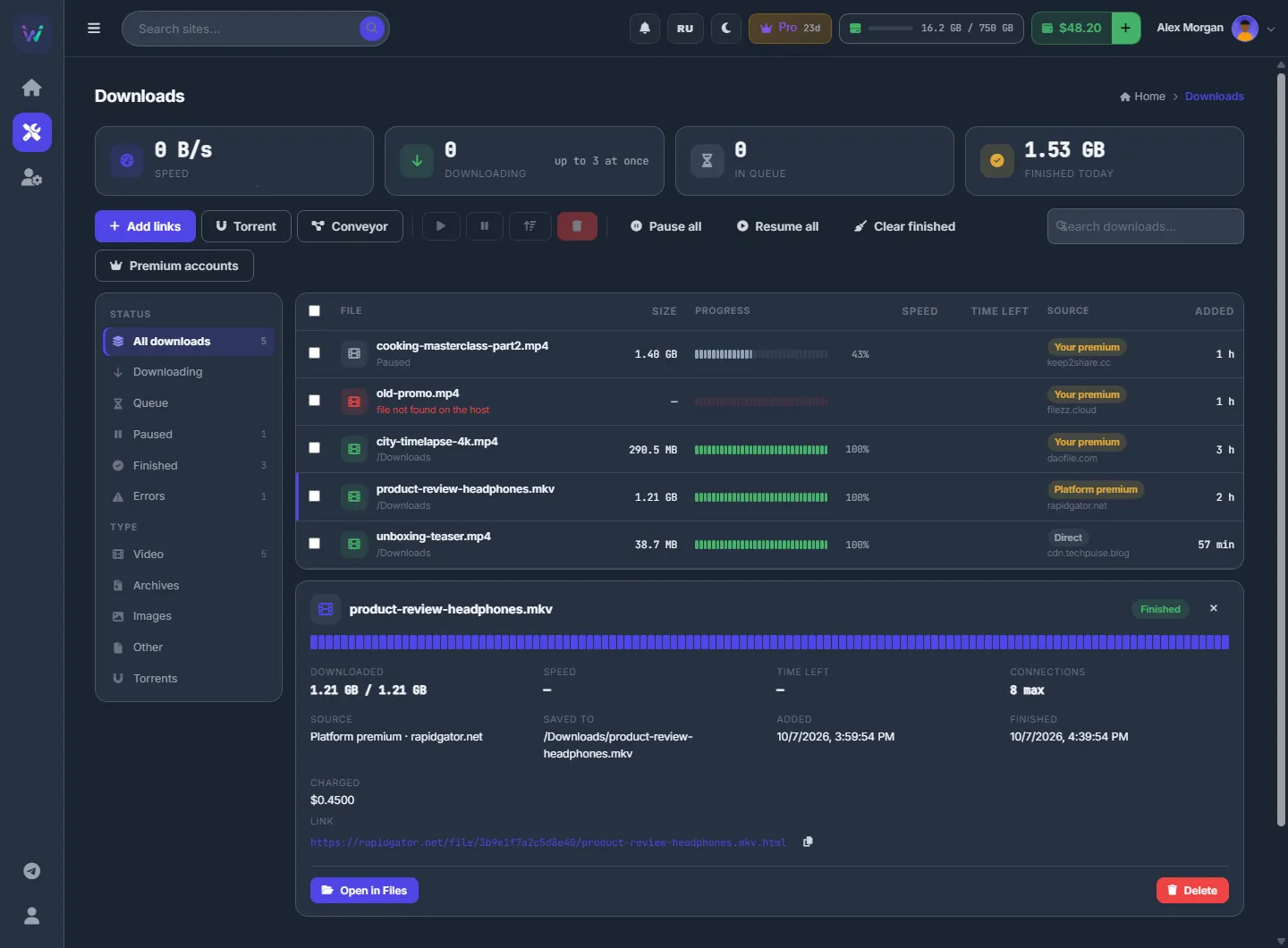
Manage many at once
Tick rows (or press Ctrl+A) and use the toolbar: “Resume selected”, “Pause selected”, “Move selected to the top of the queue”, “Delete selected”. “Pause all”, “Resume all” and “Clear finished” act on the whole list; “Clear finished” only removes the rows — the files stay in your storage.
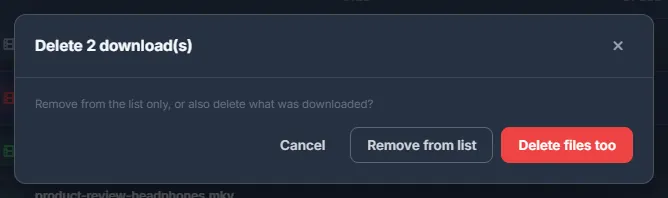
Deleting asks what to do: “Remove from list” keeps the files, “Delete files too” removes them from the storage as well.
How the queue works
- Each account downloads a few files at the same time — the tile shows “up to N at once”, 3 by default. The rest wait in queue order.
- A file-host link is turned into a real download link only when its turn comes, because premium links expire quickly.
- When a download fails, the panel retries it with a fresh link by itself, up to four attempts. A full disk or a file that already exists is not retried.
- “Retry with a fresh link” starts the attempts over.
Quota
As soon as the file size is known, the download must fit your free space together with your other running downloads. Otherwise it stops before using any traffic.
Supported links
- Direct http(s) links to files.
- File hosts with premium support: Keep2Share, TezFiles, FileBoom, Publish2, Rapidgator, Nitroflare, 1fichier and XFileSharing sites — DaoFile, TakeFile, Rapidcloud, Katfile, DDownload and others, plus any XFileSharing site you add.
- Magnets and .torrent links.
Other kinds of links (ftp:, bare words) are skipped with a note.
Settings
| Setting | What it does |
|---|---|
| Connections per file | 1, 4, 8 or 16. Can be changed later in the details of an unfinished download. |
| Speed | Per download: Unlimited, 256 KB/s, 1, 5, 10 or 25 MB/s. |
| Folder | The target folder in the storage; remembered for next time. |
Costs
Direct links and your own premium accounts cost nothing in the panel — only storage space. Downloads through WPManager’s shared premium are paid per GB from your balance; see Premium accounts and premium download prices.
Troubleshooting
| What you see | What to do |
|---|---|
| “No premium account for this host” in the dialog | Add your premium account with “Add account”, or check whether WPManager’s shared premium covers this host. Without premium the host may not give the file at all. |
| Error “file not found on the host” | The file was removed from the host. Retrying will not help — find another link. |
| “login failed” or “premium traffic is used up” | Check the account in “Premium accounts” with “Check now”: the password changed, the premium expired or the traffic is over. |
| An error about “a local or private network address” | Links that lead into private networks are refused for security. Use a public link. |
FAQ
Do I need to keep the browser open?
No. Downloads run on the server; the page only shows the progress.
Can I download into a particular folder from Files?
Yes. Open the folder in Files and press “From URL” — the dialog opens with that folder as the target.