
Installing and connecting the WPManager plugin
The free WPManager API plugin connects a WordPress site to the panel with a secret API key. Without it the panel can only ping the site. With it you get WordPress and PHP versions, disk sizes, one-click updates, visitors online and traffic analytics, backups, security scans and publishing.
On this page
Where to find it: “Download plugin” in the “Add New Site” dialog, and the site page → Settings → Connection.
Before you start
- WordPress 5.6 or newer and PHP 7.4 or newer.
- A WordPress administrator account that can install plugins.
- Permalinks set to anything except “Plain” (WordPress → Settings → Permalinks): the panel talks to the site through
/wp-json/. - The site added to the panel — or add it in the same go, with the key (see Adding, editing and removing sites).
What the plugin enables
- WordPress and PHP versions kept fresh on every check, and a more precise availability check: the plugin’s health address runs through PHP, so a page cache cannot hide a broken site.
- Database and file sizes: the “Size” column on the Dashboard and the “STORAGE” card on the Overview tab.
- Pending core, plugin and theme updates, installed in one click.
- Visitors online, traffic analytics, sessions and the Globe.
- Backups, the security scanner and the WordPress-level firewall.
- Publishing posts from Files and the Conveyor.
Without the plugin the site is only pinged, and the Dashboard counts it under “No plugin”.
Connect a site
-
Download the plugin
Any of these works: the “Download plugin” button in the “Add New Site” dialog; the wpmanager-api.zip link in the API key dialog (the key icon in a Dashboard row); the link under “How to connect” on the site’s Settings → Connection tab. You get
wpmanager-api-<version>.zip— version 8.13 at the time of writing. -
Install it in WordPress
In wp-admin go to Plugins → Add New (“Add New Plugin” in recent WordPress) → Upload Plugin. Choose the ZIP, click “Install Now”, then “Activate”. On activation the plugin creates its API key and the small tables it uses for visitor statistics.
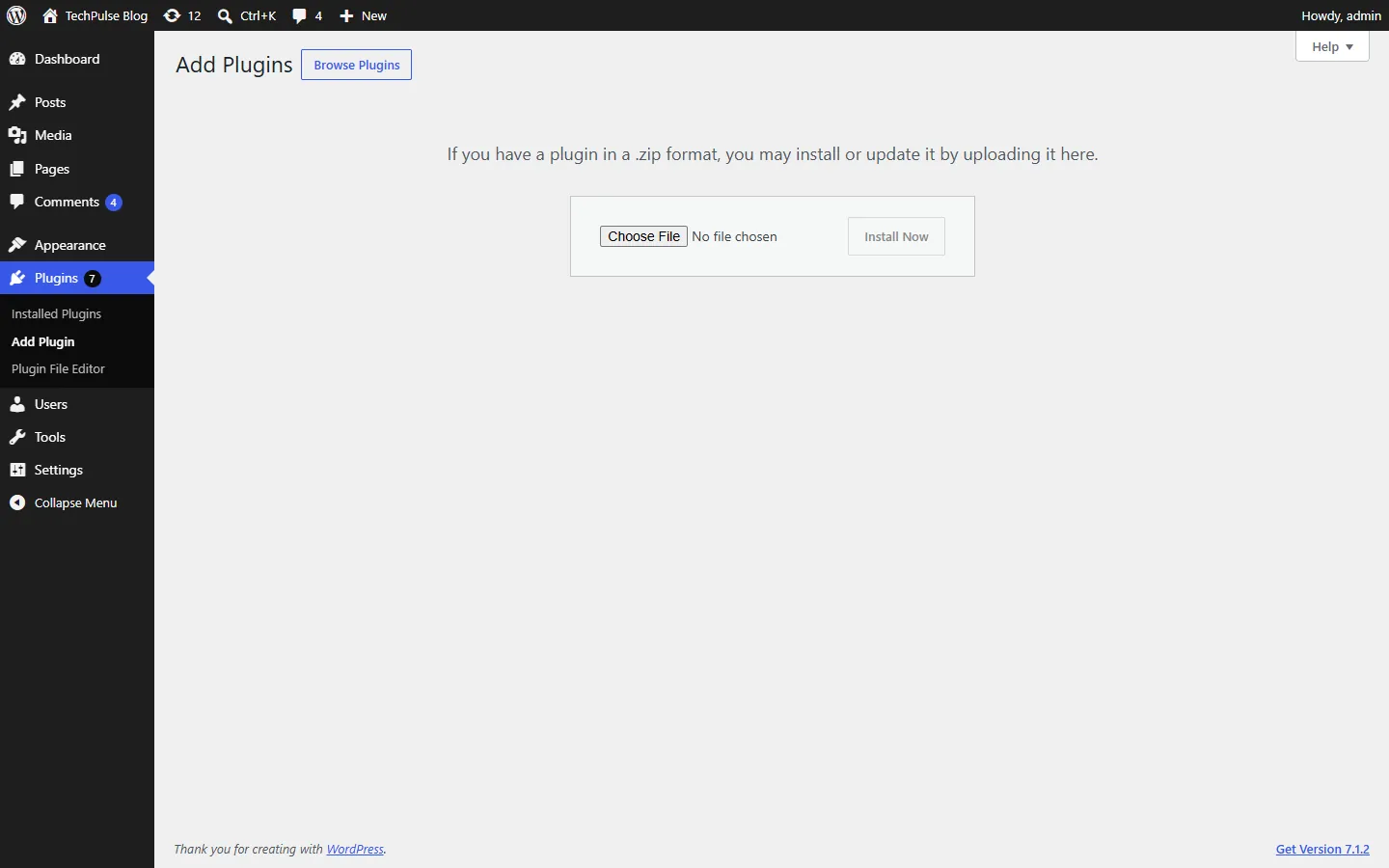
Fig. 1 WordPress: Plugins → Add New → Upload Plugin. -
Copy the API key
In wp-admin open Settings → WPManager API, or click the “Settings” link under the plugin in the plugin list. The page “WPManager API Settings” shows the “API Key” — a read-only field of 32 characters — and the “API Endpoint”. Copy the key.
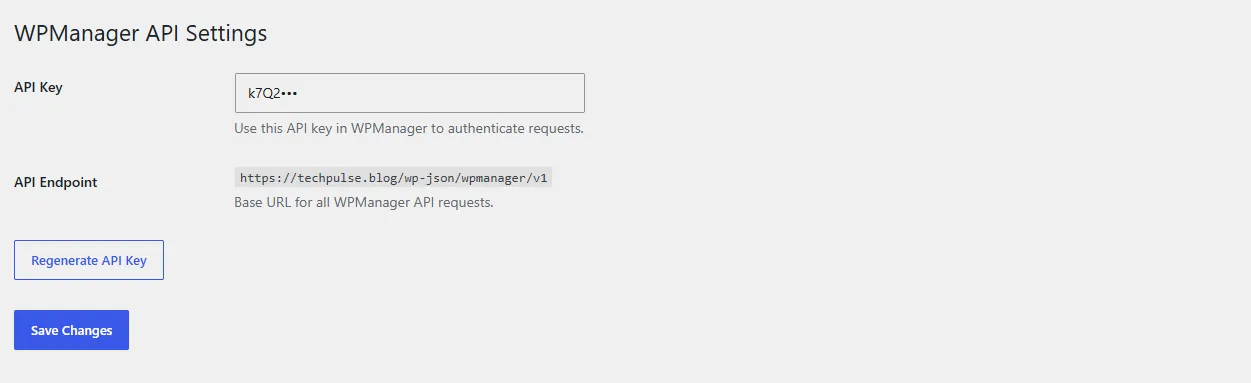
Fig. 2 WordPress → Settings → WPManager API: copy the API key from here. -
Paste the key into the panel
Any of three places does the same job:
- the “API Key” field when you add the site;
- on the Dashboard, the key icon in the site’s row → the dialog “WPManager API Key – <site>” → paste → “Save key”;
- the site page → Settings → Connection → “API Key” → “Save”.
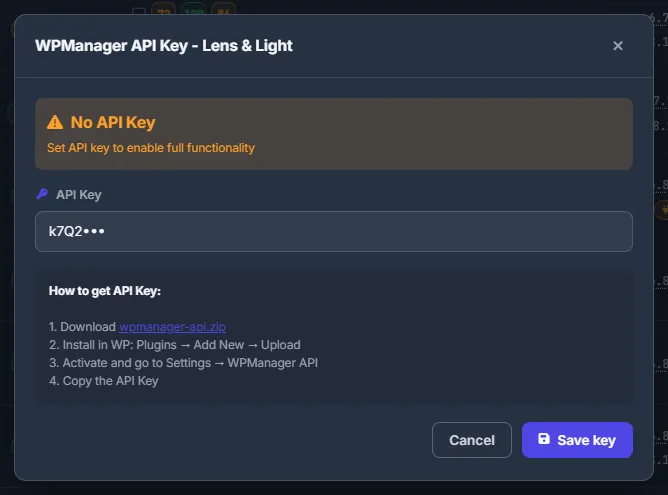
Fig. 3 Paste the key straight from the Dashboard: the key icon in the site row. -
Let the panel check the connection
The panel calls the plugin right away. On success the “Connection” tab shows “Connected — WPManager plugin is active • WordPress <version>”, and the Dashboard row gets the plugin tag (for example v8.13), the WordPress and PHP versions, the disk size and the visitors-online counter. When you save the key in the add dialog or in the Dashboard key dialog, the panel also updates an older plugin build right away.
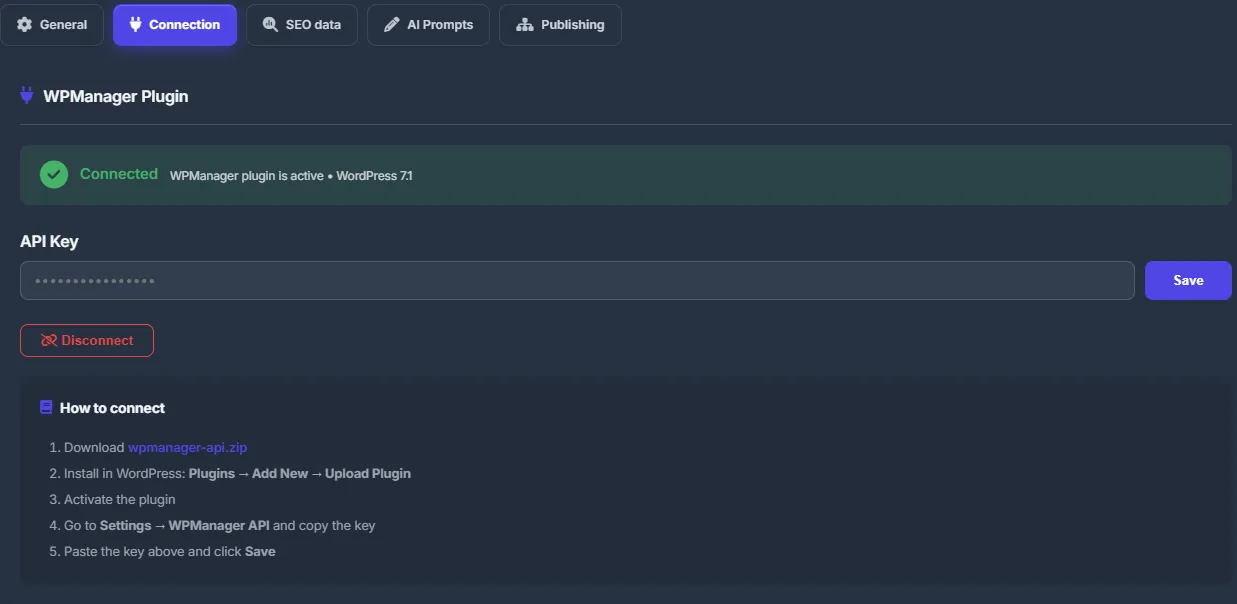
Fig. 4 Settings → Connection: the plugin is connected.
If the site does not connect
When a key is saved but the check fails, the “Connection” tab shows “Key saved, not verified” and then the reason, with the exact fix:
- “Blocked by Cloudflare” — Cloudflare answers with a browser check instead of passing the request to WordPress;
- “Key rejected” — the plugin answered but refused the key;
- “Plugin not found” — the plugin’s address returns 404;
- “Blocked by a firewall” — the server answers 403 before WordPress runs;
- or another HTTP answer, a timeout or an unreachable site.
Next to the message are the buttons you need: “Allow <panel IP> in Cloudflare” (when the site’s Cloudflare is connected in the panel), “Copy IP <address>” and “Check again”. What to do in each case is listed under Troubleshooting.

Keep the plugin up to date
While the plugin is connected you never have to upload the ZIP by hand again:
- When you add a site with a key, or save a key in the Dashboard key dialog, the panel compares versions and updates an older plugin automatically.
- On the Dashboard, click the plugin tag in a row (for example v8.12 with the circular arrow). The “Updating Plugin” window uploads the current build to the site and activates it — “Updated successfully!”. The window shows the installed and the current version (for example “v8.12 → v8.13”); the click reinstalls the current build even when the versions are the same — the tag’s tooltip says so: “Click to reinstall the plugin (latest build)”.
- On the site’s Overview tab the “CACHE” card shows “Update plugin” when it detects an older build.
- The “Updates” dialog offers to update the plugin when it is older than 7.5.
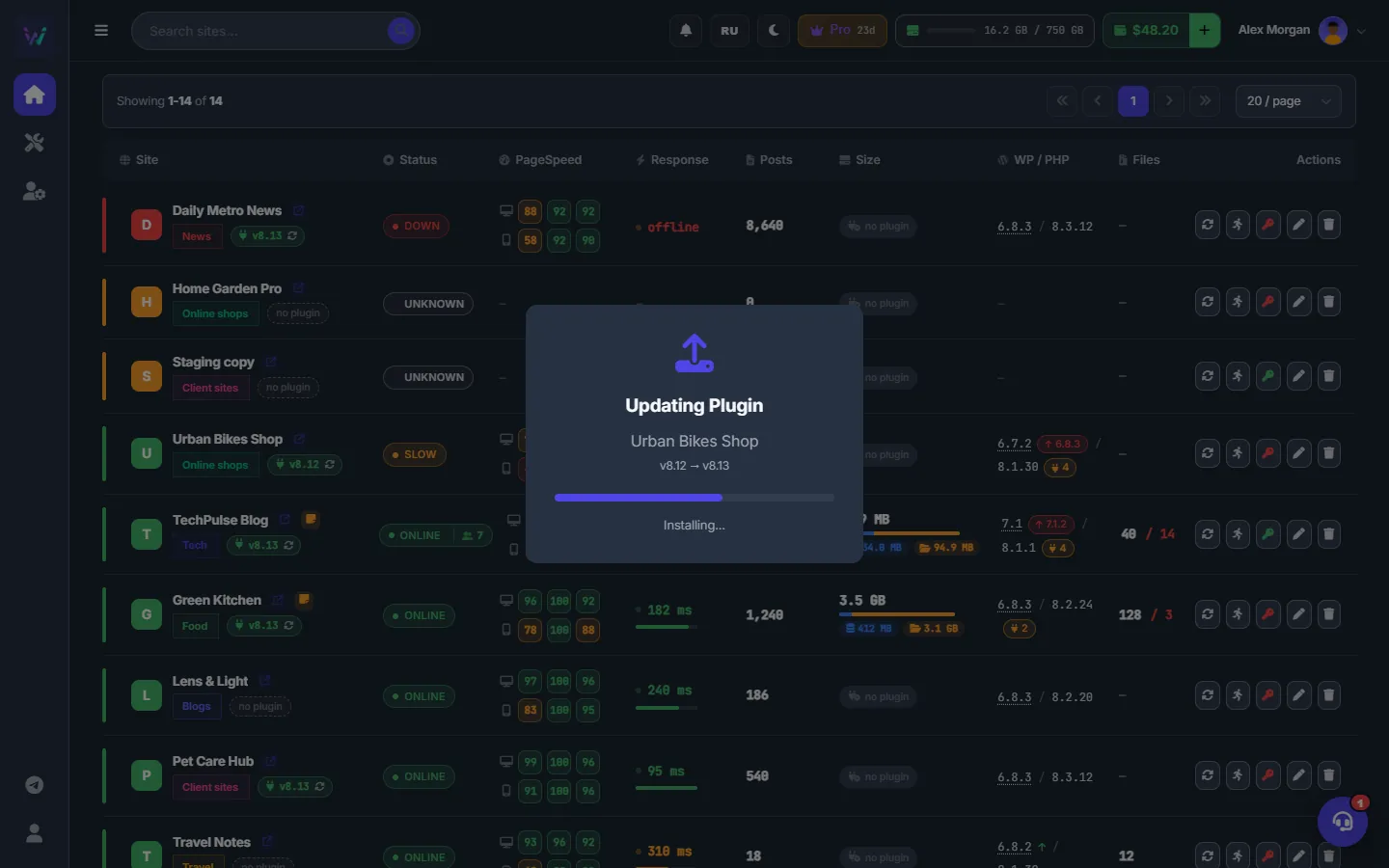
The plugin version on all sites
“Check all” on the Dashboard re-checks every active site and refreshes the WordPress and PHP versions and the post counts. The plugin’s own version is refreshed by the background check of each site; the Dashboard row shows it as a tag, for example v8.13. The checks do not install or update anything.
Change or remove the key
- In WordPress, “Regenerate API Key” on the “WPManager API Settings” page creates a new key. The panel loses access until you paste the new one.
- In the panel, Settings → Connection → “Disconnect” (confirm “Disconnect WordPress”) clears the saved key and marks the site as not connected.
- “Save” with an empty field, while a key is already saved, does not wipe it: it checks the saved key again.
Cloudflare and security plugins
The panel’s requests carry WPManager in the user agent — the connection check sends WPManager/1.0 (+https://wpmanager.online) — and come from the panel’s IP address, which the diagnosis message shows. If Cloudflare challenges them, or a firewall (Wordfence, iThemes, a hosting WAF) answers 403, allow that IP:
- in Cloudflare: Security → WAF → Tools → IP Access Rules → Allow;
- in a security plugin or the hosting firewall: add the IP to its allow list.
If the site’s Cloudflare is already connected on its Cloudflare tab, the “Allow <IP> in Cloudflare” button adds the rule for you and checks again. The Cloudflare token needs the Firewall Services: Edit permission — see Connecting Cloudflare.
The key in WordPress and in the panel
| Where | How it works |
|---|---|
| API Key in WordPress | Created on activation; read-only; “Regenerate API Key” replaces it. |
| API Key in the panel | Stored per site and shown masked (••••). Set it in the add dialog, the key dialog or on Settings → Connection. |
Costs
The plugin and connecting it are free on every plan.
Tips
- If a site sits behind Cloudflare, connect Cloudflare on the site’s Cloudflare tab first: the connection check can then add the allow rule in one click.
- After moving many sites to a new server, press “Check all” on the Dashboard: the WordPress and PHP versions refresh at once, the plugin version at each site’s next background check.
Troubleshooting
| What you see | What to do |
|---|---|
| “Blocked by Cloudflare” | Allow the panel IP shown in the message in Cloudflare (Security → WAF → Tools → IP Access Rules → Allow), or press “Allow <IP> in Cloudflare”. Then click “Check again”. |
| “Key rejected” | Copy the key again from WordPress → Settings → WPManager API (it may have been regenerated) and save it in the panel; watch for extra spaces. If the key is right, a security plugin may be closing the WordPress REST API to visitors: allow /wp-json/wpmanager/ in its settings. |
| “Plugin not found” | Make sure the plugin is installed and active and that permalinks are not set to “Plain” (WordPress → Settings → Permalinks). |
| “Blocked by a firewall” | Allow the panel IP in your security plugin or the hosting firewall (Wordfence, iThemes, the host’s WAF). “Copy IP” copies the address. |
| “The site answered 200 but not with the plugin’s JSON — a cache or security plugin is rewriting /wp-json/.” | Exclude /wp-json/ from page caching and from the security plugin’s rewrite rules, then click “Check again”. |
| “The site did not answer within 12 seconds.” or “Could not reach the site” | Open the site in a browser. If it works, the server may be slow or blocking the panel; click “Check again” later. |
| The site shows “Connected”, but updates, sizes or posts fail with an authorization error | The connection check confirms that the plugin answers at the site’s address; the key itself is used when the panel reads or changes WordPress. Copy the key again from WordPress → Settings → WPManager API and save it in the panel. |
| Updating the plugin from the panel fails (“rest_no_route”, “This plugin build is too old for remote update”) | Download the fresh ZIP and upload it in WordPress (Plugins → Add New → Upload Plugin), replacing the installed version. Later updates work from the panel again. |
FAQ
Do I need a WordPress application password or my admin login?
No. The panel connects with the plugin’s API key only.
Does the plugin change my database?
On activation it adds its own tables for visitor statistics (visits, events and bad-bot records) and stores its key in the WordPress options. It does not alter your posts.
Which plugin version do I have?
The plugin tag in the Dashboard row (v…) shows it, and so does the name of the downloaded ZIP.