
Premium accounts and premium download prices
Add your premium logins of file hosts so the server downloads other people’s files at full speed — or use WPManager’s shared premium and pay per GB from your balance.
On this page
Where to find it: Links & files → Downloads → “Premium accounts”.
Before you start
- A premium account on a file host — or money on your balance for WPManager’s shared premium (see USD balance and top-up).
Add a premium account
-
Open Premium accounts
On the Downloads page press “Premium accounts”. The same button is in the add-links dialog, and a host without premium has an “Add account” button there. When WPManager’s shared premium is connected on some hosts and a price per GB is set, the top shows which hosts it covers (“Platform premium”) and its price per GB. The table lists your accounts: “File host”, “Login”, “Status”, “Premium until”, “Traffic left”, “Downloaded” and “Use”.
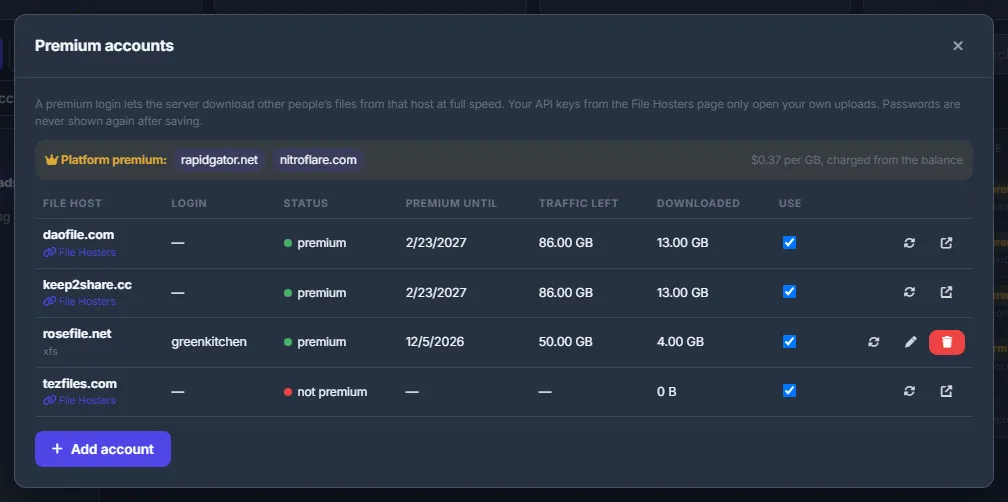
Fig. 1 Your accounts with their premium dates and traffic; above them, the hosts the shared premium covers. -
Fill in the account
Press “Add account”. Choose the “File host” from the list, or “Other XFileSharing site…” and type its address. Enter the “Login” (“E-mail” for Nitroflare) and the “Password” — for 1fichier the field is “API key (premium)”, for Nitroflare “Premium key”.
Some XFileSharing sites ask for a captcha when you log in. For them, log in in your browser and paste that site’s cookie into “Session cookie (optional)”.
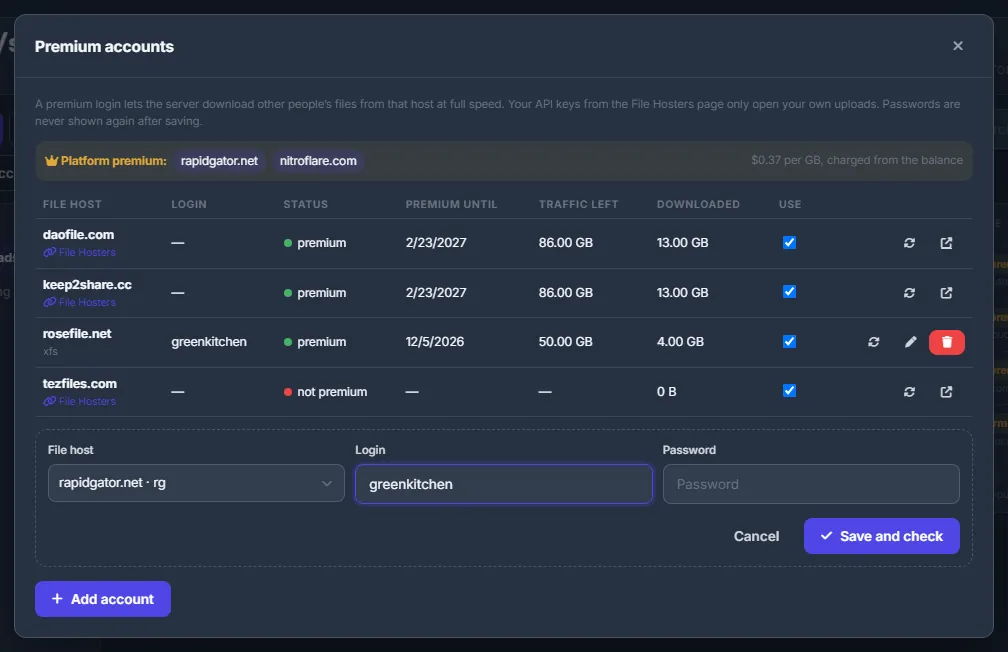
Fig. 2 Adding a rapidgator.net login under the list of accounts. -
Save and check
Press “Save and check”. You see “Premium confirmed”, or the status the host returned.
Keep the accounts working
- “Use” switches an account on or off for downloads.
- The round-arrow button (“Check now”) refreshes the status, the premium date and the traffic left.
- “Edit” and the trash button change or delete your own accounts.
Passwords are never shown again after saving.
Accounts from the File Hosters page
Hosts you added on Links & files → File Hosters appear here by themselves, marked “File Hosters”. Here you can switch “Use” and check them; their login is changed on the File Hosters page — the arrow button “Edit on the File Hosters page” takes you there. See File host accounts.
Which account a link uses
For every link the panel takes the first that fits:
- your own premium account on that host;
- WPManager’s shared premium;
- your API key from the File Hosters page — it opens only files uploaded to your own account;
- nothing — the dialog says “No premium account for this host”.
The add-links dialog shows the choice for every host before you start.
How the shared premium is charged
- The price per GB is shown in the add-links dialog and, when it is set, in “Premium accounts”. Some hosts may cost more than others.
- Your plan may include free premium GB each month — the plan card then says “N GB/mo premium downloads”. They are used first.
- A download is charged once, when it finishes. The amount appears as “Charged” in its details.
- Before and during the download your balance must cover this file together with your other running shared-premium downloads. Otherwise the download stops with “Top up your balance: this file costs $… through the platform premium”.
- If you delete an unfinished shared-premium download together with its file, the traffic it has already used is charged.
Settings
| Setting | What it does |
|---|---|
| Use | Whether the account is used for downloads. |
| Session cookie (optional) | Only for XFileSharing sites that show a captcha on login: log in in your browser and paste that site’s cookie. |
Costs
Your own premium accounts are free in the panel. The shared premium costs the price per GB shown in the dialog (some hosts more), after the premium GB your plan includes this month, and is charged from your balance when a download finishes. Top up the balance as described in USD balance and top-up; every charge is listed in your transactions (see What you pay for).
Troubleshooting
| What you see | What to do |
|---|---|
| The status shows “login failed”, “expired” or “not premium” | Fix the password with “Edit”, renew the premium on the host, or switch the account off. |
| “logged out right after login — the site may need a captcha, paste your browser cookie instead” | Log in to the site in your browser, copy its session cookie and paste it into “Session cookie (optional)”. |
| “Top up your balance: this file costs $… through the platform premium” | Top up the balance, or add your own premium account for that host. |
FAQ
Can other clients use my premium account?
No. Your accounts work only for your downloads. The logins behind the shared premium are never shown to anyone either.
Why does my API key not download other people’s files?
A file host’s API key opens only the files in your own account. To download other people’s files at full speed you need a premium login — yours or WPManager’s shared one.