
Google Analytics 4
If you already use Google Analytics 4, connect its property to see users, sessions, page views, bounce rate, traffic sources, devices, top pages and countries right on the site page.
On this page
Where to find it: Overview → Dashboard → click the site → Analytics → “Google Analytics”.
Before you start
- Your plan includes “Google integration” (to connect) and “Advanced analytics” (to load the data).
- A GA4 property that collects data for the site, in a Google account you can sign in to.
Connect GA4
-
Sign in with Google
Open Analytics → “Google Analytics” and press “Connect with Google”. Sign in and allow read-only access. The same sign-in covers Search Console and Analytics together.
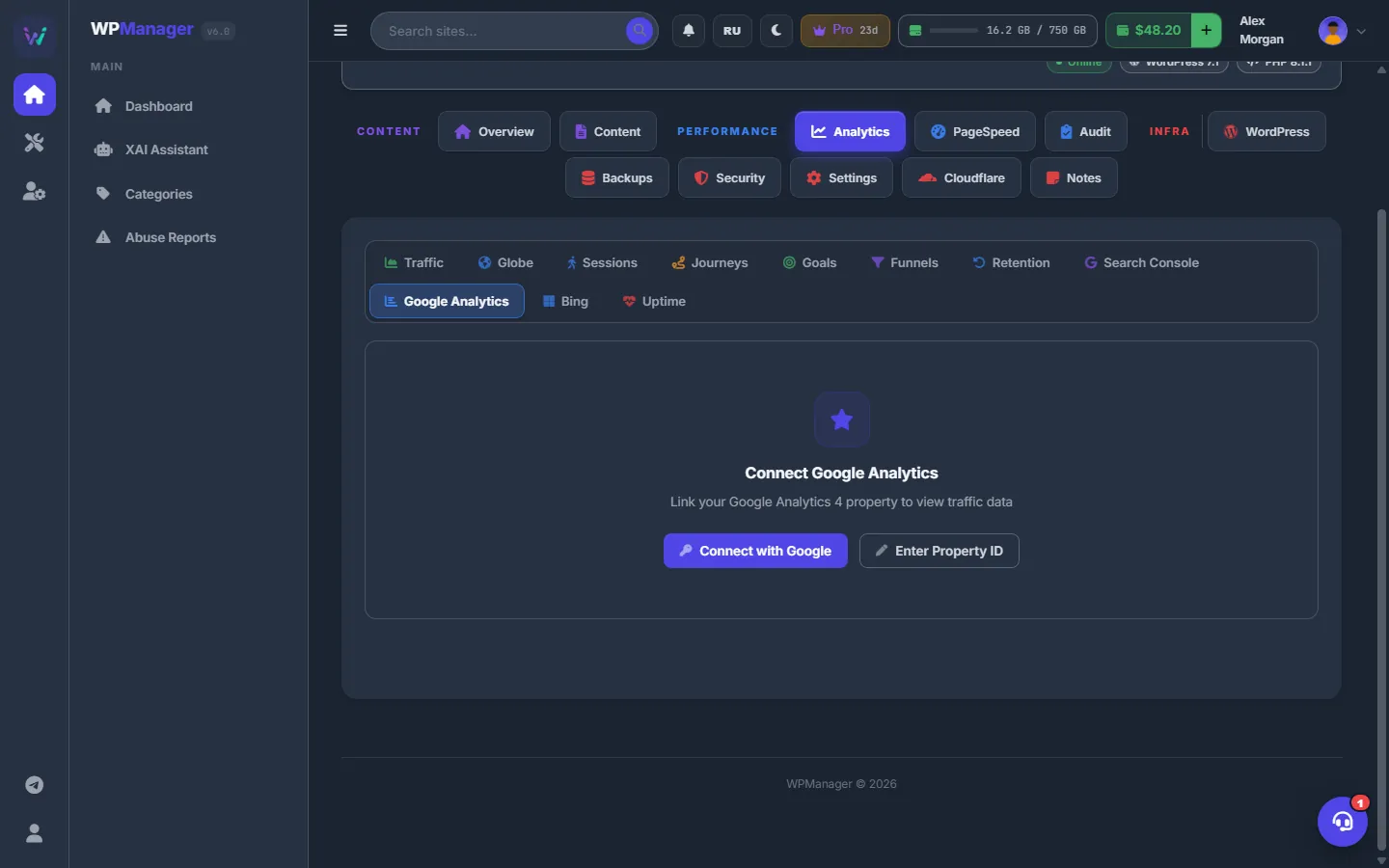
Fig. 1 Connect GA4 with a Google sign-in or by Property ID. -
Pick the property
“Select the Analytics property for this site:” lists your GA4 properties, each with a match badge: Exact Match, WWW Variant, Same Host, Same Domain or Name Match. Click the right one; “Google Analytics connected!” confirms it.
Read the data
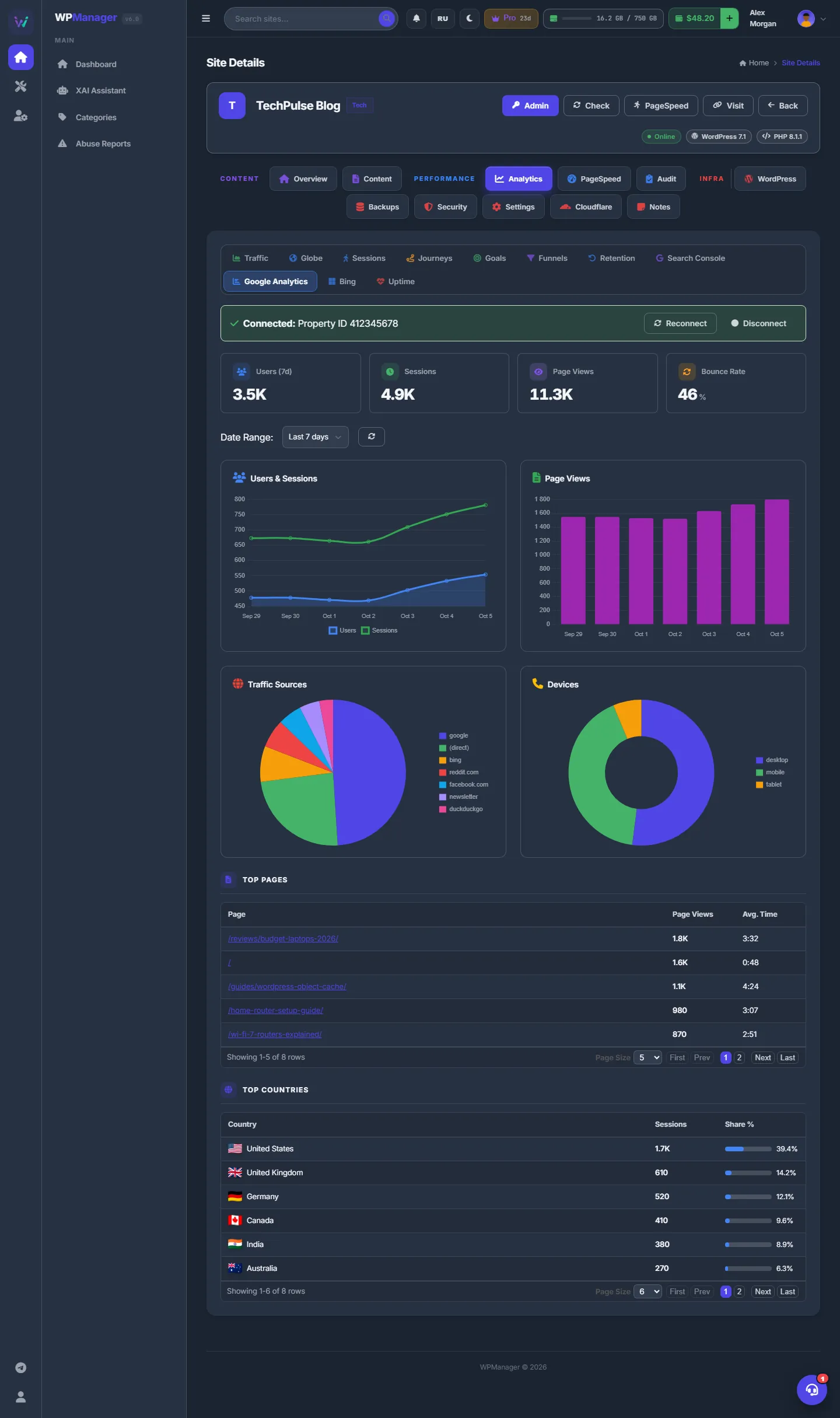
A green bar shows “Connected: Property ID …” with “Reconnect” and “Disconnect”. Below it:
- Users (7d), Sessions, Page Views and Bounce Rate;
- “Date Range” — the last 7, 14, 30 or 90 days — with a refresh button;
- the charts “Users & Sessions”, “Page Views”, “Traffic Sources” and “Devices”;
- “Top Pages” (page, page views, average time) and “Top Countries” (country, sessions, share).
Enter a Property ID by hand
“Enter Property ID” saves a GA4 property number — you find it in Google Analytics under Admin → Property Settings → Property ID. The data is still read through your Google sign-in: without it the tab shows “Google Analytics Disconnected”. In that case press “Reconnect Google Analytics” and sign in.
Settings
| Setting | What it does |
|---|---|
| Date Range | Last 7, 14, 30 or 90 days. |
Costs
No balance is used. You need the “Google integration” and “Advanced analytics” features of your plan.
Troubleshooting
| What you see | What to do |
|---|---|
| “Google Analytics Disconnected” | The Google access expired or was revoked, or the property was entered by hand without a sign-in. Press “Reconnect Google Analytics”. |
| Your property is not in the list | Only GA4 properties of the signed-in Google account are listed. Reconnect with the account that has access to the property. |
| GA4 and the panel’s Traffic show different numbers | That is normal: they count differently (GA4 needs cookie consent on many sites, the panel’s counter filters bots in its own way). Compare trends, not exact figures. |