
Photo studio: collages
Join frames, screenshots or photos into one picture — in a row, in a column or in a grid — with matched sizes, gaps, margins, rounded corners and the background you choose.
Where to find it: Content → Photo studio → “Collage”.
Before you start
- Two or more pictures in your storage.
Make a collage
-
Add the pictures
Open the “Collage” tab and press “Add pictures”. At the top of the picker, “From the photo studio” offers the frames, screenlists and collages of your recent video projects — “Add all” takes a whole group, “Open” lets you pick from it. Below, browse the storage, tick pictures (“Tick all” takes the whole folder) and press “Add”.
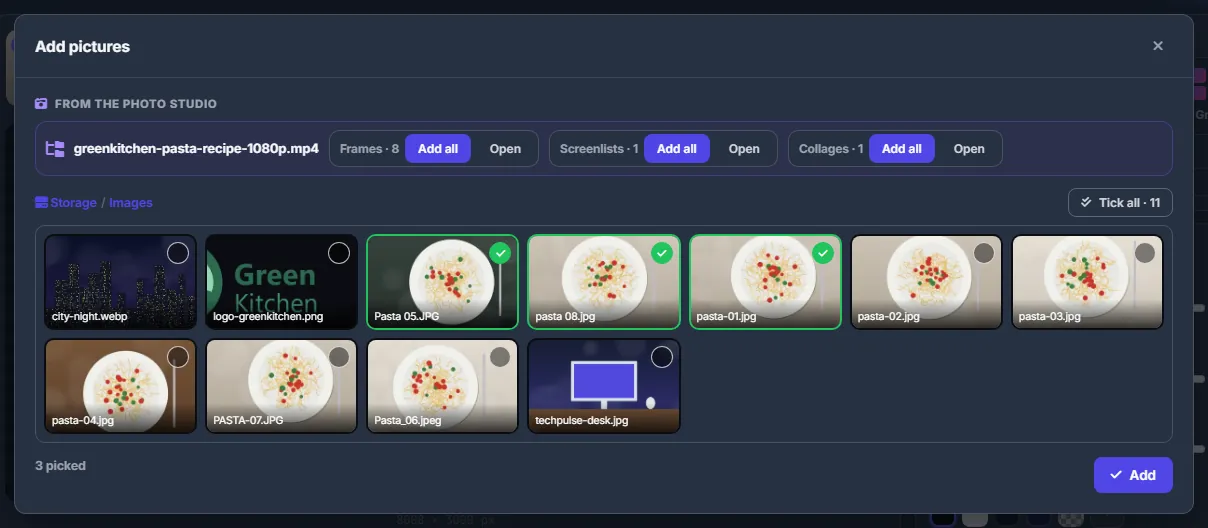
Fig. 1 The frames, screenlist and collage of a video project on top; three photos ticked in the Images folder below. Faster ways in: in Files select two or more pictures and right-click → “Make a collage (photo studio)”, or press “Collage of these” after saving frames (see Photo studio: picking frames from a video).
-
Put them in order
The strip above the preview shows the pictures numbered. The arrows move a picture left or right, × removes it.
-
Choose the layout
“Layout”: “In a row”, “In a column” or “Grid”. For a grid choose the “Columns” (2–5) and “Pictures in the cells”: “Fill (crop edges)” or “Whole (with margins)”. Then match the sizes — “Match heights” for a row, “Match widths” for a column, “Cell width” for a grid: to the smallest, to the biggest or my size, in pixels.
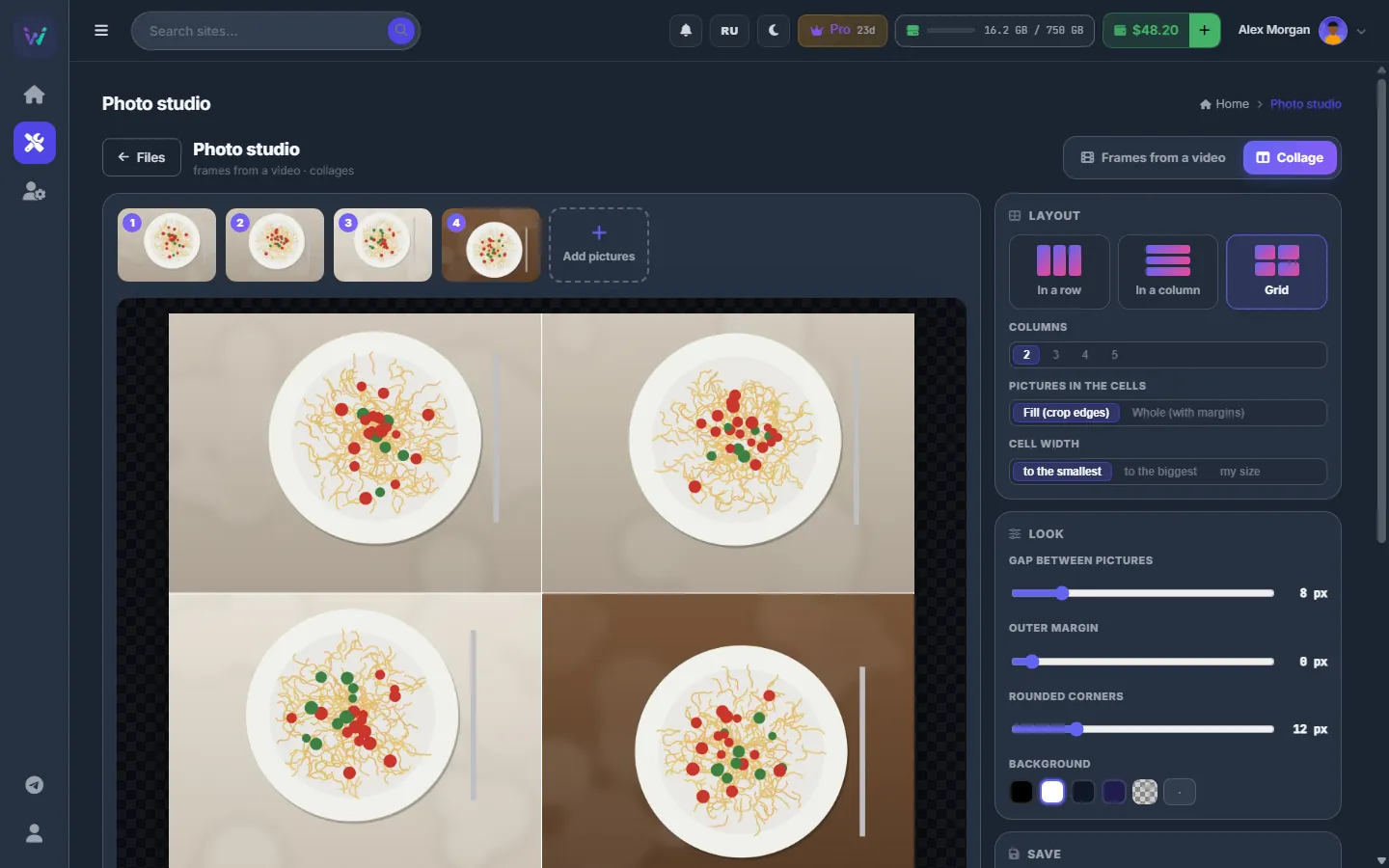
Fig. 2 Four photos in a two-column grid with an 8 px gap, 12 px rounded corners and a white background. -
Style it
Under “Look” set the “Gap between pictures” (0–60 px), the “Outer margin” (0–100 px), “Rounded corners” (0–60 px) and the “Background”: black, white, graphite, indigo, transparent (PNG) or any colour. The preview is drawn live and shows the final size in pixels.
-
Save the collage
Under “Save” choose the “Format” (JPG, PNG, WebP), the “Quality” (for JPG and WebP), “Longest side at most” (as is, 4000, 2560, 1920 or 1280), the “File name” (filled in as
<first picture>_collage) and the “Folder”. Pictures from a video project go into itscollagesfolder, other pictures next to the first one; “Change” picks another folder. Press “Make the collage”. The result card has “Open” and “Open in Files”.
Limits
- Up to 40 pictures in one collage.
- Each picture up to 100 megapixels, all of them together up to 400 megapixels — otherwise you see “The pictures are too large to join…”.
- A transparent background needs the PNG format.
Settings
| Setting | What it does |
|---|---|
| Layout / Look / Save | Remembered in your browser, except the file name, which belongs to the pictures you chose. |
Costs
Free; the collage counts against your storage quota.
Troubleshooting
| What you see | What to do |
|---|---|
| “Could not read: …” after adding | Those files are not readable pictures, so they were left out. The rest of the pictures are added as usual. |
| “The pictures are too large to join…” | Use fewer or smaller pictures — convert big ones with a “Max width, px” first (see Convert pictures). |
FAQ
Can I share a collage on a forum?
Yes. Upload it from Files with “To image host” and copy the forum code from the link manager — see Image hosts: pixhost, pimpandhost, PicState.