
Settings: appearance and AI
The Settings page switches the panel between dark and light mode and shows which AI models WPManager uses for you and your balance. Everything else about AI — which model you chat with, which model the agent uses in a step — is chosen where you use it.
On this page
Where to find it: Account → Settings.
Appearance
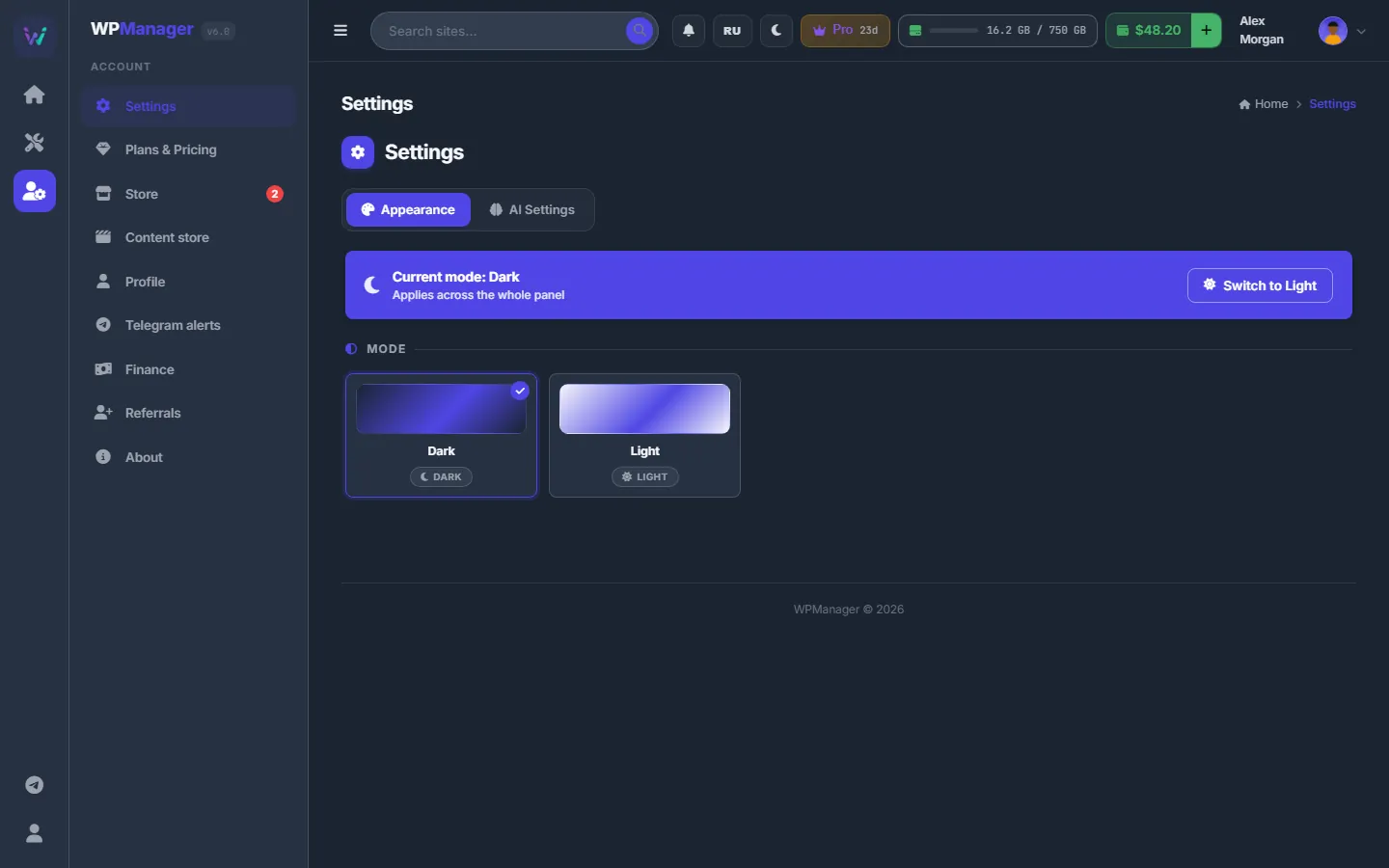
Open Account → Settings; the “Appearance” tab comes first. The strip at the top shows the current mode with a “Switch to Light” or “Switch to Dark” button. Below are two cards, “Dark” and “Light” — click the one you want. The mode applies to the whole panel.
The moon / sun button in the top bar (“Switch theme”) does the same from any page. The choice is saved to your profile and in this browser; see Getting around.
AI Settings
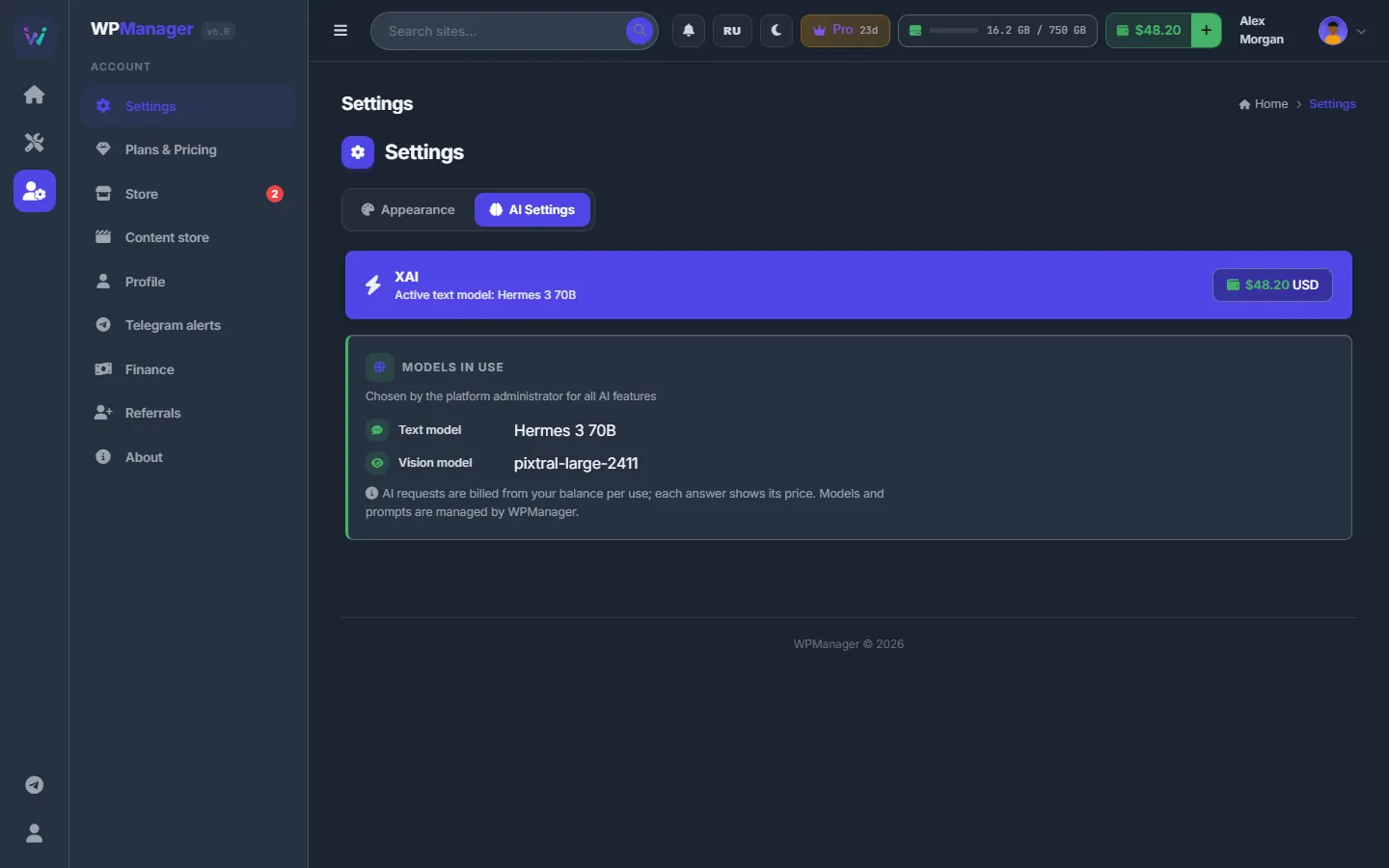
The “AI Settings” tab shows:
- the active text model;
- your balance in USD;
- the “Models in use” card: the Text model and the Vision model that WPManager uses for all AI features.
There is nothing to edit here: models, prompts and API keys are managed by WPManager. AI requests are billed from your balance per use; each answer shows its price.
Where you choose models yourself
- XAI Assistant → the model pill or the “Settings” panel: the chat model and the vision model, per browser. See XAI Assistant.
- Conveyor → step “Title, description, tags (AI)” with “WPManager agent” → Agent model, when several are offered. See the AI step.
- Files → “Post” (Build post) → “WPManager agent” → the model select. See Build post.
Each of these lists shows the agent models with their price per 1M tokens for your account.
How AI is billed
Every AI call is charged to your USD balance per request, by the tokens it used; each answer shows its price.
Each charge is recorded with the feature that made it — post text, rewrite, vision, agent chat and so on. Find them in your Profile under “Transactions” with the “AI” filter. With an empty balance, AI calls are refused with a message to top up. See What you pay for and Profile.
AI options of a site
Each site has its own AI options on its page: Settings → AI Prompts.
- Output Language — the language of AI descriptions, tags and keywords for this site.
- Vision AI Prompt and Tags Generation Prompt — leave them empty to use the built-in prompts.
See Site settings.
Settings
| Setting | What it does |
|---|---|
| Mode | Dark or Light, for the whole panel. |
| Models in use | Read-only: the Text model and the Vision model WPManager uses for AI features. |
| Balance | Read-only: your USD balance, from which AI requests are paid. |
Costs
The page itself is free. AI anywhere in the panel is charged as described in How AI is billed.
Troubleshooting
| What you see | What to do |
|---|---|
| “Could not load the AI settings.” | Reload the page. If it keeps happening, write to support. |
| AI features answer with a balance message | The balance is empty or too low for the request. Top up and try again. |
FAQ
Can I use my own OpenRouter or OpenAI key?
No. AI runs on WPManager’s connection and is paid from your balance; WPManager manages the provider keys.
Why can’t I change the models on this page?
The text and vision models are chosen by WPManager for everyone. You pick models yourself in the XAI Assistant and in the agent steps listed above.