
Link manager
Every link you get from uploads to file hosts, image hosts and your own servers is kept in one place — searchable, grouped by upload batch and ready to copy as URLs, BBCode, HTML, Markdown or a ready post.
On this page
Where to find it: Links & files → Files → side panel → “Links”.
Before you start
- At least one finished upload to a file host or image host — or a file sent to your own server that has a public URL.
Copy your links
-
Open the Links tab
On the Files page, press the link icon at the top of the side panel. The header shows how many links you have.
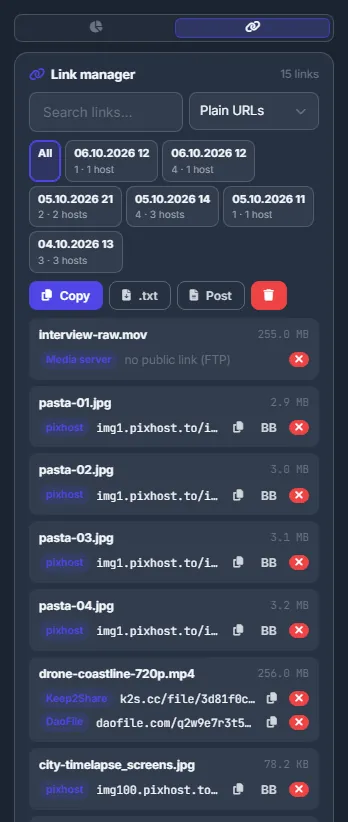
Fig. 1 The link manager: upload batches on top, then every file with its links on each host. -
Pick a batch or search
Under the search, chips show “All” and your latest upload batches — the date and time, the number of links and the number of hosts. Click a batch to see only its links. “Search links…” filters by file name, URL or host name.
-
Choose the format
In the format list choose “Plain URLs”, “BBCode”, “HTML”, “Markdown”, “Name + link” or “Custom template…”. In BBCode, HTML and Markdown, pictures from image hosts are written as a thumbnail linked to the host’s page.
-
Copy, save or make a post
“Copy” puts all the links you see on the clipboard in the chosen format. “.txt” downloads them as a text file. “Post” opens a text grouped by file — the file name and size, then its link on each host — with its own “Copy” button.
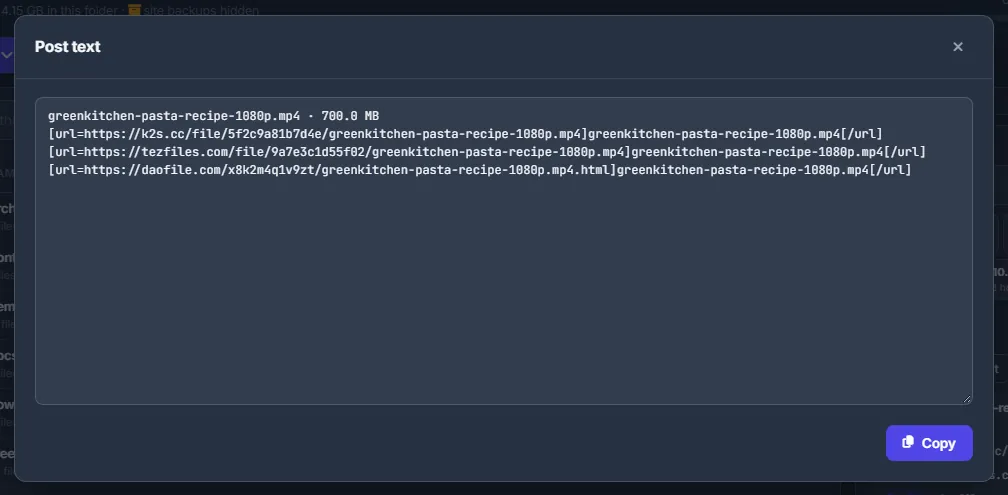
Fig. 2 “Post” in BBCode: one block per file with all its mirrors.
Work with one link
Each link row has the host name (hover it to see the folder on the host), the link itself (opens in a new tab), a copy button, “BB” for pictures (forum code: the thumbnail linked to the page) and × to remove that link from the manager.
The red trash button next to “Post” removes all the links you see from the manager. The files on the hosts stay where they are.
Your own link template
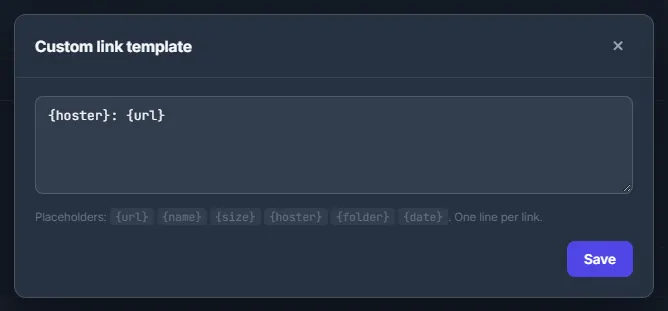
Choose “Custom template…” in the format list and write one line per link. You can use these placeholders:
| Placeholder | What it becomes |
|---|---|
{url} | The link. |
{name} | The file name. |
{size} | The file size. |
{hoster} | The host name. |
{folder} | The folder on the host. |
{date} | When the file was uploaded. |
The default is {hoster}: {url}. Press “Save”; your browser remembers the template.
What gets into the manager
- Uploads to file hosts — from “To file hosts” and from the Conveyor.
- Uploads to image hosts — with the direct link, the thumbnail and the page.
- Single files sent to your FTP / SFTP server when the server has a public URL (see FTP / SFTP servers). FTP uploads to a file host without a public link appear as “no public link (FTP)”.
The list shows up to 500 links of the chosen batch or search.
Settings
| Setting | What it does |
|---|---|
| Format | Plain URLs, BBCode, HTML, Markdown, Name + link or your template. Remembered in your browser. |
Costs
Free.
Troubleshooting
| What you see | What to do |
|---|---|
| “No links yet — upload files to a file host” | Links appear when an upload task finishes. Check the Tasks page for failed uploads. |
FAQ
If I delete a link here, is the file deleted on the host?
No. Only the record in the link manager is removed.
How do I make full forum posts with text and screenlists?
“Post” here gives the links only. For complete posts with a template, screenlists and AI text, use the forum post builder — see Forum posts and themaPoster export.