
Content: your posts in one list
The Content tab of a site page lists the site’s WordPress posts with search, a category filter and quick filters. Find any post, open it, edit it or move it to the Trash without logging in to wp-admin.
On this page
Where to find it: Overview → Dashboard → click the site → Content tab.
Before you start
- The site is added to the panel, and the WPManager plugin is installed and connected on it (site page → “Settings” → “Connection”). Without the plugin the list cannot load. See Installing and connecting the WPManager plugin.
- The site is online. Posts are read live from WordPress through the plugin; the panel does not keep a copy.
Open the post list
-
Open the site page
On the Dashboard click the site’s row. The site page opens at
/Home/Site/<site id>. Under the site name is a row of tabs grouped into CONTENT, PERFORMANCE and INFRA. -
Open the Content tab
Click “Content”. The panel loads the first 100 posts of the site: published posts, drafts, posts pending review and private posts. WordPress pages are not listed. The counter at the end of the toolbar shows how many posts are loaded out of the site’s total, for example “100 / 1,240 loaded”.
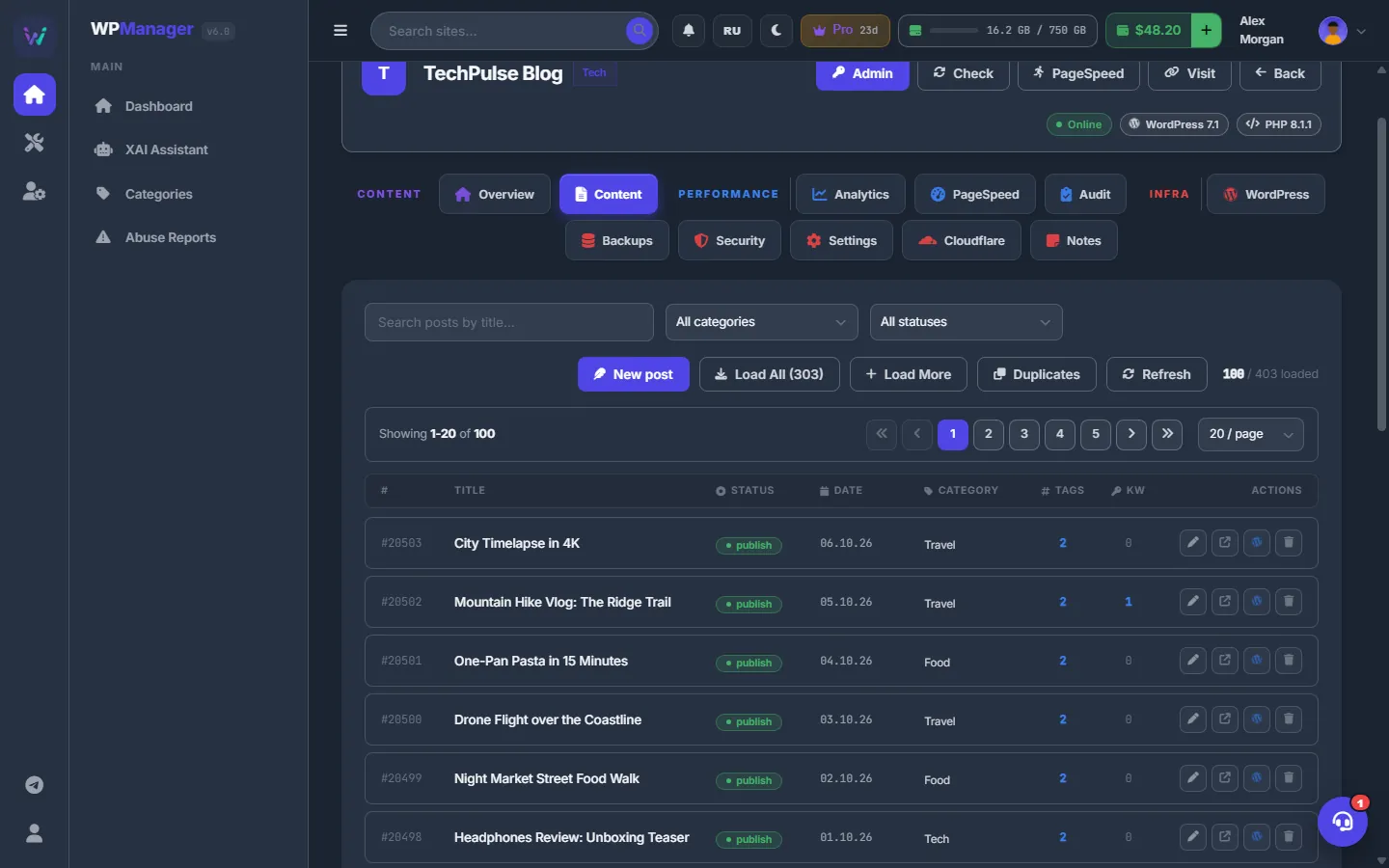
Fig. 1 The Content tab: the toolbar with search and filters, the loaded / total counter and the first page of posts.
Find a post
-
Search by title
Type a word into “Search posts by title...”. Half a second after you stop typing, the search runs on the site itself and the list reloads from the first page. Clear the box with the × button to see all posts again.
-
Filter by category
Pick a category in “All categories”. This filter is applied on the site too, so both the list and the total in the counter show only that category.
-
Narrow the list with the quick filter
The “All statuses” dropdown filters the posts that are already loaded:
- “Without tags” — posts with no tags at all;
- “Without keywords” — posts with no focus keyword;
- “Published” — published posts only (drafts, pending and private posts are hidden).
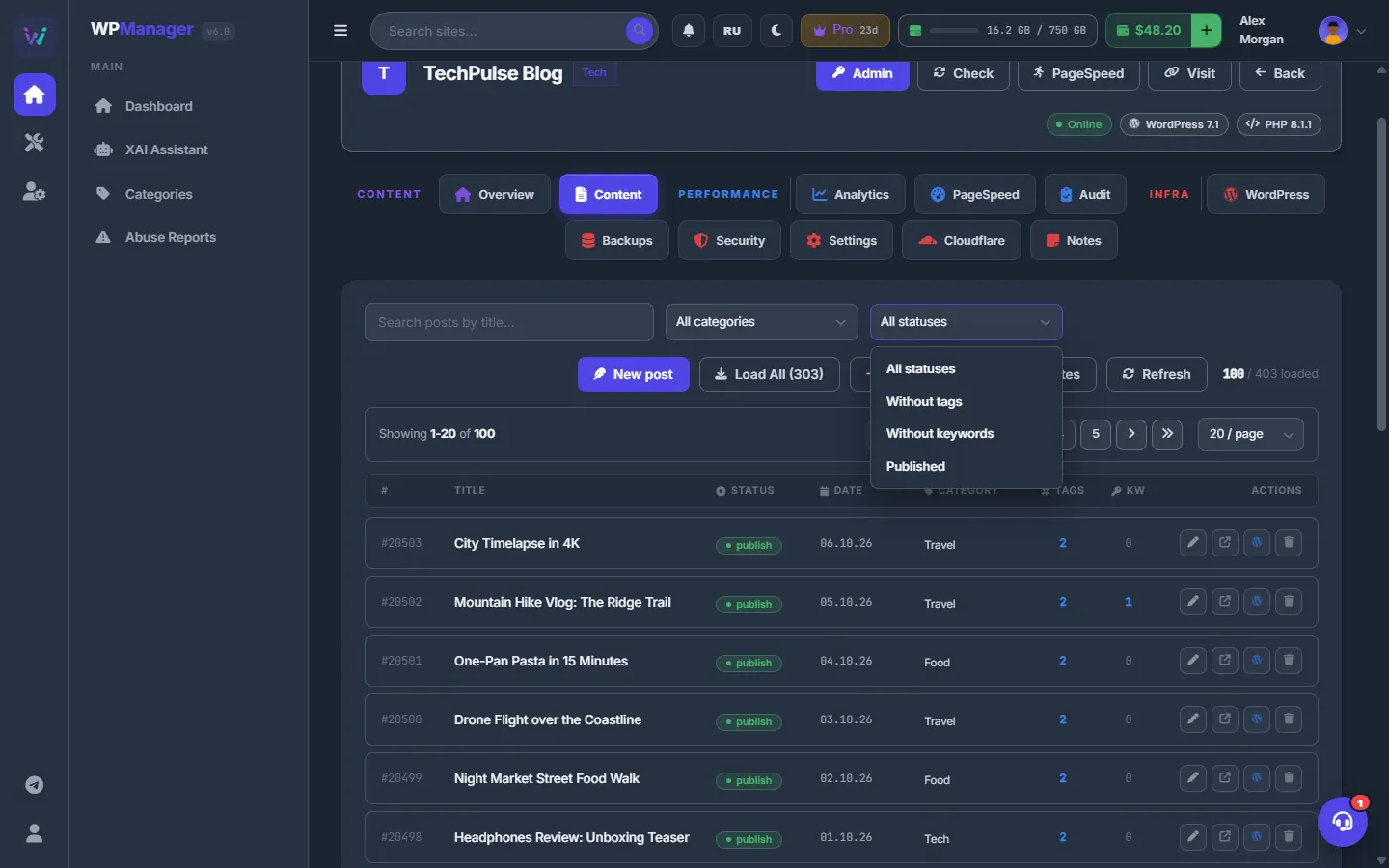
Fig. 2 The quick filter finds posts without tags or focus keywords among the loaded posts.
Load more posts
When the site has more posts than are loaded, two buttons appear in the toolbar:
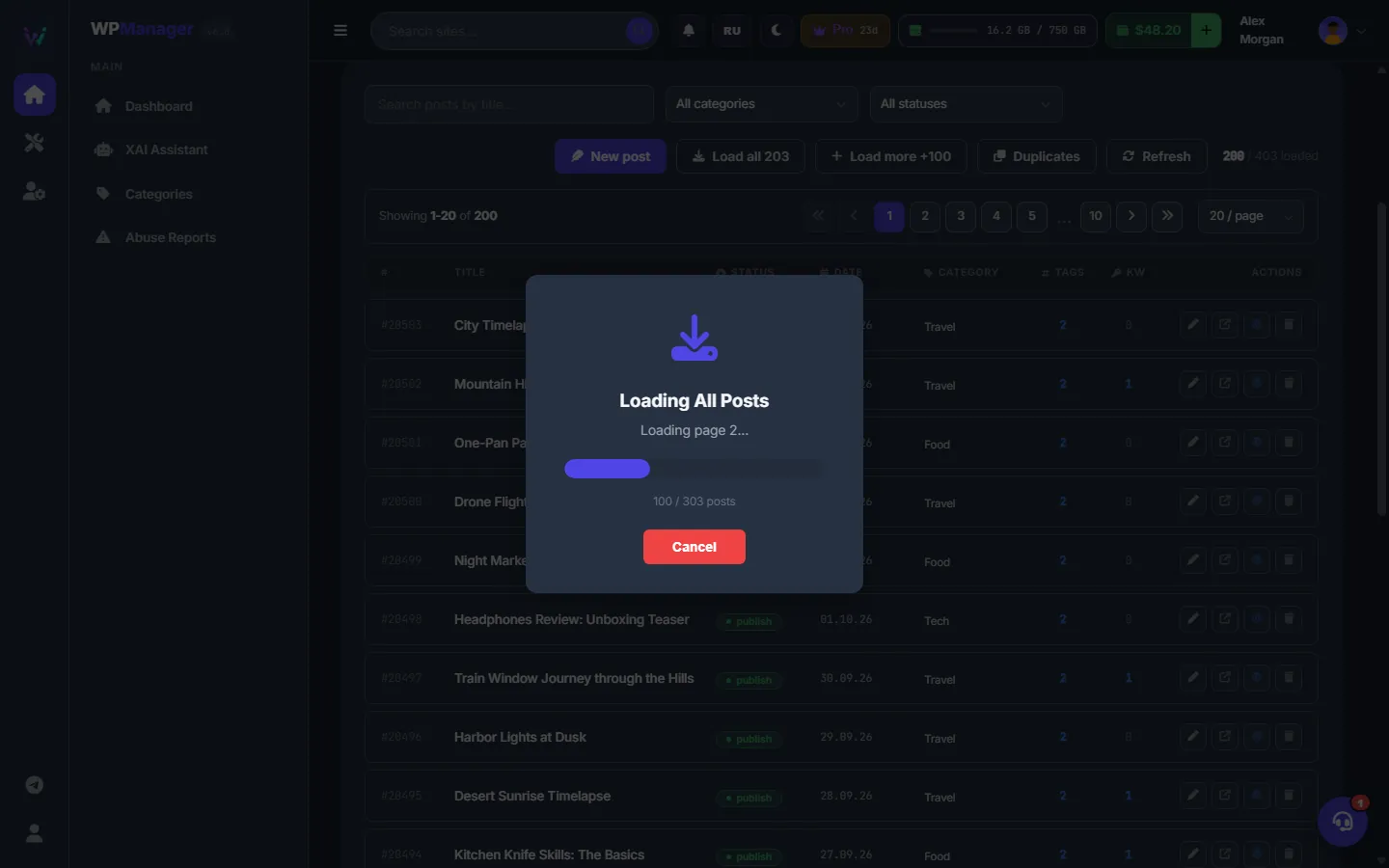
- “Load More” adds the next 100 posts;
- “Load All (N)” reads everything that is left — N is the number of posts still to load. A “Loading All Posts” window shows the progress page by page; “Cancel” stops it and keeps what has been loaded so far.
When every post is loaded, both buttons disappear.
Page through the list
The pagers above and below the table show “Showing 1-20 of N”, the page numbers and the page size: 10, 20, 30, 50 or 100 rows. N is the number of loaded posts. Paging and changing the page size do not reload anything from the site.
What the columns show
| Column | What it shows |
|---|---|
| # | The WordPress post ID. Click it to copy the ID. |
| Title | The post title. Click it to copy the title. |
| Status | publish, draft, pending or private. |
| Date | The publish date as dd.mm.yy. |
| Category | The first category, plus “+N” when the post has more. Hover to see them all. |
| Tags | How many tags the post has. Click the number to open the tag editor with AI suggestions. |
| Kw | How many focus keywords are set. Click the number to open the keyword assistant — see AI tools for posts. |
| Actions | Quick edit, view on site, edit in WordPress, delete. |
Work with a post
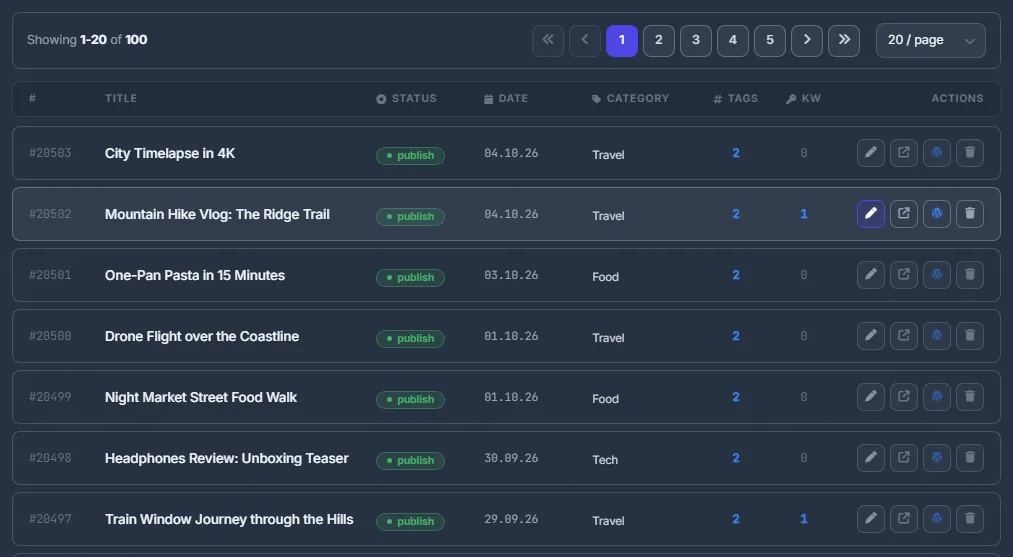
Each row ends with four buttons:
- pencil — “Quick edit”: opens the panel’s own editor (see Editing and creating posts);
- arrow — “View on site”;
- WordPress logo — “Edit in WordPress”: opens the post in wp-admin in a new tab;
- trash — “Delete post”.
Delete a post
Press the trash button and confirm in the “Confirm Delete” window. The post is moved to the WordPress Trash, not erased: you can restore it in wp-admin → “Posts” → “Trash” until the Trash is emptied. The list reloads after the deletion.
Refresh the list
“Refresh” drops everything that is loaded and reads the first 100 posts again. Use it after you changed posts in wp-admin or with another tool.
Settings
| Setting | What it does |
|---|---|
| Page size | 10, 20 (default), 30, 50 or 100 rows per page of the table. |
| Quick filter (“All statuses”) | “Without tags”, “Without keywords”, “Published” — applied to the loaded posts. |
Costs
Free: listing, searching and deleting posts do not use your balance.
Troubleshooting
| What you see | What to do |
|---|---|
| “Failed to load posts” and an empty list | Check that the site is online and the WPManager plugin is connected (“Settings” → “Connection”). A security plugin, firewall or cache that blocks or rewrites /wp-json/ also stops the list from loading. |
| “No posts to display” although the site has posts | A search word, a category or the quick filter hides them. Clear the search box and set the dropdowns back to “All categories” and “All statuses”. |
| A post you just scheduled is not in the list | Scheduled posts are not listed — only published, draft, pending and private posts. Find it in wp-admin. |
FAQ
Are WordPress pages shown here?
No. The tab lists posts only: published, draft, pending review and private.
Is a deleted post gone for good?
No. It goes to the WordPress Trash and can be restored there until the Trash is emptied.
Can I select many posts and delete them at once?
The list deletes one post at a time. To remove many copies of the same post, use the Duplicates tool — see Finding and removing duplicate posts.