
WordPress tab: themes
See every theme installed on a site, switch the active theme, download a theme as a ZIP, delete the ones you no longer use and install new themes from WordPress.org or from your own ZIP.
On this page
Where to find it: Dashboard → click the site → WordPress tab → Themes.
Before you start
- The site is connected with the WPManager plugin (“Connected” on the site’s Settings → Connection tab — see Installing and connecting the WPManager plugin). Otherwise the WordPress tab shows “WordPress not connected”.
Manage the installed themes
-
Open the Themes sub-tab
On the site page open “WordPress” → “Themes”. Each card shows the theme’s screenshot, name and version; the current theme has the “Active” badge and a green frame. Press “Sync Themes” to read the list from WordPress again.
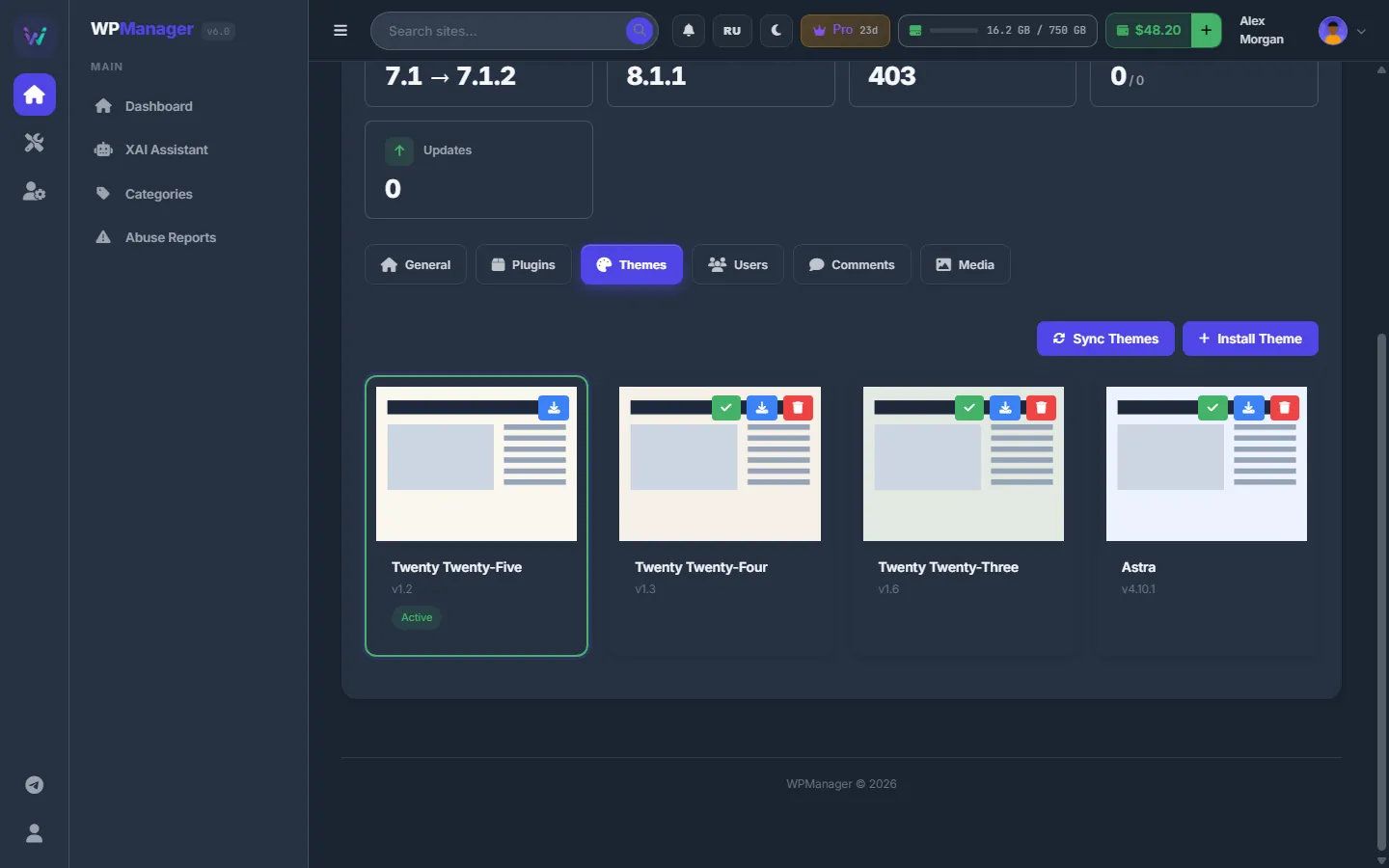
Fig. 1 Installed themes of a site; the active one is framed in green. -
Switch the active theme
On an inactive theme press “Activate theme” (check mark) and confirm. The site starts using it immediately.
-
Download a theme
“Download theme” (download icon) packs the theme on the site and starts downloading the ZIP in a new tab; a message shows the file name and size.
-
Delete a theme you do not use
“Delete theme” (trash) is offered only on inactive themes. Confirm the question that ends with “This cannot be undone.”
Install a theme
-
Search WordPress.org
Press “Install Theme”. In “Search WordPress.org” type at least two letters, or pick a category under “Browse by tag”: Blog, E-Commerce, Portfolio, Photography, Business, News, Entertainment, Education, Full Site Editing or Block Patterns. Results come 12 per page (“← Previous” / “Next →”).
-
Press Install
“Install” on a card adds the theme to the site but does not activate it. Switch to it with “Activate theme” in the list when you are ready.
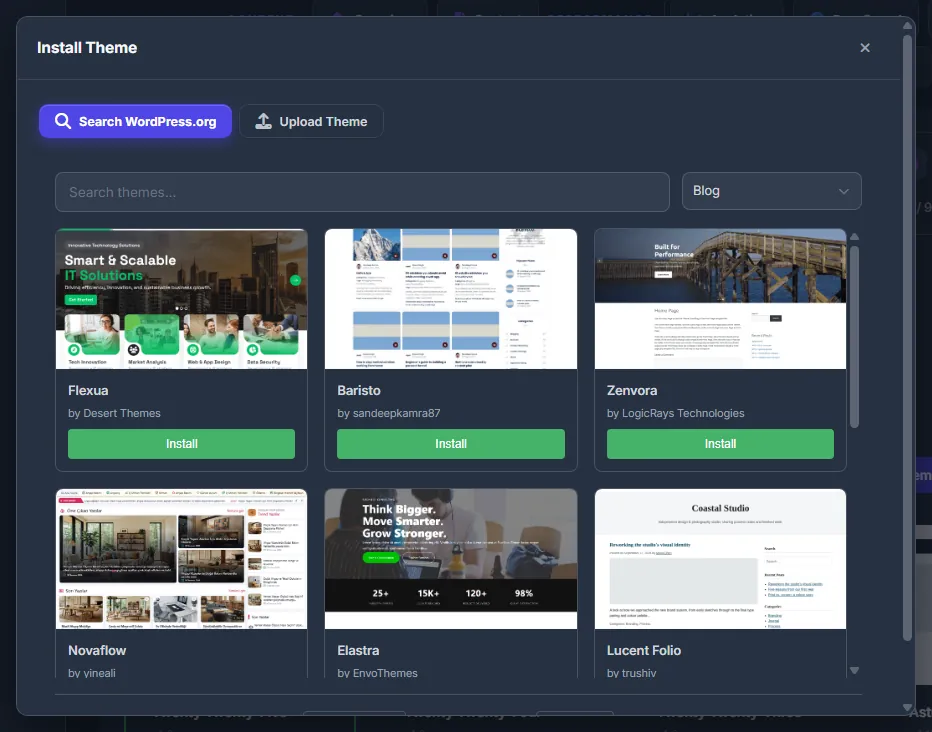
Fig. 2 Finding a theme in the WordPress.org catalogue. -
Or upload a theme ZIP
In the same window open “Upload Theme”, choose or drag a
.zipfile (up to 50 MB) and press “Upload & Install”. The list refreshes by itself.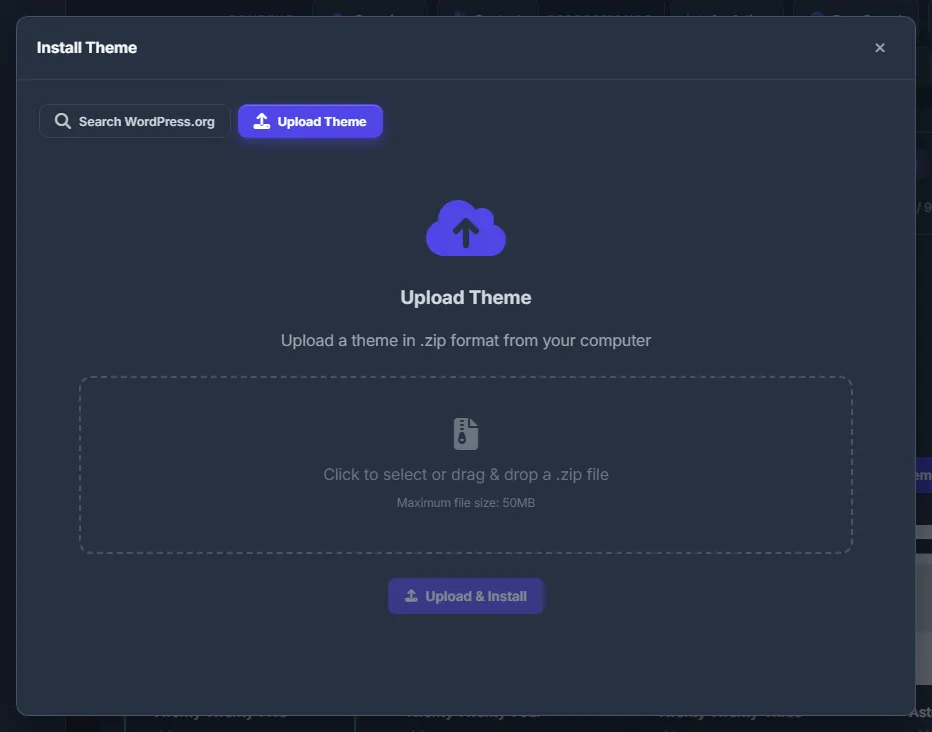
Fig. 3 Uploading a theme ZIP of up to 50 MB.
Theme updates
Themes are updated from the site’s updates window on the Dashboard (the “WP / PHP” column) — see Updating WordPress, plugins and themes.
Costs
Free.
Troubleshooting
| What you see | What to do |
|---|---|
| “No themes found” | Press “Sync Themes” to read the themes from WordPress. |
| A theme has no delete button | The active theme cannot be deleted. Activate another theme first. |
| “File too large (max 50MB)” | Upload bigger themes in wp-admin: Appearance → Themes → Add New. The “Admin” button in the site header opens it. |
| “WordPress not connected” | Save the WPManager plugin’s API key in “Settings” → “Connection” on the site page. |
FAQ
Does Install activate the theme?
No. A theme from WordPress.org or a ZIP is only added. Press “Activate theme” on its card to switch to it.
Can I edit a theme’s files here?
No. Download the theme, edit it on your computer and upload it again, or edit it in wp-admin.