
Tasks: every background job
The Tasks page shows every long operation running for your account — archiving, unpacking, image conversion, screenshots, video, checksums, downloads and uploads to file hosts, image hosts and servers — with progress, speed, time left and buttons to stop or clear them.
On this page
Where to find it: Overview → Tasks.
Before you start
- Tasks appear when you start operations in Files, FTP / SFTP, Video studio or the Content store, or when the Conveyor runs them for you. Until then the list is empty.
Follow your tasks
-
Open Tasks
Click “Tasks” in the “Overview” group of the menu. A number on the menu item shows how many tasks are running; it updates every 20 seconds on every page.
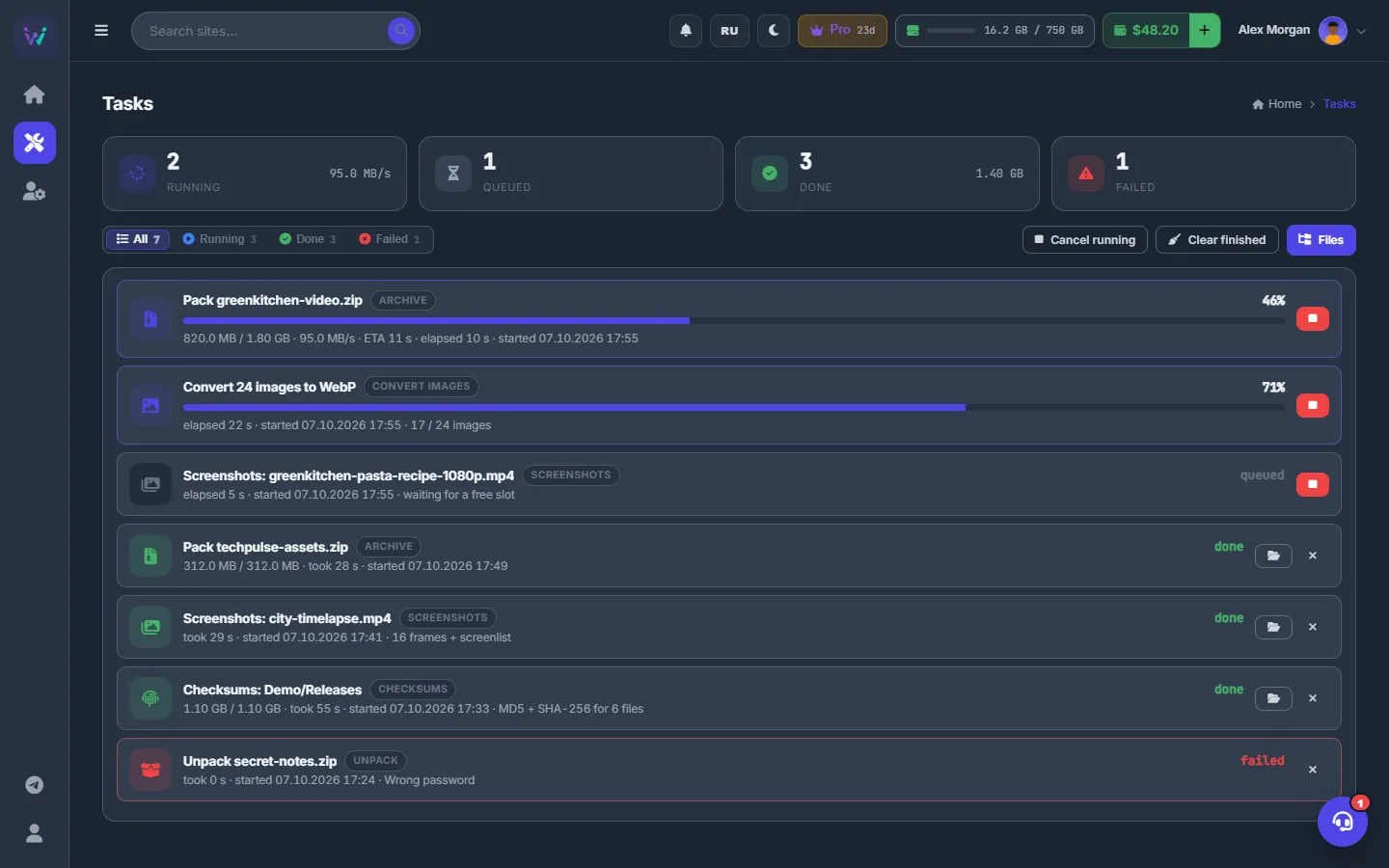
Fig. 1 All background jobs with progress, speed and time left. -
Read the counters
“Running” with the combined speed, “Queued”, “Done” with the total size processed, and “Failed”.
-
Filter the list
“All”, “Running”, “Done” and “Failed”; each button shows its count. Cancelled tasks are listed under “Failed”.
-
Read a task row
Each row has an icon and a title, a chip with the kind of task and, for uploads, the host name. Then the progress in per cent with a bar, and a line with the bytes done out of the total, the speed, the time left (ETA), how long it has been running — or how long it took — the start time and the last message. A task waiting in the queue says waiting for a free slot. After an upload to a file host, the public link is shown with a copy button.
The kinds are “Archive”, “Unpack”, “Convert images”, “Download”, “Upload to file host”, “Upload to image host”, “Upload to server”, “Screenshots”, “Video”, “Checksums”, “Content store” and “From the content store”.

Fig. 2 A running task: progress, speed, time left and the stop button. -
Control the tasks
The red stop button cancels a running or queued task; the cross removes a finished one from the list; the folder button (“Open in Files”) opens the result in Files. In the toolbar, “Cancel running” stops every running task after you confirm, “Clear finished” clears the finished ones, and “Files” takes you to the file manager.
What is listed here — and what is not
Listed:
- tasks started in Files from the right-click menu: “Archive”, “Unpack”, “Convert images”, “Video screenshots”, “MD5 / checksums”, “Upload to file hosts”, “Upload to image host”, and downloads of direct links — see Archives, image conversion and checksums and Uploading to file hosts;
- transfers in FTP / SFTP;
- Video studio conversions;
- copies from the Content store;
- the same operations when the Conveyor performs them.
Not listed here:
- Conveyor runs as a whole — see Conveyor: start plans and follow runs;
- torrents — see Torrents: magnets and .torrent files;
- site backups — see Site backups: create, download and restore;
- link transfers — see Transfer runs and history.
Queues and limits
- Heavy tasks — archiving, unpacking, image conversion, screenshots and checksums — run two at a time per account. Video conversions have their own lane, also two at a time. The rest wait as queued.
- Up to 200 link downloads can wait in the queue at the same time.
- The list keeps your newest 50 tasks; finished tasks disappear 6 hours after they end.
- The list is not permanent: after a WPManager update it may start empty. Your files are not affected.
More about the storage tasks: Storage tasks: limits and queues.
Costs
The Tasks page is free. What the tasks produce counts against your storage quota, and some operations, such as video conversion, are paid as described on their own pages — see What you pay for.
Tips
- Keep the page open while something big runs: the list redraws every 2 seconds without flicker.
- Use “Clear finished” to keep the list short; it never touches running tasks.
Troubleshooting
| What you see | What to do |
|---|---|
| A task stays queued — waiting for a free slot | Two of your heavy tasks are already running. Wait, or cancel one you do not need. |
| The list became empty although tasks were there | Finished tasks drop off after 6 hours, and the list starts empty after a panel restart. Check the results in Files. |
| “Too many downloads are waiting — let some of them finish first” | Up to 200 link downloads can wait at the same time. Let some finish, then add the rest. |
FAQ
Do tasks stop if I close the browser?
No. Tasks run on the server; the page only shows them.