
What is WPManager?
WPManager is an online panel for webmasters: WordPress sites, posts and files. Monitoring, security, backups, file-host links, file storage, AI publishing, forum posts, the content store, hosting and access orders all work from one account, in the browser.
On this page
Who it is for
WPManager works with one site, with a network, or with no site at all: you can prepare forum posts and publish them, buy content in the store and upload files to file hosts. And with many sites you no longer open every admin panel one by one. It is a hosted service: you sign up on wpmanager.online and work in the browser. Nothing has to be installed on your computer, and your sites stay with your own hosting.
How it works in three steps
-
Create an account
Sign up with your email or with Google. A new account gets a 30-day free trial (3 sites, 5 GB, 100 GB of traffic) and a USD balance of $0. See Create an account.
-
Connect your sites
Add each site on the Dashboard with “Add site”. For the full feature set, install the free WPManager API plugin on the site and paste its API key into the panel. Without the plugin the panel still watches whether the site answers.
-
Work from one panel
Alerts, reports, backups, link checks, uploads and AI posts all run from the panel. Paid extras are taken from your USD balance as you use them.
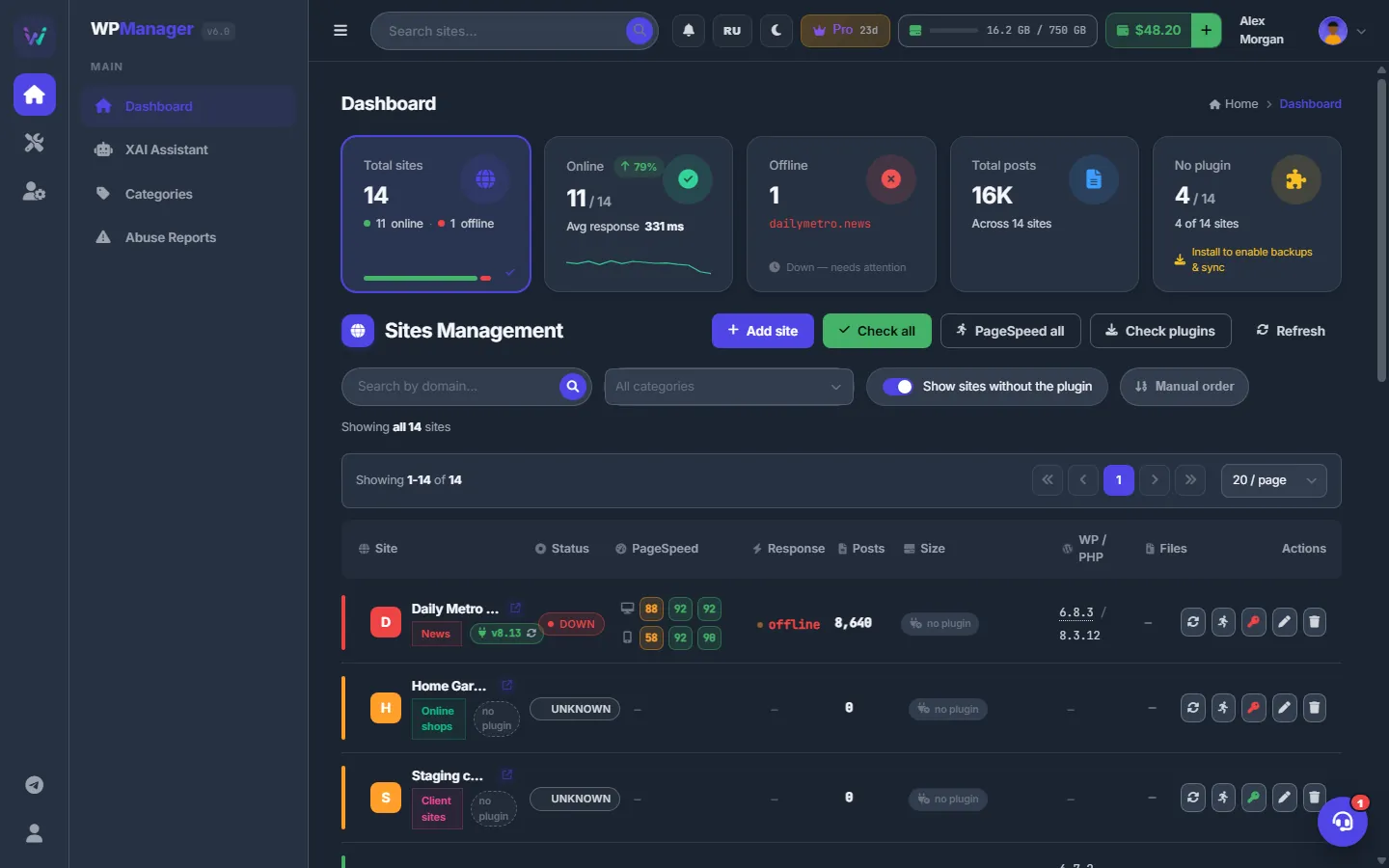
Fig. 1 The Dashboard: all your sites and their status on one screen.
What you can do
The sidebar has the groups Overview, Content, Links & files, Account and Help. Here is what lives where.
- Sites and monitoring (Overview → Dashboard and the page of each site): uptime and response time, SSL and domain expiry, PageSpeed, Search Console, Google Analytics and Bing data, plugins, themes and WordPress updates, notes per site. See The Dashboard and Uptime monitoring.
- Security: a malware and file-integrity scan, a firewall (on Cloudflare or inside WordPress), one-click Cloudflare rules and abuse reports (Links & files → Abuse Reports). See Security tab and Abuse reports.
- File-host links (Links & files): accounts in “File Hosters” (Keep2Share, TezFiles, FileBoom, 1Fichier, WayShare, FlorenFile and XFileSharing hosts such as DaoFile and TakeFile), the link “Scanner”, “Find Dead Links” and “Transfer & replace”, which moves files between hosts and replaces the links in your posts. See File host accounts.
- Backups: site backups on each site’s Backups tab, and copies of your file-host files in Links & files → Backups. See Site backups and File backups.
- Your own file storage (Links & files → Files, Downloads, FTP / SFTP, Tasks): downloads by link and torrents, archives, uploads to file hosts. See Files.
- Studios: “Video studio” (trimming, conversion, filters, watermark) and “Photo studio” (frames, collages). See Video studio.
- AI: the “XAI Assistant” chat and agent, “Publish with AI”, and the “Conveyor” — a chain of steps that downloads files, makes screenshots, uploads them, writes the post with AI and publishes it on your sites. See XAI Assistant and Conveyor.
- Account: “Plans & Pricing”, the USD balance, the Profile with a billing dashboard, Telegram alerts, the Finance planner, Referrals, the Store and the Content store.
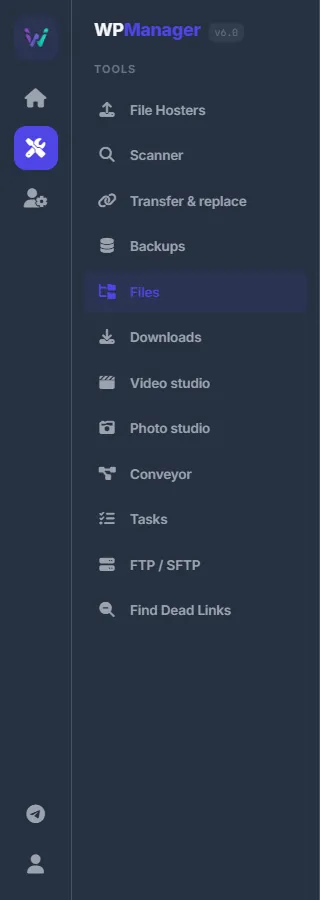
How the panel talks to your sites
Each site is added with its name and address. The optional WPManager API plugin lets the panel read posts, run scans and backups, manage plugins and publish. You download it right in the “Add New Site” dialog; the key is in WordPress under Settings → WPManager API. Without the plugin the panel only checks whether the site answers. When a new plugin version comes out, the panel updates it for you. See Installing and connecting the WPManager plugin.
How you pay
Payment has two parts:
- A plan (Account → Plans & Pricing) sets how many sites you can add, the size of your storage, the monthly traffic and what is included. Every new account starts with a 30-day free trial; after that plans — Basic, Advanced, Professional and Business — are bought for a month or a year.
- Usage — extra storage and sites, traffic over the plan's allowance, AI requests, torrents, premium downloads, video conversion and abuse removal — is taken from your USD balance as you go.
The balance is topped up with USDT on the TRON network (TRC20) and, when the top-up window offers it, with 300+ other coins through NOWPayments. All prices are shown in the panel. See Plans & Pricing and What you pay for.
Languages and look
The interface is in English and Russian (the language button in the top bar), with a dark and a light theme. It also works on a phone. See Getting around: menu, language and theme.

Costs
Signing up is free. See What you pay for.
FAQ
Do I need to install anything on my computer?
No. The panel works in the browser. Only the WPManager API plugin goes on your WordPress sites.
Does WPManager host my sites?
No. Your sites stay with your hosting provider; the panel connects to them over the internet.
Where do I ask a question?
In the support chat: the round headset button at the bottom right of every page of the panel.