
Analytics: your site’s traffic
WPManager counts visits itself through its WordPress plugin — no Google Analytics needed. The Traffic view shows visitors, pageviews, bounce rate, sources, pages, devices, countries, events and the Core Web Vitals of real visits, and it updates live.
On this page
Where to find it: Overview → Dashboard → click the site → Analytics → “Traffic”.
Before you start
- The WPManager plugin is installed and connected on the site (site page → “Settings” → “Connection”). It adds a small visit counter to every public page; nothing else has to be installed. See Installing and connecting the WPManager plugin.
- The plugin version is recent enough for the view you want (see the table below). If a view asks for a newer plugin, update it from the Dashboard — see Updating WordPress, plugins and themes.
- For the country map and the globe, the site runs behind Cloudflare: Cloudflare passes the visitor’s country and, if you allow it, the location. See Connecting Cloudflare.
Read the Traffic view
-
Open the Analytics tab
On the site page click “Analytics”. A row of sub-tabs appears: “Traffic”, “Globe”, “Sessions”, “Journeys”, “Goals”, “Funnels”, “Retention”, “Search Console”, “Google Analytics”, “Bing” and “Uptime”. “Traffic” opens first; after that the panel remembers the last sub-tab you used.
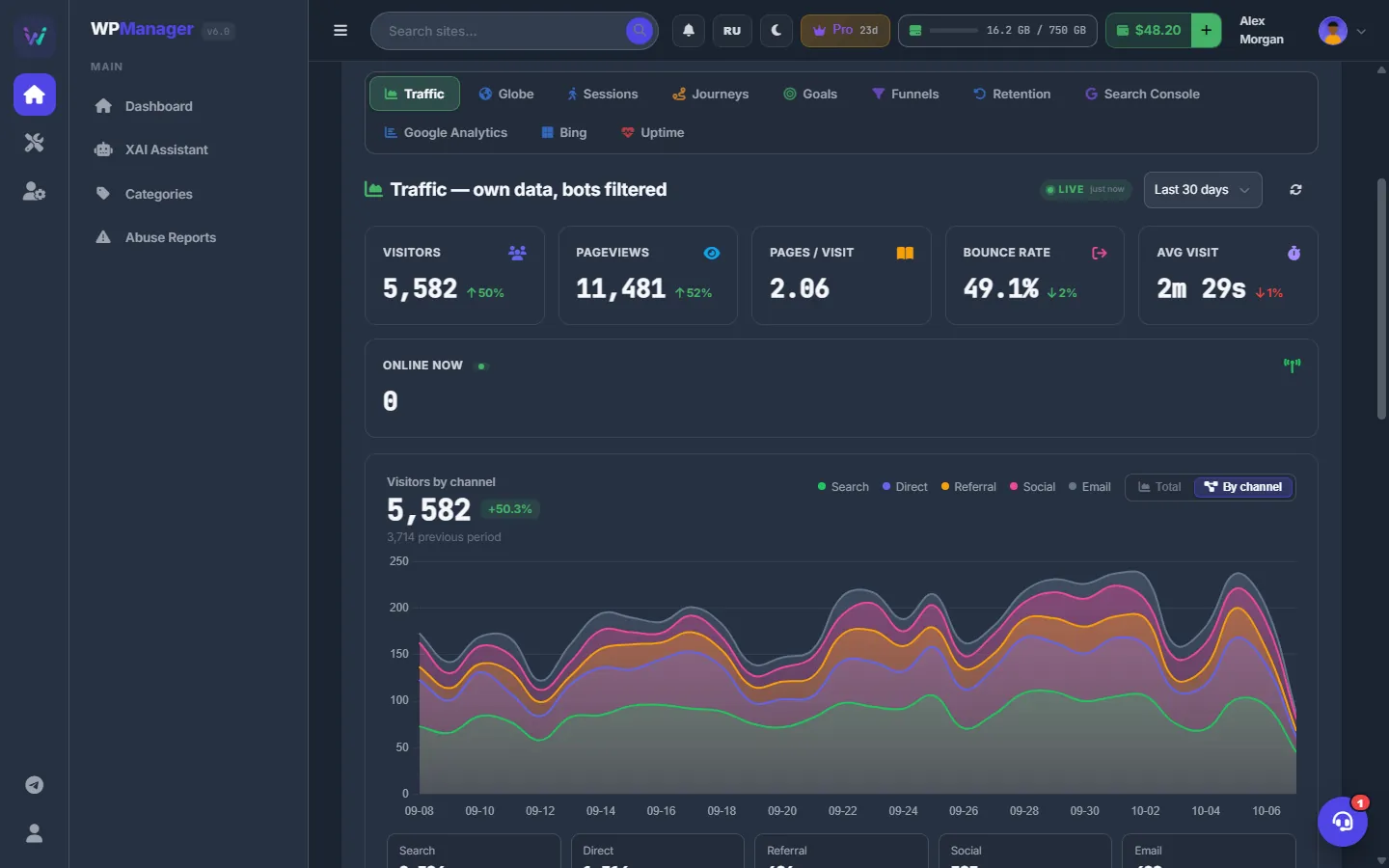
Fig. 1 Own analytics: visitors, pageviews, bounce rate and time on site, compared with the previous period. -
Choose the period
Pick “Today (24h)”, “Last 7 days”, “Last 14 days”, “Last 30 days” or “Last 90 days”. Every figure is compared with the previous period of the same length. Sessions, Globe, Journeys, Goals, Funnels and Retention use the same period.
-
Read the stat cards
- Visitors and Pageviews;
- Pages / Visit — pages per visit;
- Bounce Rate — sessions that saw a single page; lower is better;
- Avg Visit — average time on the site;
- Online Now — visitors active in the last 5 minutes.
Green and red arrows show the change against the previous period.
-
Use the main chart
The chart shows visitors per day, with the previous period as a dashed line. Hover a day to see its numbers in the headline. Switch “Total” / “By channel” to split the visitors into search, direct, social and referral traffic.
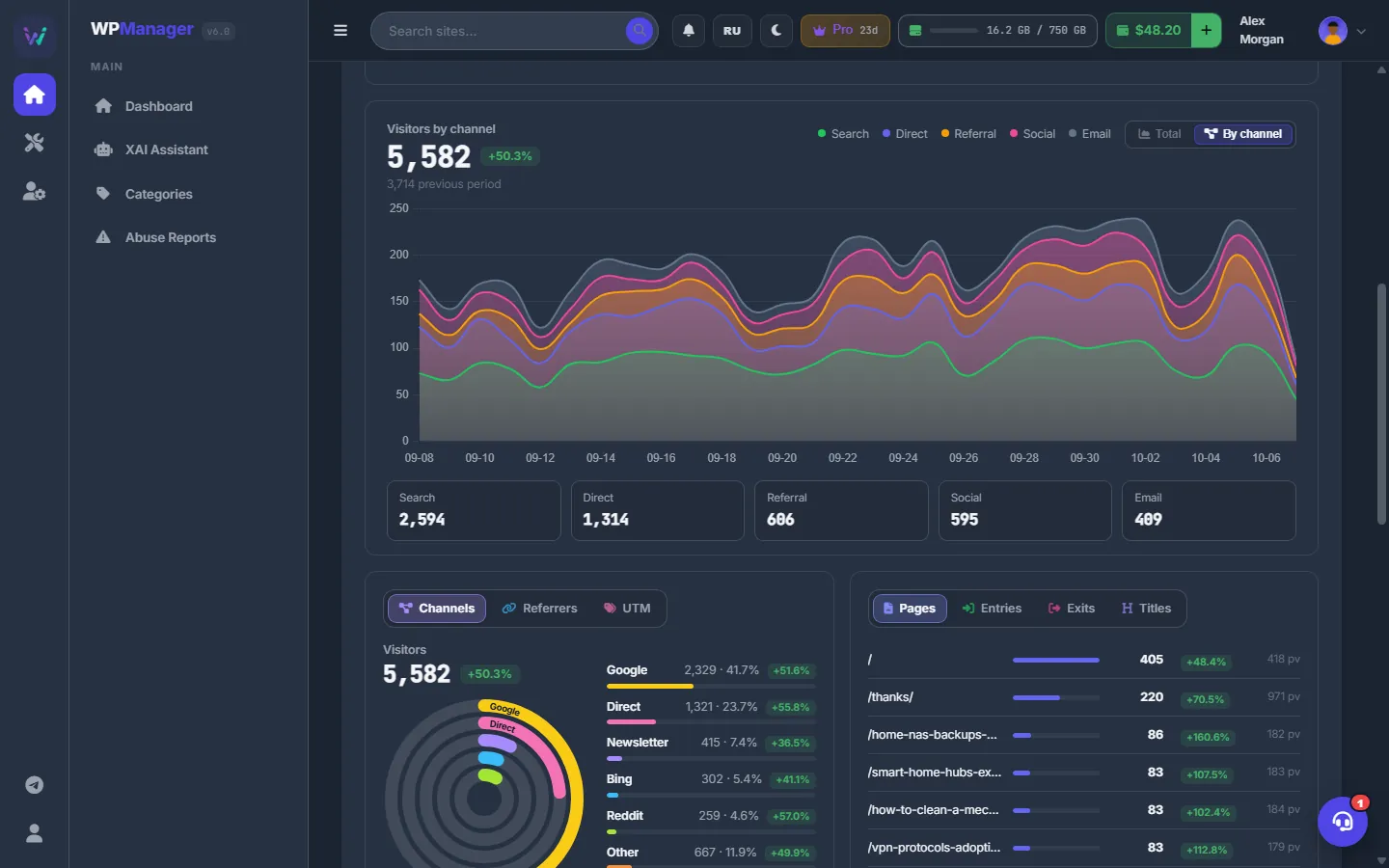
Fig. 2 “By channel” splits the visitors into search, direct, social and referral traffic. -
Explore the cards
Below the chart, each card has its own tabs:
Card tabs What they show Channels / Referrers / UTM Where visitors come from, including utm_sourceandutm_campaign.Pages / Entries / Exits / Titles Top pages with pageviews and trend; the pages where visits start and end. Browsers / Devices / OS / Screens The technology of your visitors. Map / Globe / Countries / Languages Geography (needs Cloudflare) and browser languages. Events / Outbound / Errors / By hour Custom events, clicks on links to other sites, JavaScript errors and visitors by hour of the day. Web Vitals Core Web Vitals of real visits (p75), see below. The tab you choose in each card is remembered.
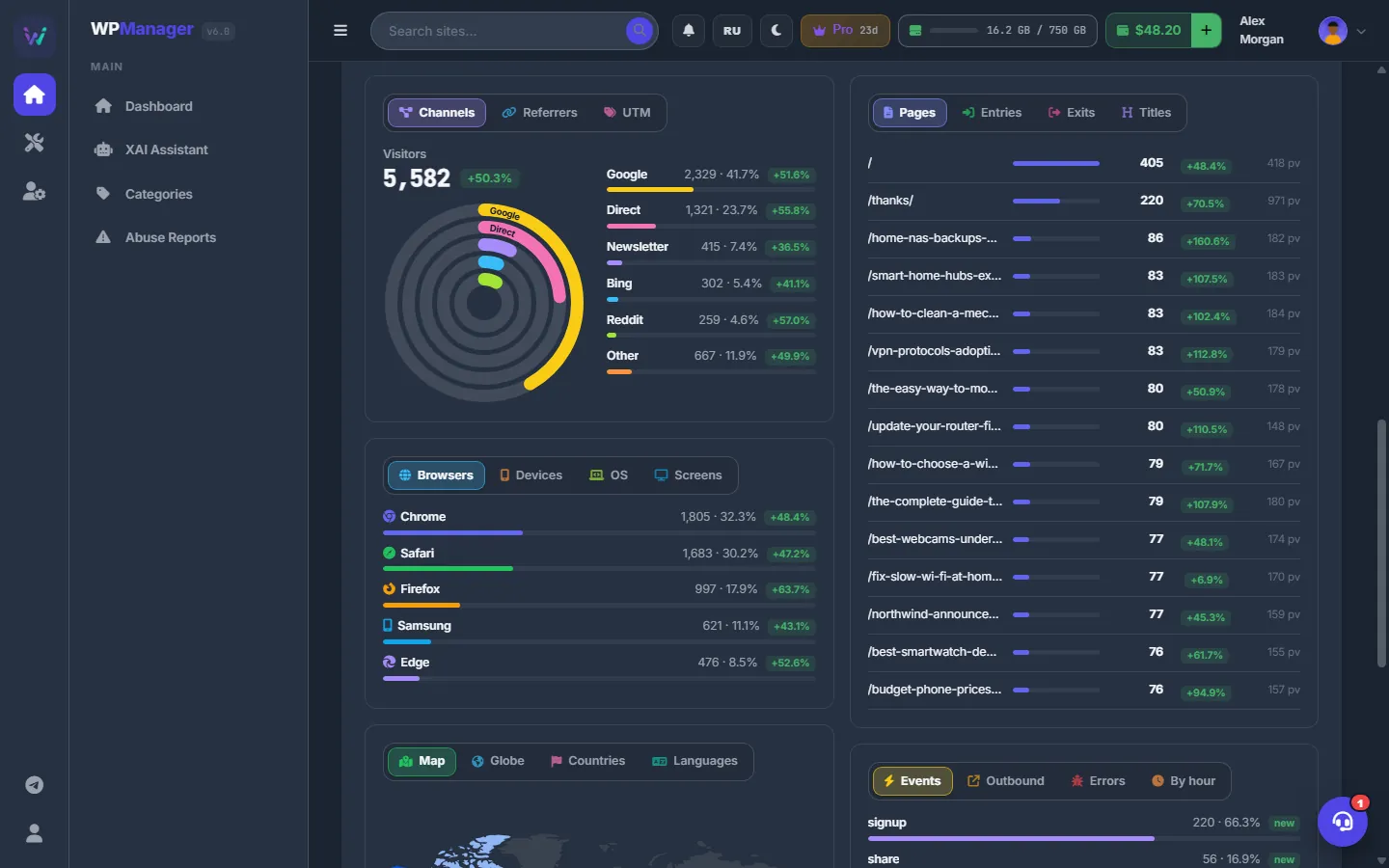
Fig. 3 Every dimension in tabbed cards: sources, pages, technology and geography. -
Watch it live
While the tab is open, the “Live” badge shows how fresh the data is. “Online Now” refreshes every 10 seconds, everything else every 30 seconds, without losing your scroll position. The refresh button next to the period reloads immediately.
What is counted
Only real browsers. The counter runs after the page has loaded, skips automated browsers and is not added to pages for logged-in administrators; bots are filtered out. Visits are stored in the site’s own database (in the plugin’s tables) and are not copied to the panel — the panel asks the plugin for the reports. New visits show up within minutes.
Web Vitals of real visits
The Web Vitals card shows LCP, INP, CLS and TTFB at the 75th percentile, graded on Google’s thresholds. Each tile says Good, Needs improvement or Poor and how many measurements it is based on. Unlike the PageSpeed tab, these numbers come from your visitors’ own devices, on every page they open.
| Metric | Good | Poor |
|---|---|---|
| LCP — largest content shows up | ≤ 2.5 s | > 4 s |
| INP — reaction to clicks and taps | ≤ 200 ms | > 500 ms |
| CLS — layout shifts | ≤ 0.1 | > 0.25 |
| TTFB — first byte from the server | ≤ 800 ms | > 1.8 s |
Values between the two columns are graded “Needs improvement”.
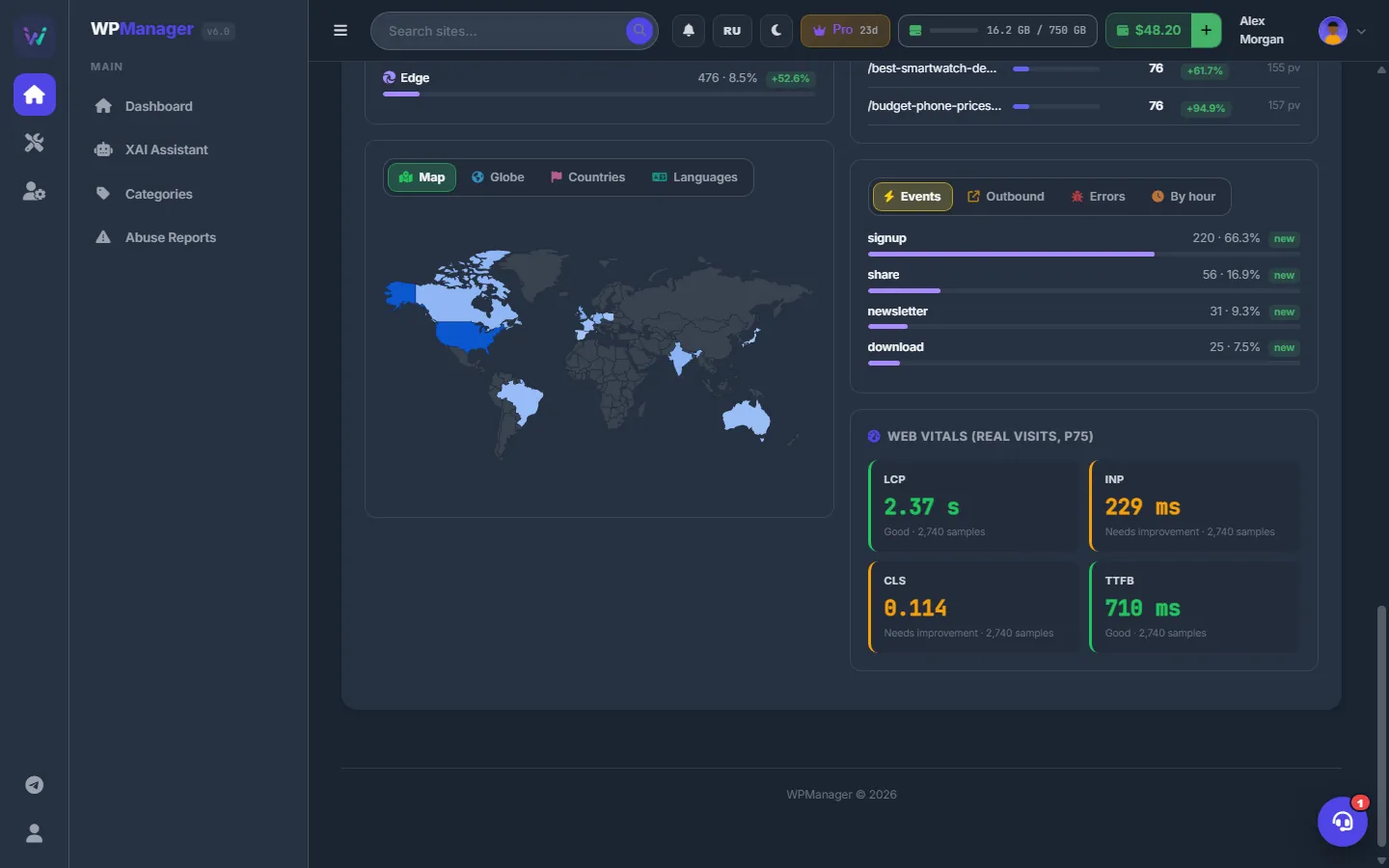
Events, outbound clicks and errors
- Events — custom events your site sends with
wpm('name', {...}), see Sessions and events. - Outbound — clicks on links to other domains.
- Errors — JavaScript errors caught on your pages, at most three per page view.
- By hour — visitors per hour of the day.
Plugin versions
| View | WPManager plugin |
|---|---|
| Traffic | 6.0 or newer |
| Web Vitals | 7.0 or newer |
| Sessions, Journeys, Goals, Funnels | 7.1 or newer |
| Retention | 7.3 or newer |
| Coordinates on the Globe | 7.4 or newer |
Sites built on WPManager’s own site engine (from the Store) show Traffic; the behaviour views (Sessions, Journeys, Goals, Funnels, Retention) are coming later.
The other sub-tabs
- The Globe, Sessions, Journeys, Goals, Funnels and Retention views each have their own page: Globe, Sessions and events, Journeys, goals and funnels, Retention.
- “Search Console”, “Google Analytics” and “Bing” show the data of those services once you connect them — see Search Console, Google Analytics 4 and Bing Webmaster Tools.
- “Uptime” shows the availability checks of the site — see uptime monitoring.
Settings
| Setting | What it does |
|---|---|
| Period | Today (24h), Last 7 / 14 / 30 / 90 days. Shared by all behaviour views. |
| Chart mode | “Total” or “By channel”. |
Costs
Free. The analytics runs on your own site, uses no balance and needs no special plan feature.
Troubleshooting
| What you see | What to do |
|---|---|
| “WPManager Plugin Required” | Connect the plugin on the site’s “Settings” → “Connection” tab. |
| “Update the WPManager plugin on this site to v6.0+” (or v7.1+) | Update the plugin from the Dashboard (the plugin badge of the site → update), then reload the tab. |
| “No visits recorded in this period” | The counter sees real browsers only, and data needs a few minutes. Check that a page-cache or optimisation plugin does not strip inline scripts from the page footer. |
| “The site did not answer with the plugin’s JSON” | A cache, firewall or security plugin rewrites /wp-json/. Exclude /wp-json/wpmanager/ from caching and challenges. |
| Map and Countries say “Needs Cloudflare in front of the site” | Countries come from Cloudflare’s country header. Put the site behind Cloudflare and connect it on the site’s Cloudflare tab. |
FAQ
Does it replace Google Analytics?
For most needs, yes. If you also use GA4, connect it in the “Google Analytics” sub-tab and look at both.
Where is the data stored?
On your site, in the WPManager plugin’s database tables. The panel asks the plugin for the reports when you open the tab.
Are visitors identified personally?
No. A visit is stored with an anonymised IP hash and a random browser id; the panel shows only country, device and browser.