
Uploading to file hosts
Send files from your storage to several file hosts at once — Keep2Share-family hosts, XFileSharing sites or any host with FTP — into the folders you choose. The server does the uploading; you collect the links.
On this page
Where to find it: Links & files → Files → select files → “To file hosts”.
Before you start
- At least one active file host account on Links & files → File Hosters that can receive uploads: an API key for a Keep2Share-family host (Keep2Share, TezFiles, FileBoom) or an XFileSharing site, or an FTP account. See File host accounts.
Upload files
-
Select what to upload
Select files or folders and press “To file hosts” — or use the cloud button in a row, or right-click → “Upload to file hosts”.
-
Tick the hosts and their folders
The dialog lists every account you can upload to, with its domain and transport (API or FTP). Tick the ones you need. For each ticked host the panel loads the folders of your account: pick one from the list (“/ (root)” is the top level), or type a “New folder name” and press the folder button next to it to create the folder right there.
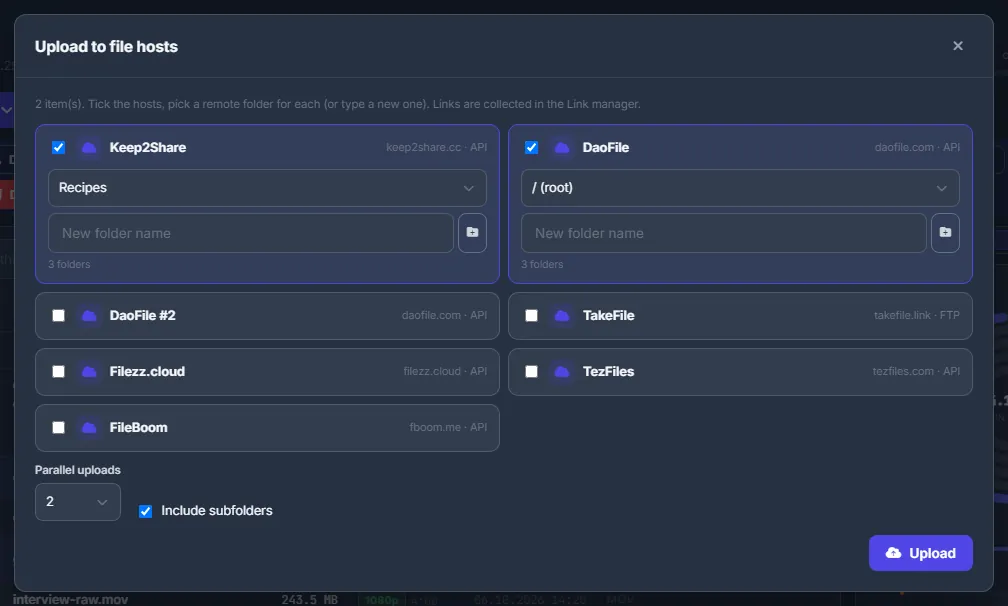
Fig. 1 Keep2Share into the “Recipes” folder, DaoFile into the root. TakeFile here uploads over FTP. -
Choose the speed and start
Set “Parallel uploads” (1–4, default 2) and, for folders, “Include subfolders”. Press “Upload”. Every file × host pair becomes its own task; beyond the parallel limit they wait as queued. The dialog remembers your hosts and folders for next time.
-
Follow the tasks and take the links
Progress, speed and the link of every upload are on the Tasks page. Every link also lands in the link manager (side panel → “Links”), grouped by upload batch and ready to copy as plain URLs, BBCode, HTML or a post.
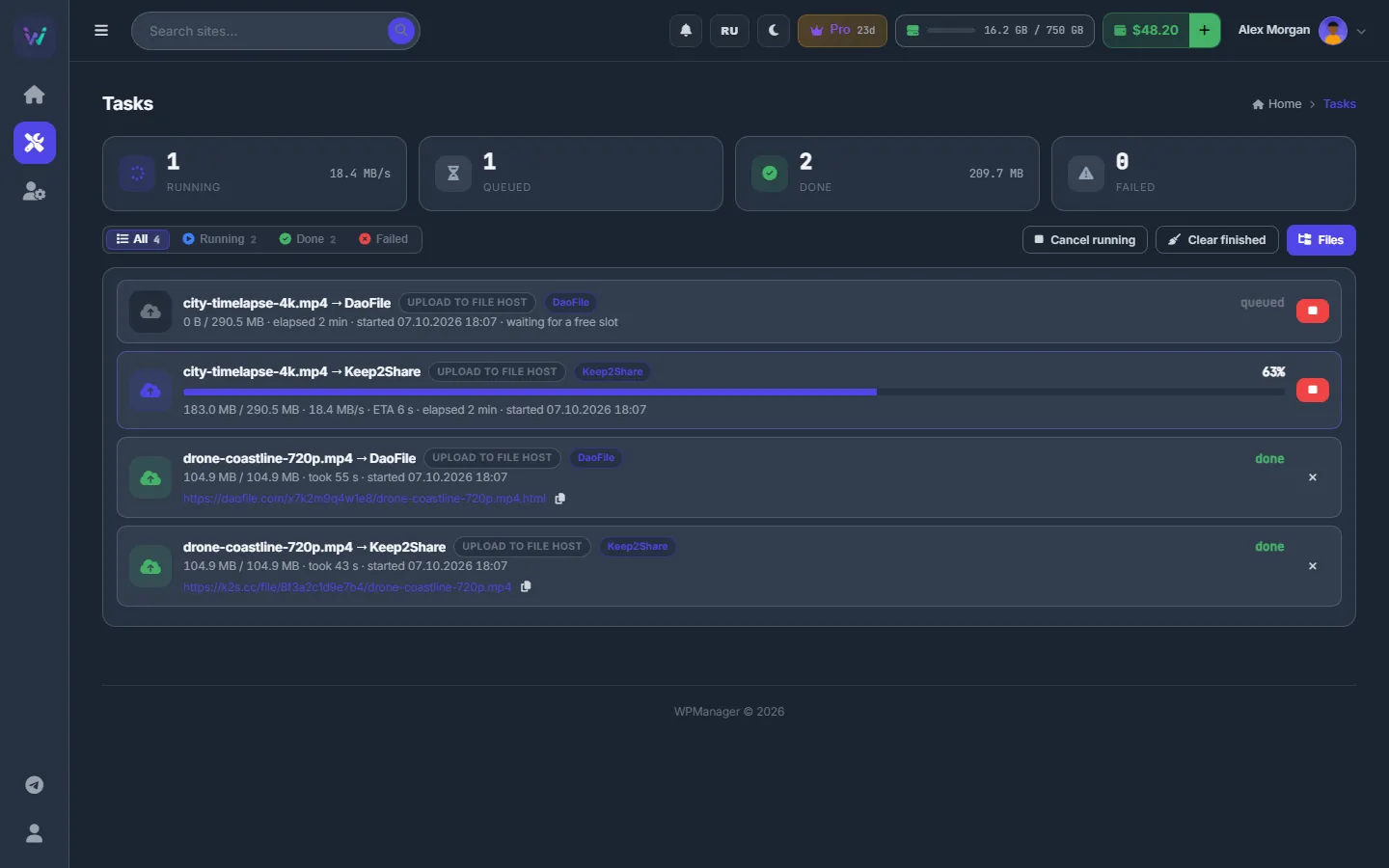
Fig. 2 Two videos going to Keep2Share and DaoFile: one upload running, one queued, two done with their links.
Several accounts on one host
Every active account you added on the File Hosters page is listed separately (for example “DaoFile” and “DaoFile #2”), so you can upload the same file to two accounts of one host.
FTP uploads
Over FTP some hosts do not give a public link straight away. The task then says “Uploaded (the hoster shows the file in your account)”, and the link manager shows “no public link (FTP)”. Take the link from your account on the host’s website.
Limits
- Up to 500 files per upload.
- The host’s own limits — file size, daily traffic — still apply. Split big files into volumes first with “Archive” (see Archives, image conversion and checksums).
Settings
| Setting | What it does |
|---|---|
| Parallel uploads | How many uploads of this batch run at the same time (1–4). |
| Include subfolders | For selected folders: uploads the files of their subfolders too. |
Costs
The panel charges nothing for uploads. Your accounts on the hosts follow the hosts’ own terms.
Troubleshooting
| What you see | What to do |
|---|---|
| “No file host with upload access (FTP or API) is connected — add one on the File Hosters page” | Add a host on Links & files → File Hosters with an API key or FTP access and make sure it is active. |
| Under a host you see “folders: …” with an error | The panel could not read the folders — usually a wrong key or the host is down. You can still upload to the root; fix the key on the File Hosters page. |
| An upload task failed | Read the reason on the task on the Tasks page, fix it (key, traffic, file size) and upload that file again. |
FAQ
Does my computer need to stay on?
No. The files are uploaded from the server; you can close the browser.
Can uploads happen automatically?
Yes — the Conveyor has an upload step that sends the results of a plan to your hosts (see Conveyor: all steps and their settings). To replace dead links on your sites, see Find Dead Links and restore the files and Transfer files between file hosts.