
Photo studio: picking frames from a video
See a video as a canvas of frames, click the ones you want, fine-tune each to a fraction of a second and save them in full quality — if you like, together with a screenlist made of exactly those frames.
On this page
Where to find it: Content → Photo studio → “Frames from a video”.
Before you start
- A video in your storage.
- ffmpeg on the server.
Pick and save frames
-
Choose a video
Open Content → Photo studio and press “Choose a video” — or in Files right-click a video → “Pick frames (photo studio)”. The studio remembers the last video you worked on.
-
Set the interval and how many you need
“A frame every” — 1 s, 2 s, 5 s, 10 s, 30 s, 1 min, 2 min or 5 min: the canvas shows a frame at each step, and the count of frames on the canvas appears below. “Frames I need” — 1 to 100, with quick buttons from 4 to 20; the hint says what that means for this video, for example one frame every 0:45 if spread evenly.
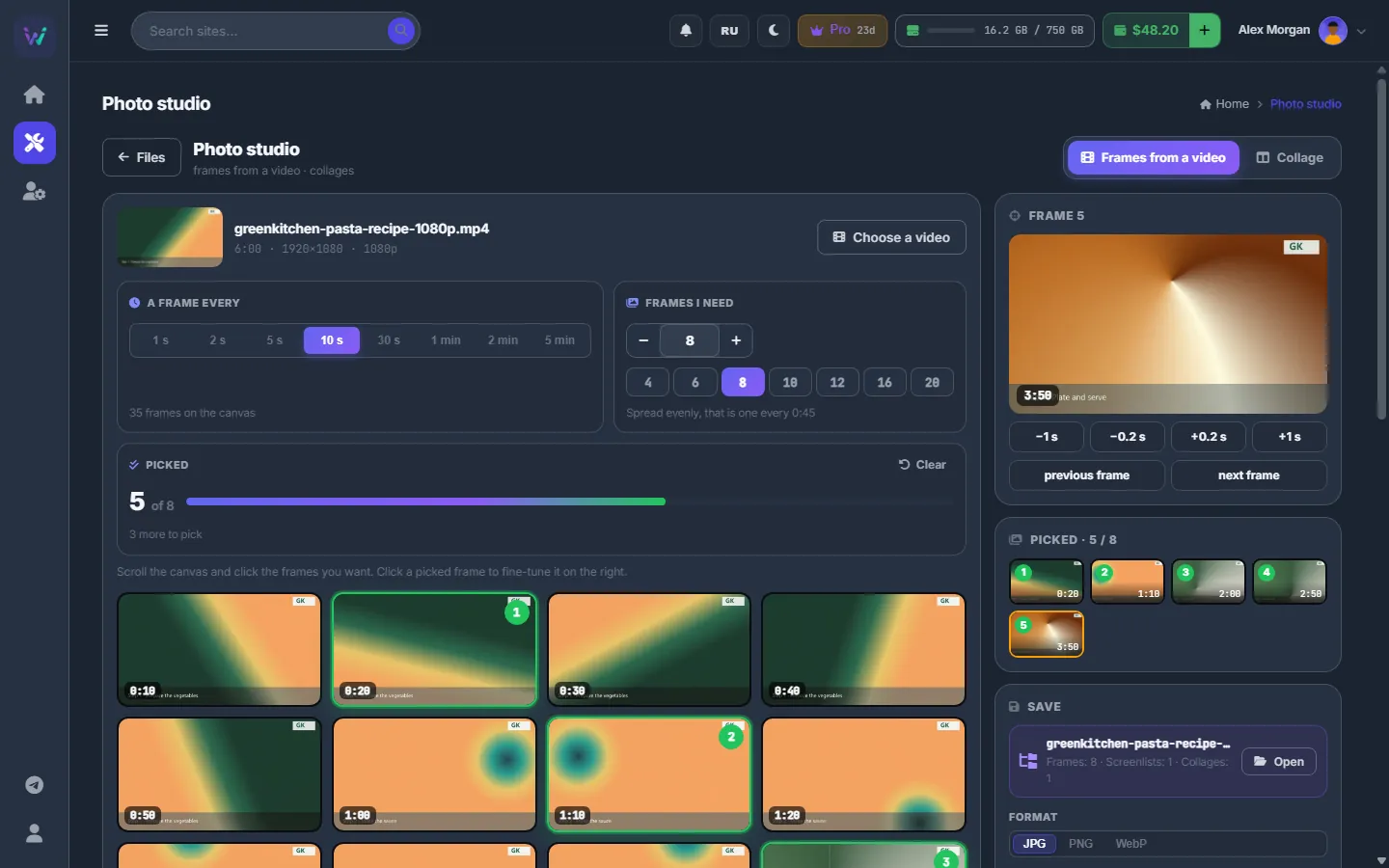
Fig. 1 A frame every 10 s on a 6-minute video: 35 frames on the canvas, 5 of 8 picked. -
Click the frames you want
Scroll the canvas — more frames load as you scroll, or press “Show more” — and click frames; they get numbers. The “Picked” counter shows how many are still missing, and “Clear” drops the whole choice. Once all are picked, the studio tells you to save them on the right.
-
Fine-tune a frame
Click a picked frame, on the canvas or in the “Picked” tray. The card at the top right shows it large, with the buttons −1 s, −0.2 s, +0.2 s, +1 s, “previous frame” and “next frame” to land on exactly the right moment.
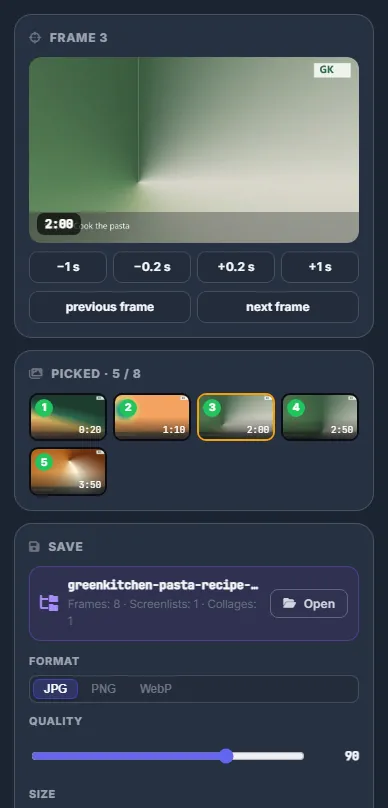
Fig. 2 One picked frame, large, with the buttons that move it by a second, a fraction of a second or a single frame. -
Save
In “Save” choose the “Format” (JPG, PNG, WebP), the “Quality” (60–100) and the “Size” (original, or 1920, 1280 or 800 px wide). The “Folder” is the video’s project,
<video>_project/frames, unless you “Change” it. If frames of an earlier pick are already there, choose “Replace them” or “Add to them”. Tick “Also make a screenlist of these frames” and pick its “Columns” (2–5) if you also want a sheet. Press “Save N frame(s)”.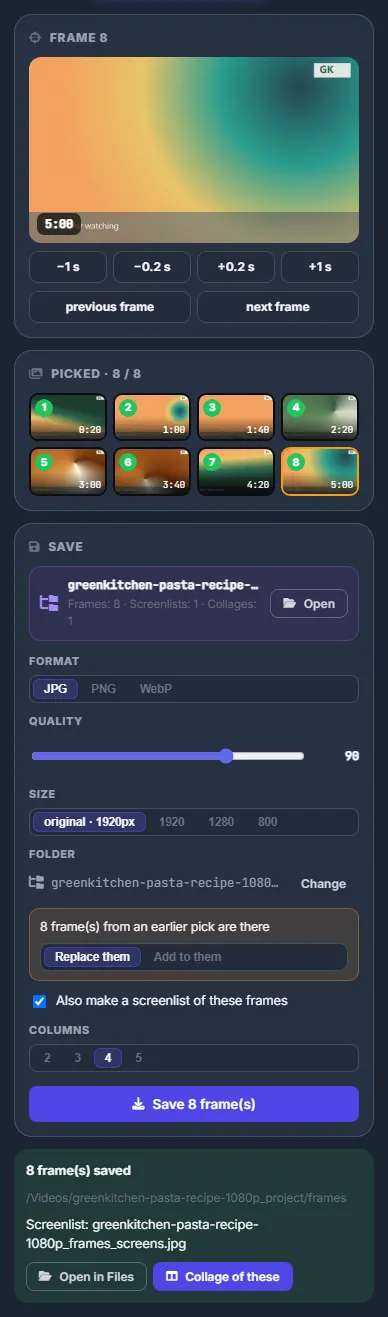
Fig. 3 Eight frames saved into the video’s project, with a 4-column screenlist of the same frames.
After saving
A result card shows how many frames were saved and where, and the name of the screenlist. “Open in Files” goes to the folder; “Collage of these” sends the frames to the “Collage” tab (see Photo studio: collages).
The video’s project remembers your pick
The project card in “Save” shows what the project already holds — frames, screenlists, collages — with an “Open” button. When you open the same video again, the frames you picked last time are selected again, and the studio tells you so.
The Conveyor and Publish with AI take frames from the project folder, so the pictures you pick here end up in your posts (see Publish with AI).
Settings
| Setting | What it does |
|---|---|
| Format / Quality / Size | JPG, PNG or WebP; 60–100; the original width or 1920 / 1280 / 800 px. Remembered in your browser. |
| Folder | The video’s project folder by default; “Change” saves elsewhere. |
Costs
Free; the pictures count against your storage quota.
Troubleshooting
| What you see | What to do |
|---|---|
| “This file has no readable duration” | The video is damaged or not a video. Re-encode it in the video studio first. |
| “N frames are picked already — remove one or raise the number” | Raise “Frames I need”, or remove a picked frame with the × on it. |
FAQ
How is this different from Video screenshots?
Video screenshots makes sheets for many videos at once, with frames spread automatically. The photo studio is for one video when you want to choose every frame yourself and save it in full quality.