
Transfer runs and history
Follow every transfer run file by file; pause, stop, resume or retry it; export its old → new links. The History tab keeps every run and every file you have ever moved, so any old link can be traced to its new one.
On this page
Where to find it: Links & files → Transfer & replace → tab “Transfer” (“Recent runs”) or tab “History”.
Before you start
- At least one transfer has been started — see Transfer files between file hosts.
Follow a run
-
Find the run
On the Transfer tab, “Recent runs” shows up to four runs that are still going or ended in the last 24 hours; “All runs” opens the History tab. Each row has:
- a status pill — queued, running, paused, done, failed or cancelled;
- the name, the source and how long ago the run started;
- a progress bar of moved, skipped and failed files, “done / total files”, the data moved and the errors;
- “links replaced”, the duration and quick buttons.
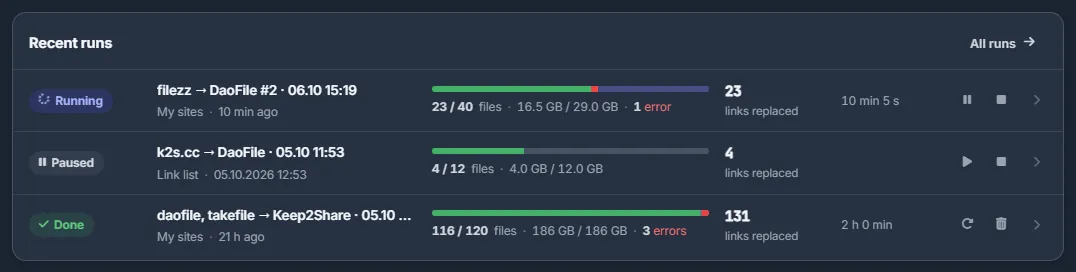
Fig. 1 A running, a paused and a finished run, each with its progress and buttons. -
Open the run
Click the row. The run page shows the name, the status, the source, when the run was created and how long it took (or has been running), and the options: replace mode, only dead links, reuse, copy kept and files at once. Below are the overall progress “N / M files handled” with the data moved, and four tiles: Files moved, Moved (data), Links replaced (with the posts changed) and Failed (with the skipped files). “By host” shows a bar for each route “host → target”. While the run works, the page refreshes every 2 seconds.
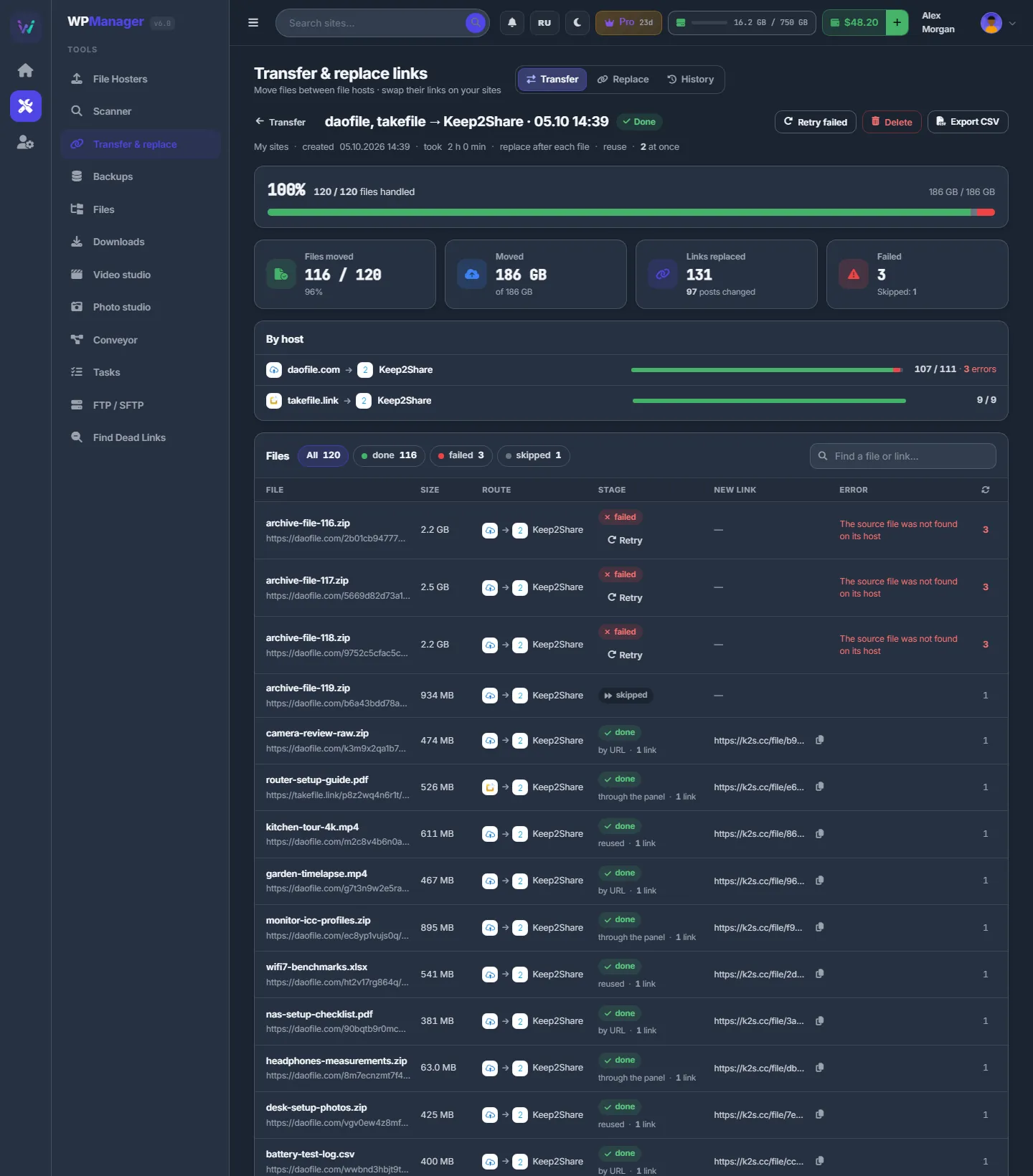
Fig. 2 A finished run: the totals, one bar per route and the list of files. -
Follow the files
The “Files” table lists File (with “+N variants” when the file had several addresses on the sites), Size, Route, Stage, New link (with a copy button), Error and Attempts. Filter it with the status chips and “Find a file or link…”.
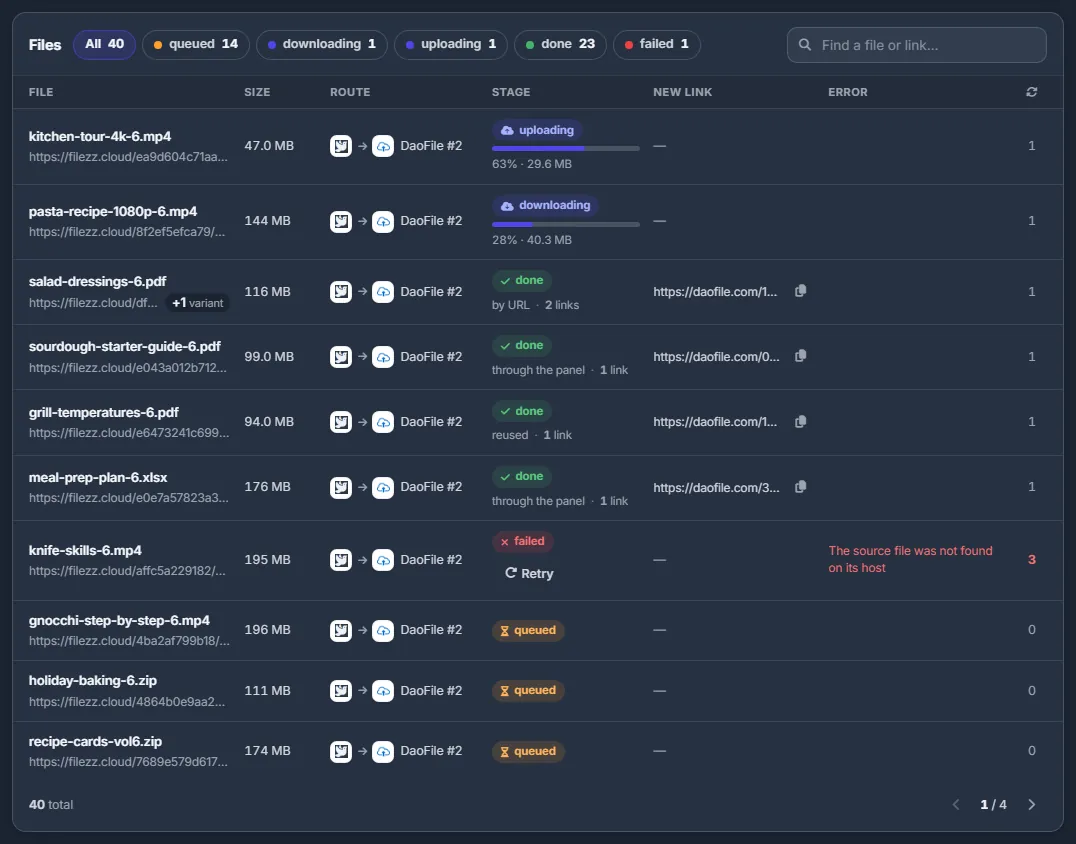
Fig. 3 Files of a running run in different stages; a failed file has its own Retry button.
File stages
| Stage | Meaning |
|---|---|
| queued | Waiting for its turn. |
| resolving | The panel is getting a download link from the source host. |
| downloading / uploading / replacing | In progress, with the percentage and the data moved. |
| done | Moved — “by URL” (the target host fetched it), “through the panel” or “reused” (moved before) — with the number of links replaced. |
| failed | The Error column says why. |
| skipped | The file has no target — its host was left as is (“Left as is”), so it is not moved. |
| cancelled | The run was stopped before the file was moved. |
Control a run
| Button | What it does |
|---|---|
| Pause | No new files start; files already in progress finish. |
| Resume | The run goes on. On a stopped run it puts the cancelled and failed files back in the queue; the confirmation shows how many — they are moved, and paid for, as planned. |
| Stop | Cancels the queued files and those in progress. Files that were already uploaded keep their new links. |
| Retry failed | Queues only the failed files. A paused run stays paused until you resume it. |
| Retry (next to a file) | Retries just that file. |
| Delete | Finished runs only. Removes the run from the list; the moved files, their links and the pairs in History stay. |
| Export CSV | Downloads link-transfer-<id>.csv with old_url; new_url; status; error; file; size — one line per old address. |
Automatic retries
A file that hits a temporary problem waits and is tried again — after 1 minute, then after 5 minutes, up to 3 attempts. Meanwhile its error starts with “Will retry:”, and the “Attempts” column counts the tries.
Stopped runs
When you stop a run, a file that was already uploaded keeps its new link, but its links on the sites are not changed: “Moved, but the links were not replaced — the transfer was stopped”. “Resume” or “Retry” then only replaces its links; the file is not uploaded again.
Look up any moved file
Open the “History” tab.
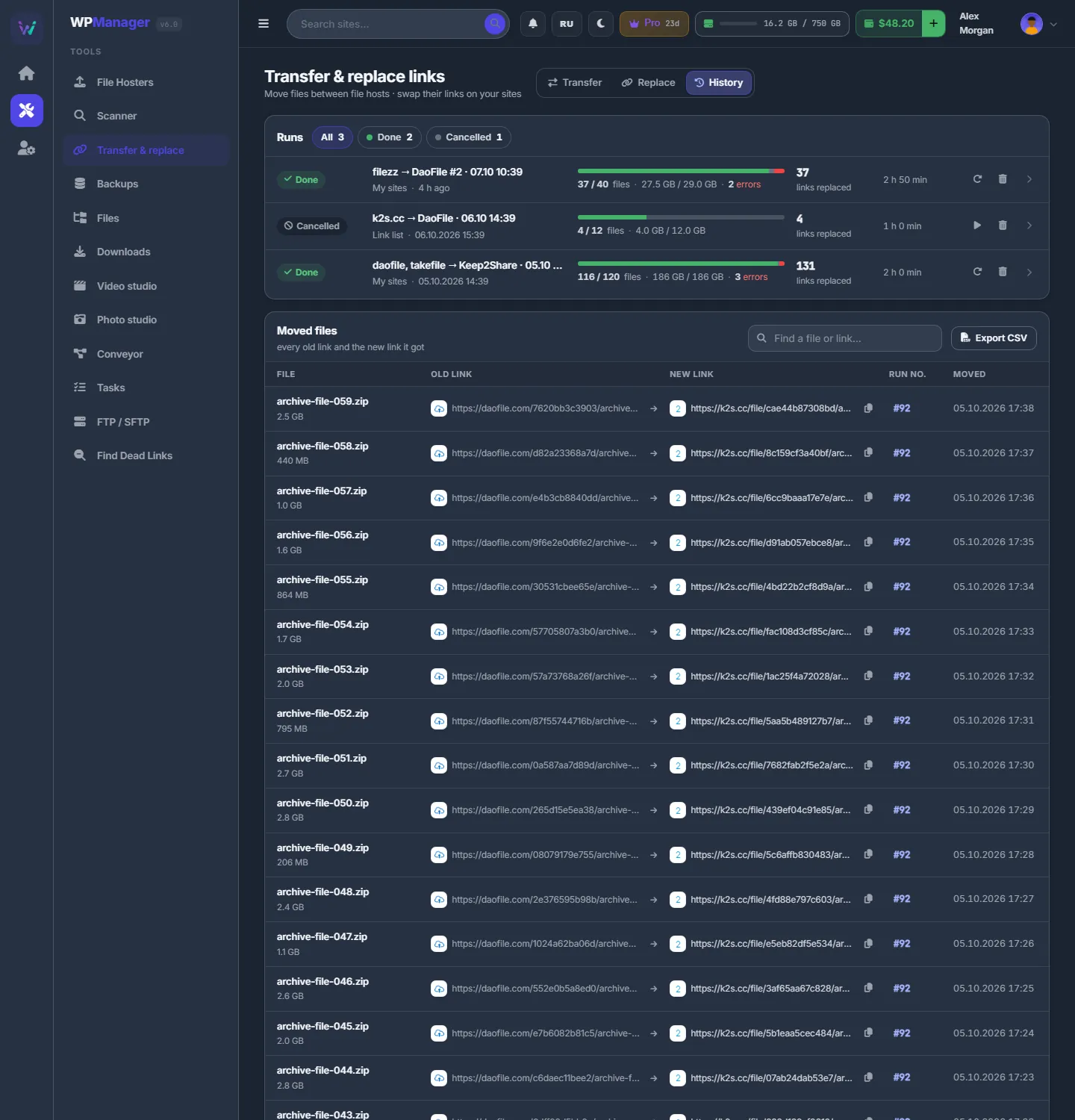
- Runs lists all your runs with status chips (All, Running, Queued, Paused, Done, Failed, Cancelled) and “Show more” — up to the newest 500.
- Moved files lists every old link and the new link it got: File, Old link → New link (with a copy button), Run no. (opens the run) and Moved. Search with “Find a file or link…”. “Export CSV” downloads
link-transfer-map.csvwithold_url; new_url; source_host; target_host; file; size; run; moved_at.
Costs
Resuming or retrying files that go through the shared premium is charged per GB, like the first try. Files that were already moved are not charged again. See Transfer: costs.
Troubleshooting
| What you see | What to do |
|---|---|
| “This transfer is still moving files — stop it first” | Stop the run, wait until no file is in progress, then delete it. |
| Many files failed with the same error | Read the error in the Files table. Usually the source cannot be fetched (no access, or not enough balance) or the target account refused the upload (key, space). Fix that, then click “Retry failed”. |
| Errors start with “Will retry:” | Nothing to do yet: the file will be tried again automatically, up to 3 attempts. |
FAQ
Does deleting a run delete the moved files?
No. The files stay in your target account, the links stay on the sites, and the pairs stay in History.
Can I close the browser while a run is going?
Yes. Runs work on the server. Open the page later to see where they are.