
Buying videos: one click, the cart and promo codes
Buy a single video in two clicks, or collect several in the cart and buy them together, with a promo code if you have one. The money comes off your USD balance immediately.
On this page
Where to find it: Content → Content store → “Catalogue” and the “Cart” button.
Before you start
- Enough USD balance for the video or for the whole cart. “Top up” sits next to “Your balance” at the top of the page — see USD balance and top-up.
- A promo code, if you have one. Codes work only in the cart.
Buy one video
-
Click “Buy”
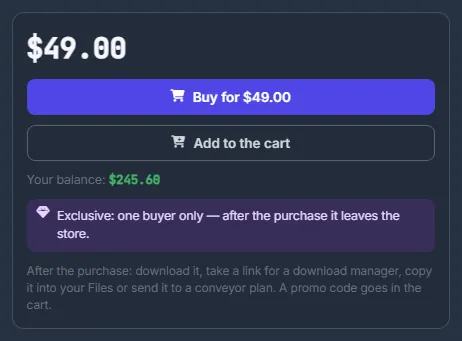
Click “Buy” on a card in the catalogue, or “Buy for $X” in the video window.
-
Check and confirm
The “Buy from the balance” window shows the title, the price and your balance after the purchase. For an exclusive video it adds that you will be its only buyer and the video leaves the store. Click “Buy for $X”.
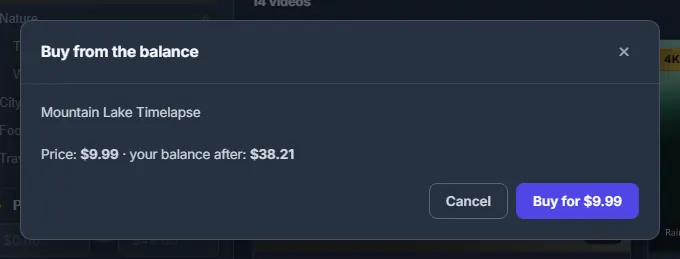
Fig. 1 The window shows what your balance will be after the purchase. -
Get the video
The notice “Bought. Download it or copy it into your Files.” appears, and the card switches to “Yours” with a “Download” button. The video is now in My purchases.
If the balance is short
Clicking “Buy” shows “Not enough on your balance: $X needed, $Y available” and opens the top-up window. In the video window the button already reads “Top up to buy”. After the top-up, buy the video again.
Buy several videos with the cart
-
Add videos to the cart
Click the cart button next to “Buy” on a card, or “Add to the cart” in the video window. A check mark means the video is in the cart; click again to take it out. The number on the “Cart” button at the top shows how many videos the cart holds.
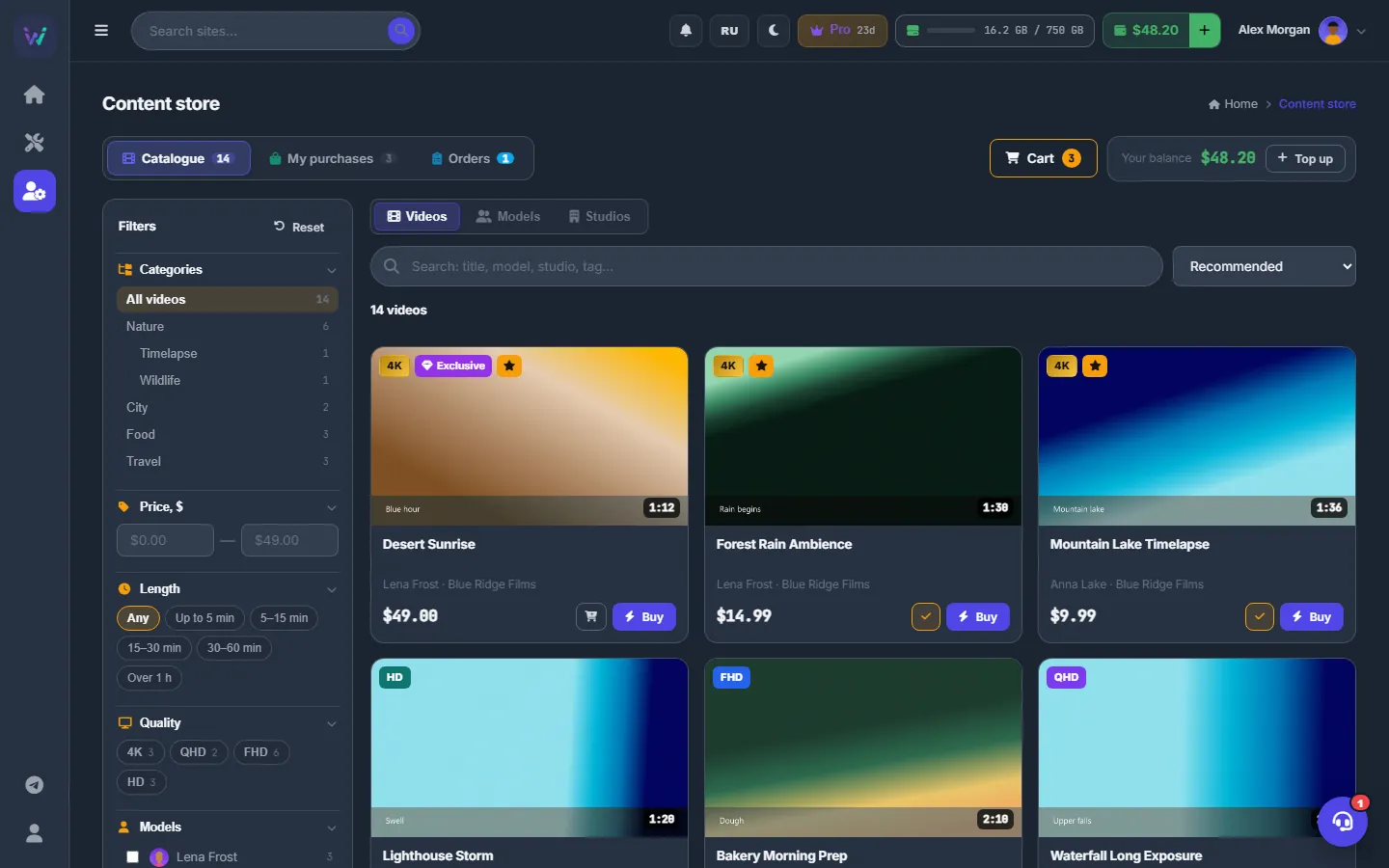
Fig. 2 Three videos in the cart: check marks on the cards and “3” on the Cart button. -
Open the cart and apply a promo code
Click “Cart”. Each line shows the poster, the title, the quality and length, the price and a × to remove it. Type your code into “Promo code” and click “Apply” (or press Enter). The summary shows “Videos: N” with the subtotal, the code’s discount, “Total” and “Your balance” — green if it covers the total, red if not. If the code does not apply, the reason appears right there.
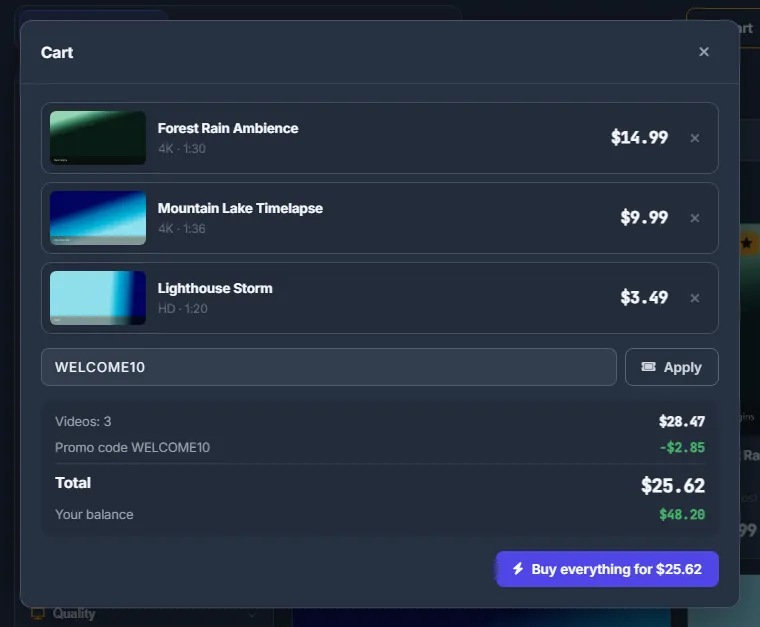
Fig. 3 A promo code applied: the discount is shown as its own line above the total. -
Take out what cannot be bought
A line turns red with a reason when its video cannot be bought now: “Not in the store any more”, “Already yours”, “Sold out” or “Being prepared”. Click “Take out the unavailable” — the buy button stays disabled until those lines are gone.
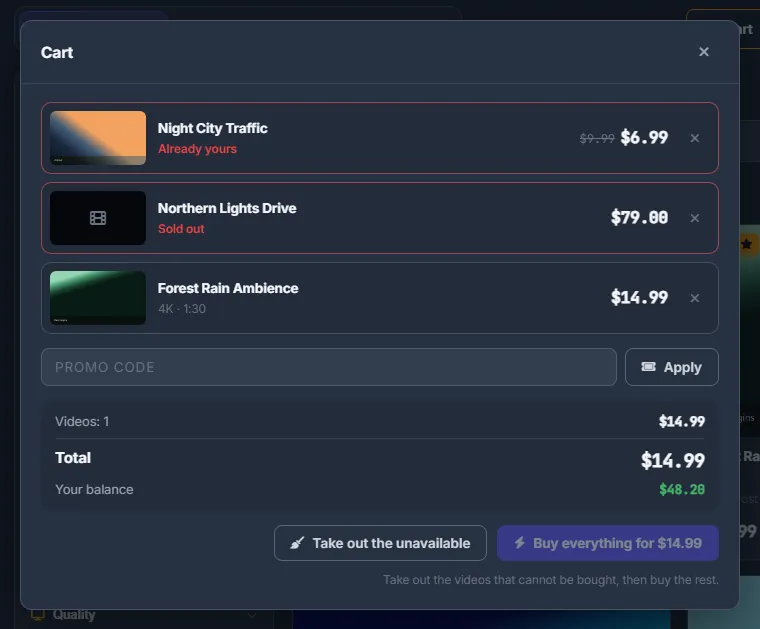
Fig. 4 An unavailable video is marked with the reason and blocks the checkout until you take it out. -
Buy everything
Click “Buy everything for $X” (it reads “Top up to buy” when the balance is short). The checkout is all or nothing: either every video in the cart is bought with one charge, or none is. Bought videos leave the cart, the promo code counts as used, and “Bought N videos — they are in My purchases.” appears.
Promo codes
Codes are entered only in the cart; the one-click “Buy” takes no code. Letters are turned into capitals, so case does not matter. A code gives either a percentage or a fixed amount off, and never more than the cart’s subtotal. The code you typed is remembered while the tab is open and cleared after a successful checkout.
If a code does not work, the cart tells you why:
| Message | What it means |
|---|---|
| There is no such promo code | Check the spelling. |
| This promo code has expired | The code’s end date has passed. |
| This promo code is used up | The code has reached its total number of uses. |
| This promo code works from $X | The cart total before the discount is below the code’s minimum. Add more videos. |
| You have used this promo code already | Most codes work once per account. |
How a discount is split
The discount is spread over the videos in proportion to their prices. Each purchase in “My purchases” therefore shows what you really paid for that video.
The cart lives in your browser
The cart is kept in this browser for your account: it survives a reload but does not follow you to another device or browser. Prices and availability are always checked by the server when the cart opens and again at checkout, so you never pay an outdated price.
Exclusive and limited videos
An exclusive goes to the first buyer only; a limited video sells until its copies run out. If someone buys the last copy while the video sits in your cart, the checkout stops with “<title> has just been sold out — remove it from the cart”, and nothing is charged.
Costs
Every video has its own price set by the store team. During a sale the old price is shown struck through; videos marked “Free” cost nothing. The price is charged from your USD balance at the moment of purchase — there is no subscription. Promo codes reduce the cart total.
By default, Content store purchases do not earn a referral share for whoever invited you — see Referral program.
Troubleshooting
| What you see | What to do |
|---|---|
| “You already have this video — download it from My purchases” | You own it already; a video cannot be bought twice. Open “My purchases”. |
| “This video is being prepared — try again in a few minutes” | The store is still processing the file. Wait a few minutes and try again. |
| “Some videos cannot be bought now — remove them from the cart” | Open the cart, click “Take out the unavailable”, then buy the rest. |
| “Insufficient balance: $X needed, $Y available” | Top up and try again. Nothing was charged. |
FAQ
Can I get a refund for a video?
Refunds are made by the team only — write in the support chat. A refunded purchase returns its price to your balance and shows “Refunded” in “My purchases”; its copy in your Files may be removed.
Can I buy a video someone else already owns?
Yes, unless it is exclusive or its limited copies are sold out.