
Site notes
Every site has its own notebook with formatting: hosting quirks, agreements with the client, where the access details are kept. Notes save themselves, and you can read them right on the Dashboard without opening the site.
Where to find it: the site page → Notes, or the sticky-note icon next to the site name on the Dashboard.
Before you start
- The site is added. The plugin is not needed for notes.
Write notes
-
Open Notes
On the site page click “Notes”, the last tab. If the site already has a note, you can also click the sticky-note icon next to its name on the Dashboard.
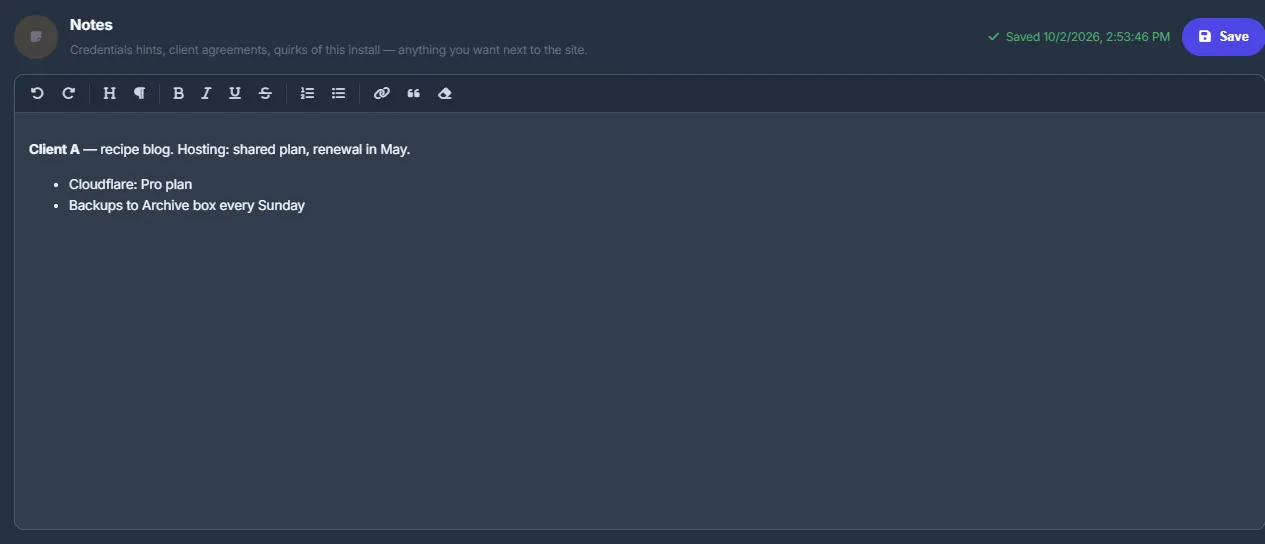
Fig. 1 Notes with formatting, autosave and Ctrl+S. -
Write
Type in the editor. The toolbar has undo and redo, headings (1–3), bold, italic, underline, strikethrough, numbered and bulleted lists, link, quote and clear formatting.
-
Save
Notes save automatically 2.5 seconds after you stop typing. You can also click “Save” or press Ctrl + S. The status next to the button reads “Unsaved changes”, “Saving…”, “Saved” with the date and time, or “Could not save”.
-
Read notes from the Dashboard
A site with a note gets a sticky-note icon next to its name on the Dashboard. Hover over it to read the whole note with the time of the last change; click it to jump to the Notes tab.
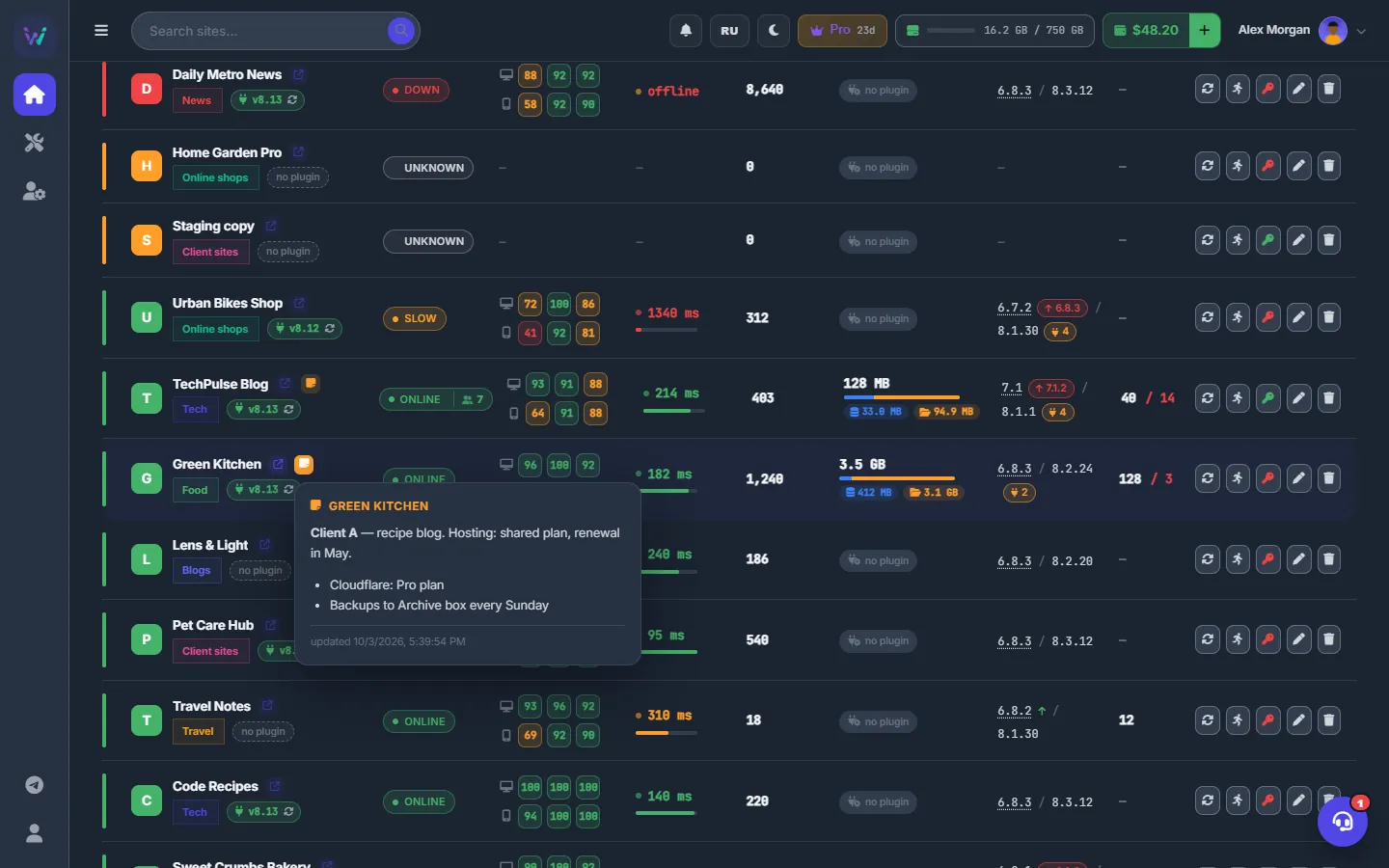
Fig. 2 Hover over the sticky-note icon to read a note without leaving the Dashboard. -
Delete a note
Click “Clear notes” and confirm. Clearing the text does not delete the note on its own: only “Clear notes” removes it.
Parts that cannot be shown
Notes are shown through a safety filter. If a stored note contains parts the editor cannot show safely — embedded frames, custom classes or styles, links other than web and mail links — then:
- a yellow warning appears and those parts are hidden;
- autosave is turned off for this note;
- “Save” asks for confirmation before it replaces the stored note with the version you see.
Review the note and confirm only if you do not need the hidden parts.
Costs
Free.
Tips
- Write down where a password is kept, not the password itself.
- Split a note with headings such as Hosting, Client and Quirks: the Dashboard preview stays easy to read.
Troubleshooting
| What you see | What to do |
|---|---|
| “Notes are limited to 100 000 characters” | The note, together with its formatting, is too long. Shorten it or move large tables elsewhere. |
| A yellow warning says that parts of the note cannot be shown | See Parts that cannot be shown. Click “Save” and confirm only if you are fine with losing the hidden parts. |
FAQ
Who can see my notes?
Only your account — and WPManager support staff when they help you.