
Create an account
Sign up with your email, confirmed by a link, or in one click with Google. Signing up is free, and the new account gets a 30-day free trial.
On this page
Where to find it: “Get started” on wpmanager.online, or the sign-in page → “Don't have an account? Create one” (address /Account/Register).
Before you start
- An email address you can open, or a Google account.
Sign up
-
Open the sign-up page
Open wpmanager.online and click “Get started” in the top bar, or go straight to
/Account/Register. On the sign-in page, “Create one” under “Don't have an account?” leads to the same form. The EN | RU switch in the top right corner changes the language of these pages.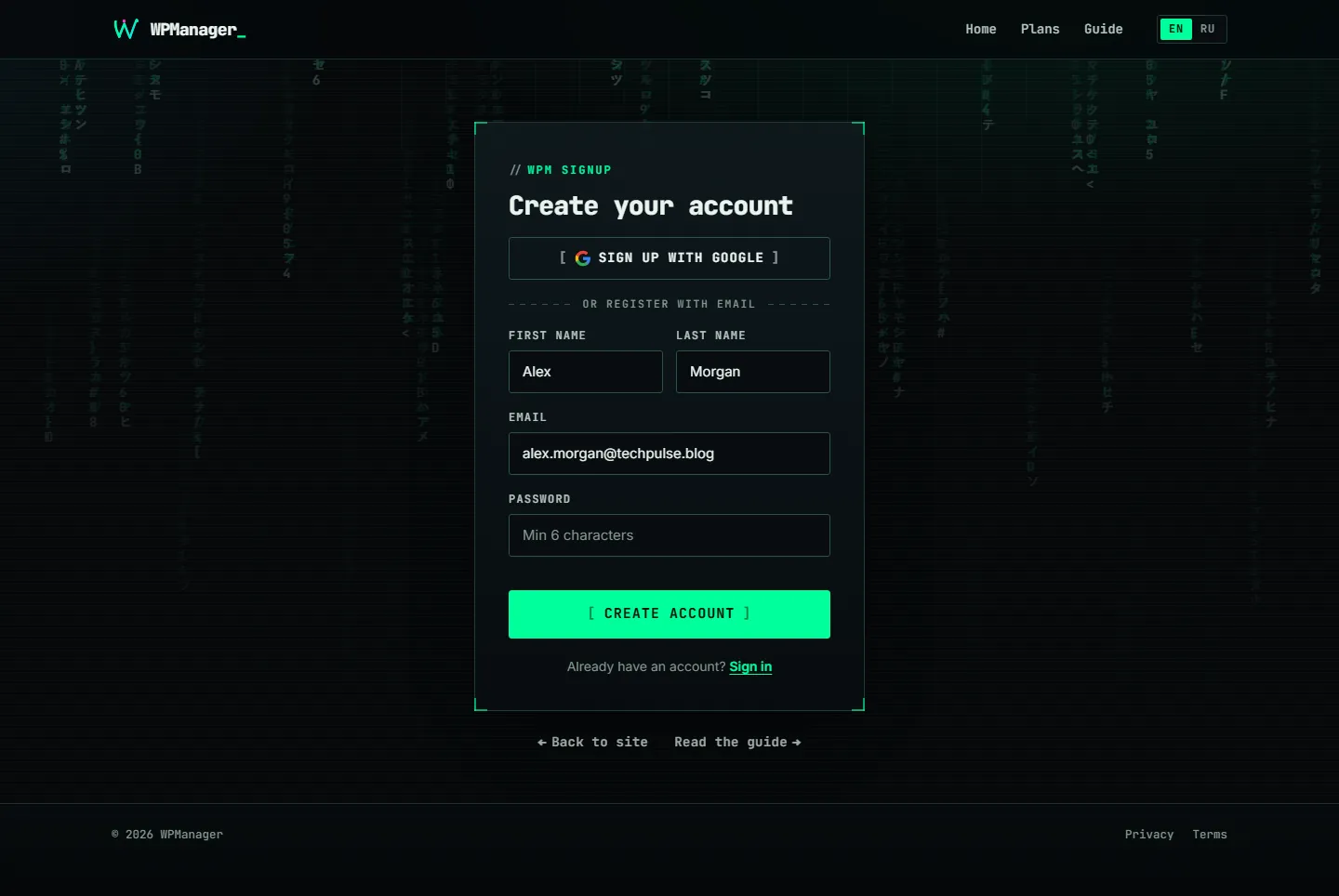
Fig. 1 The sign-up page: Google in one click, or the email form. -
Option A: sign up with Google
Click “Sign up with Google” and choose your Google account. The account is created immediately and you land on the Dashboard. Google has already confirmed the address, so no confirmation email is sent.
-
Option B: fill in the form
Enter “First Name”, “Last Name”, “Email” and a “Password” of at least 6 characters, then click “Create Account”. A Cloudflare check runs in the background; if it asks you to confirm that you are human, do it. Meanwhile the button reads “Verifying...”.
-
Confirm your email
The “Check your email” page appears. Open the email “Confirm your e-mail — WPManager” and click “Confirm e-mail”. The link works for 24 hours.
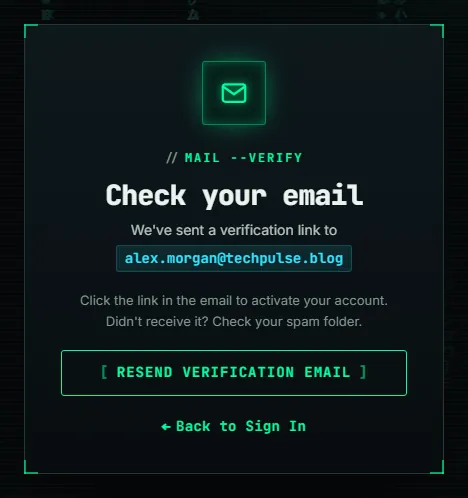
Fig. 2 After the form: confirm the address with the link from the email. -
Sign in
The “Email Verified!” page says the account is active. Click “Sign In” and enter your email and password.
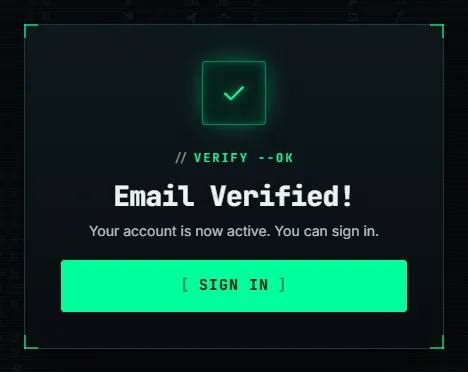
Fig. 3 The address is confirmed and the account is active.
No email?
Look in the spam folder first. Then click “Resend verification email” — on the “Check your email” page, or on the sign-in page after you try to sign in. You can request a new one 2 minutes after the previous one, up to 5 times an hour.
What a new account gets
- A 30-day free trial: 3 sites, 5 GB of storage and 100 GB of traffic. Before it ends, top up and buy Basic ($10 a month) or a bigger plan on the Plans page; otherwise the account is put on hold until you do — nothing is deleted.
- A USD balance of $0.
- Personal file storage, sized by your plan.
- Every section of the menu. What each plan includes is listed on Plans & Pricing.
Signing up through a referral link
If someone shared a link like wpmanager.online/r/AB12CD34 (or /Account/Register?ref=AB12CD34), your browser remembers it for 90 days. Sign up by email or with Google within that time, in the same browser, and you become that person's referral. It costs you nothing: they get a share of WPManager’s income from your spending, not your money. See Referral program.
Google and an address that is already registered
- An account with the same email already exists and is confirmed: signing in with Google simply links Google to it.
- Someone registered your address but never confirmed it: signing in with Google confirms the account for you, and the password from that unconfirmed sign-up stops working.
- The address is already linked to a different Google account: sign-in is refused.
Costs
The first 30 days are free. After that you buy a plan on the Plans page — Basic costs $10 a month (or $100 a year) — and it renews by itself while the balance covers it. A top-up alone does not buy a plan; until you buy one after the trial, the account is on hold and nothing is deleted. Paid usage, such as AI, is charged from the balance — see What you pay for.
Troubleshooting
| What you see | What to do |
|---|---|
| “This email is already registered” | You already have an account. Sign in, or click “Forgot password?” to set a new password. |
| “CAPTCHA verification failed. Please try again.” | Reload the page and send the form again. Ad and script blockers must allow challenges.cloudflare.com. |
| “This verification link has expired. Please request a new one.” | Try to sign in: the sign-in page shows “Resend verification email”. Click it and use the link from the new email within 24 hours. |
| “Invalid or expired verification link.” | The link was already used or copied incompletely. If you confirmed the address before, just sign in. |
| “Registration is closed. Ask support for an account.” | Sign-up is closed for a while. Email support@wpmanager.online and support will create the account for you. |
FAQ
Is signing up free?
Yes, and so are the first 30 days. After the trial you buy a plan from the balance (from $10 a month for Basic), and paid usage is charged as you use it.
Do I need a bank card?
No. When you need money on the balance, you top it up with cryptocurrency — see USD balance and top-up.
Can I change my email later?
The email cannot be edited in the profile. Write to the team in the support chat.