
File host accounts
Connect the file-host accounts you work with — Keep2Share, DaoFile, TakeFile and others. Once they are added, the panel recognises their links on your sites, checks the files, shows each account’s balance and can upload new files to them.
On this page
Where to find it: Links & files → File Hosters → tab “File Hosters”.
Before you start
- An account on the file host and its API key. For Keep2Share, TezFiles and FileBoom the “API key” field takes either the account’s permanent access token or
email:passwordof the account. - WayShare and FlorenFile have no API — they take the login and password of the account instead. See WayShare and FlorenFile: hosts without an API.
Supported hosts
- Keep2Share family — Keep2Share, TezFiles and FileBoom share one API.
- XFileSharing hosts — Rapidcloud.cc, DaoFile, Hotlink.cc and TakeFile, plus any other XFileSharing site you add as “Your own hoster”.
- 1Fichier — API type “Custom”.
- WayShare and FlorenFile — no API: the panel signs in on their website with your login and password.
Every host from the catalogue brings its own link patterns, so the Scanner and the Link Checker recognise its links. An account added as “Your own hoster” gets its pattern from the site address you enter, so its links are recognised as well.
Add an account
-
Open the page
In the left menu open Links & files → File Hosters. The page has three tabs: “File Hosters” (your accounts), “Image hosts” and “Link Checker”. Under the tabs, the link “Forum templates moved to Posting templates” leads to Forum posts and themaPoster export: forum templates now live there. In a new account the first tab says “No file hosters yet” and offers an “Add file hoster” button.
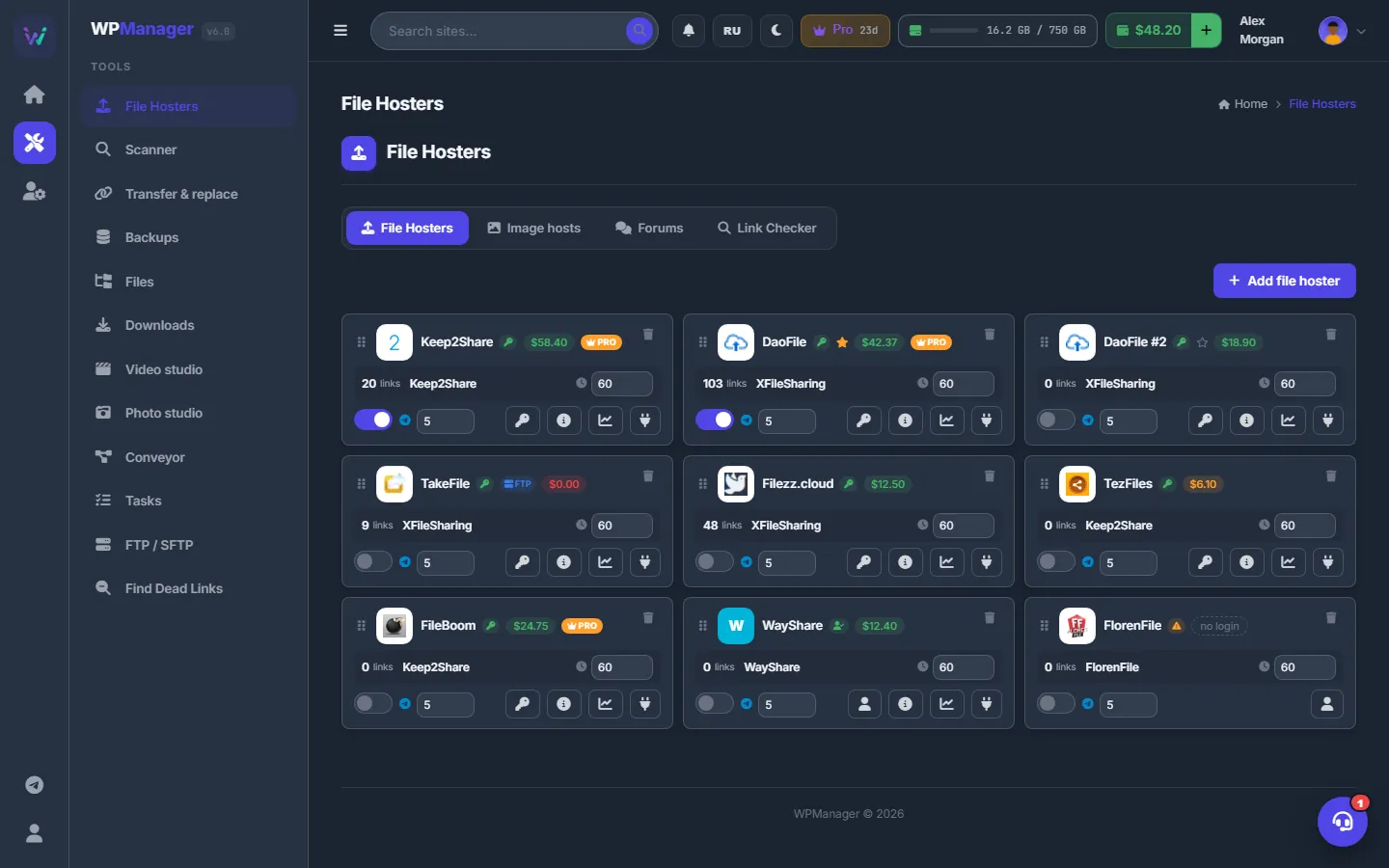
Fig. 1 Each account is a card with its badges, its balance and quick-action buttons. The balance colour shows at a glance which account needs attention. -
Open the catalogue
Click “Add file hoster”. The dialog shows every host the panel can work with as a tile: Rapidcloud.cc, DaoFile, Hotlink.cc, 1Fichier, TakeFile, Keep2Share, TezFiles, FileBoom, WayShare and FlorenFile, plus the “Your own hoster” tile. A green check on a tile means you already have that host.
To find a host fast, type in “Find a file hoster…” — a name, a domain or a short name such as
k2s,fb,tez,daoorfilez. The arrow keys move between tiles and Enter picks one.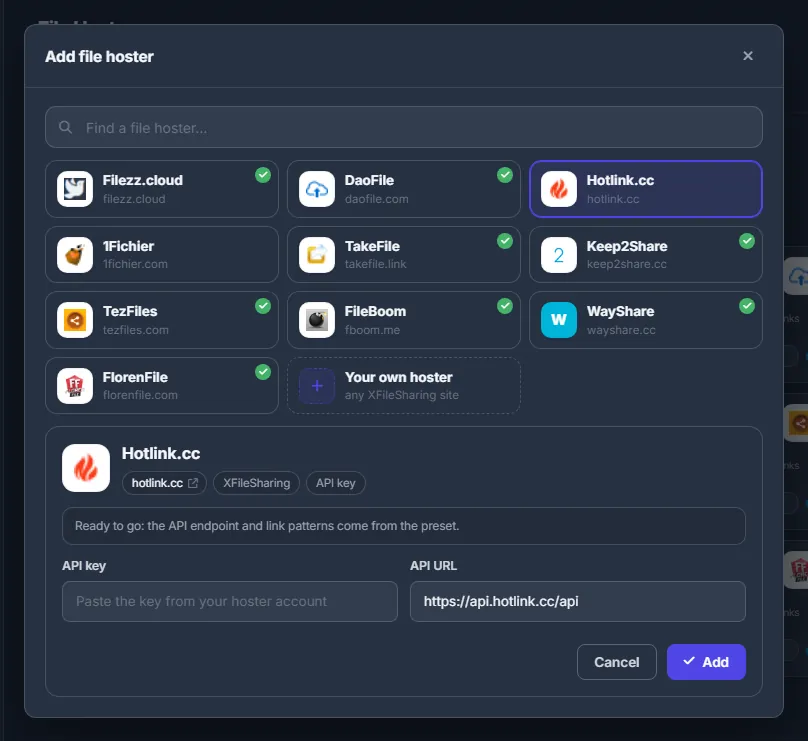
Fig. 2 The catalogue. Hosts you already added carry a green check. -
Pick the host and paste the key
Click the tile. Under the tiles you see the host’s card: its domain (a link to the site) and chips with its family — “Keep2Share family” or “XFileSharing” — and “API key”. Paste your key into “API key”. “API URL” is already filled in from the catalogue; leave it as it is. Click “Add” or press Enter.
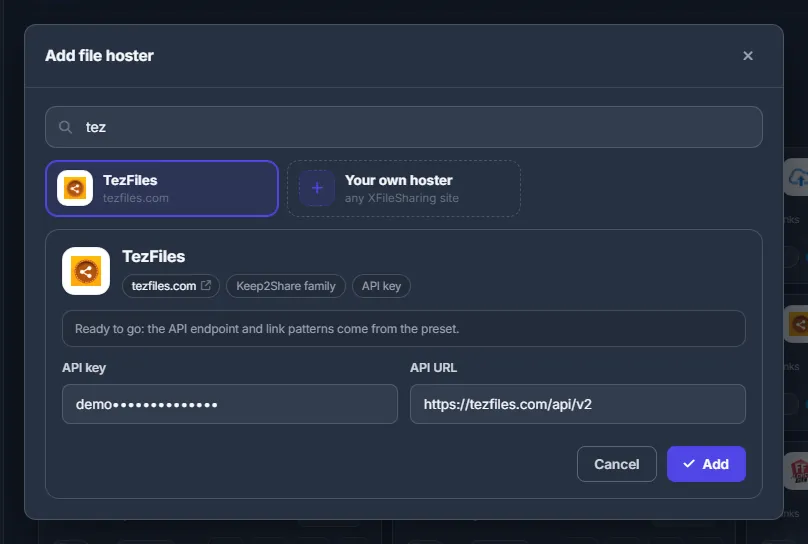
Fig. 3 TezFiles picked from the catalogue: only the key is needed, the API address is filled in for you. -
Check the new card
The account appears as a card. A green key badge next to the name means a key is saved; a yellow triangle means there is no key yet, and the balance place then reads “no key”. A moment later the balance shows up. Click the plug button “Test connection” to make sure the key works — you should see “API connection successful!”.
Several accounts on one host
You can connect more than one account of the same host. Pick the same tile again: it says “already added”, and the dialog warns that a second account will be created. The new account gets its own key, its own balance and a name such as “DaoFile #2”.
As soon as a host has two or more accounts, their cards show a star. The filled star marks the primary account — the one used for link checks, downloads and uploads. The first account you added is primary; to change that, click the empty star on another card.
Add a host that is not in the catalogue
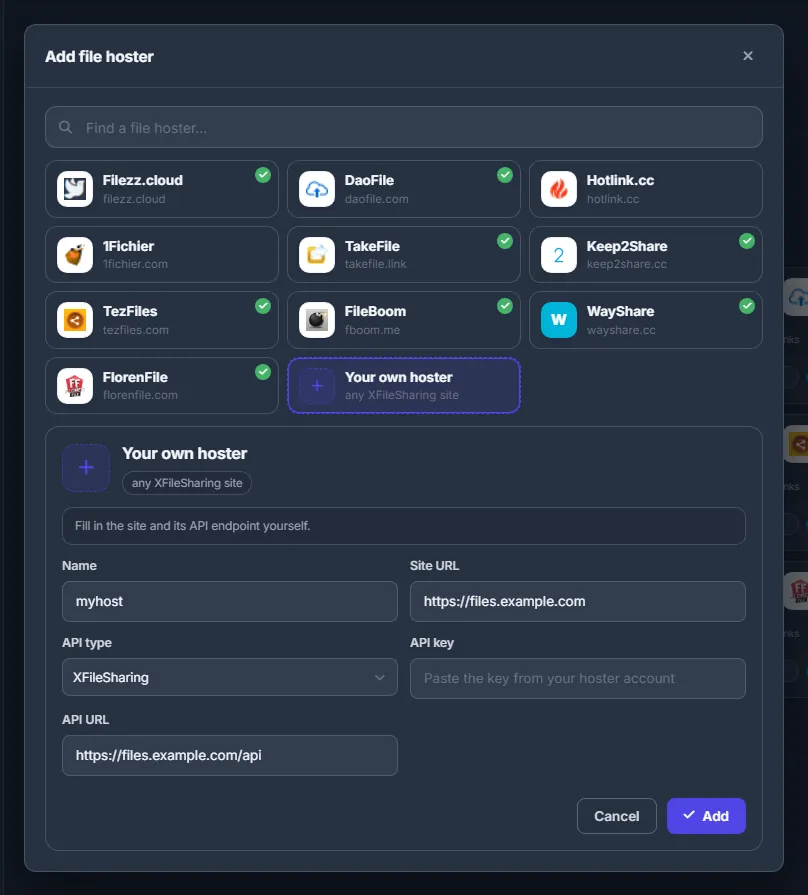
If your host runs on XFileSharing, choose the last tile, “Your own hoster” (“any XFileSharing site”). Fill in “Name” and “Site URL” (both required), choose the “API type” — XFileSharing, Keep2Share, WayShare, FlorenFile or Custom — paste the “API key” and the site’s “API URL”, then click “Add”.
What a card shows
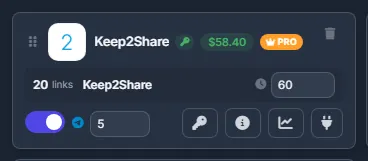
- Name and icon — the host’s favicon, or its first letter on a colour.
- Badges — green key: API key saved; green person: login and password saved (WayShare, FlorenFile); yellow triangle: no credentials; FTP: FTP upload is on; PRO with a crown: premium is active on the account.
- Balance in dollars — green above $10, yellow above $0, red at $0 or below. “⚠” means the host answered with an error; hover it to read the answer.
- Star — only when a host has several accounts (see above).
- “N links” — how many links the Scanner has tied to this account, followed by the API type.
- Clock field, Telegram switch and ±$ field — see Balances, statistics and Telegram alerts.
- Buttons — “API settings” (or “Login settings”), “Account info”, “Balance chart” and “Test connection”. The last three appear once credentials are saved.
Change the key or add FTP upload
On the card, click the key button “API settings”. The dialog has “API URL”, “API Key” and an “FTP Upload” section. Leave “API Key” empty to keep the saved key, or paste a new one to replace it.
Some hosts accept files by FTP. Turn on “FTP Upload” and fill in “FTP Host”, “Port” (21 by default), “Username”, “Password” and “Remote Path”, then click “Save”. From then on the panel uploads to this account by FTP, and the card shows the FTP badge.
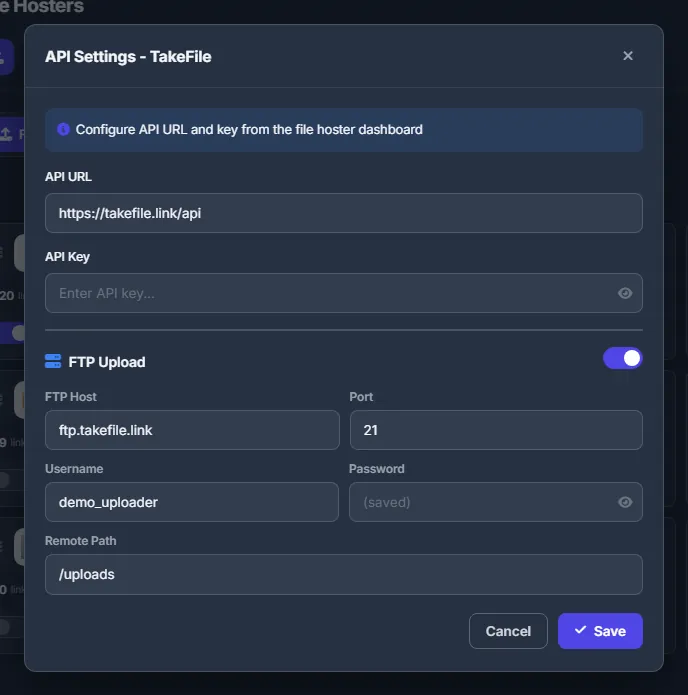
- “FTP Host” takes only a host name or an IP address — no
ftp://, port or path — and it must point to a public internet address. - An account with FTP only and no API key gives no file link back, so it cannot be the target of a file transfer.
Reorder and delete accounts
Drag a card by the grip on its left edge to change the order; the new order is saved immediately.
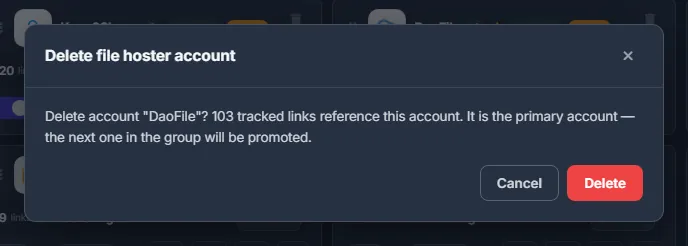
To remove an account, click the trash icon in the card’s top-right corner and confirm “Delete file hoster account”. The dialog tells you how many tracked links point to the account and, for a primary account, that the next account of the same host becomes primary.
What the accounts are used for
- Scanner — finds links of these hosts in your posts. With an XFileSharing API key it asks the host about every file: whether it exists, its name and size. See Scanner.
- Find Dead Links — restores files into your account on the same host and searches your account for files with the same name. See Find Dead Links and restore the files.
- Transfer & replace — a Keep2Share-family account with a key, or an XFileSharing account with a key and API URL, can receive moved files. Your key also opens your own files on the source host. See Transfer files between file hosts.
- Balances and Telegram alerts — for every account with credentials.
- Uploads from the panel — Files and the Conveyor upload to these accounts. See Uploading to file hosts.
Settings
| Setting | What it does |
|---|---|
| API key | The key of your account on the host. For the Keep2Share family: the access token or email:password. Spaces, quotes and backslashes are not allowed. |
| API URL | The host’s API address. Filled in from the catalogue; for “Your own hoster” you enter it yourself. |
| Primary account (star) | With several accounts on one host, the primary one is used for link checks, downloads and uploads. The first account of a host is primary. |
| FTP Upload | Switch plus FTP Host, Port (1–65535, default 21), Username, Password and Remote Path. Uploads to the account then go by FTP. |
| Card order | Drag cards by the grip; the order is saved. |
Each panel account sees only its own file-host accounts and keys.
Costs
Connecting accounts, reading balances and testing keys is free in the panel. What the hosts charge for their own accounts is between you and the host.
Troubleshooting
| What you see | What to do |
|---|---|
| The balance shows “⚠” | Hover the sign to read the host’s answer. Usually the key is wrong or expired, or the API URL is wrong. Open “API settings”, paste the key again, save and click “Test connection”. 1Fichier accounts (API type “Custom”) have no account info in the panel, so they always show “⚠”. |
| “Name and site URL are required” | For “Your own hoster” fill in both “Name” and “Site URL”. |
| “The API key or login must not contain spaces, quotes, backslashes or control characters” | Copy the key again, without spaces or line breaks around it. |
| “FTP host: enter a host name or IP address only (no ftp://, port or path)” | Put only the host (for example ftp.example.com) in “FTP Host”, the port in “Port” and the folder in “Remote Path”. |
| “FTP host: it cannot be resolved or points to a local or private network address”, or “Site URL: …” / “API URL: …” is refused | The panel connects only to public internet addresses. Check the spelling of the address. |
FAQ
Can I connect two accounts of the same host?
Yes. Pick the same tile again: the new account is named “#2” and has its own key and balance. The star marks which one is primary.
My host is not in the catalogue. What can I do?
If the host runs on XFileSharing, add it as “Your own hoster” with its API key and API URL. Its links are recognised by the host name of its “Site URL”.
Where do I get the API key?
In the settings of your account on the host’s own website. For Keep2Share, TezFiles and FileBoom you can also enter email:password of the account.