
Store orders and invoices
Follow your Store orders from payment to installation, and pay the invoices the team issues for extra work — such as migrating a site with its content — straight from your balance.
On this page
Where to find it: Account → Store, the “My orders” and “Invoices” blocks below the products.
Before you start
- At least one Store purchase, or an invoice the team has issued to you.
- Enough money on your balance to pay an open invoice — see USD balance and top-up.
Follow your orders
Scroll the Store page down to “My orders”; the header shows how many orders you have in total. Each line shows:
- the order number and the product, with a “+ migration” tag when you asked for a migration;
- the site and the date of the order;
- the team’s note, if there is one;
- the price and the status.
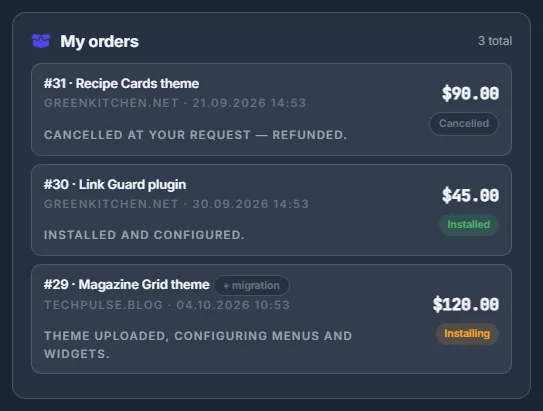
Order statuses
| Status | What it means |
|---|---|
| Paid — waiting for install | The order is paid and has reached the team. |
| Installing | The team has started the work. |
| Installed | Done. The details are in your support chat. |
| Cancelled | The team cancelled the order and returned the full price to your balance. |
Only the team changes the status. With Telegram alerts on, you get a message at each change.
What invoices are for
An invoice covers anything outside the fixed product price: migrating an existing site with its content, custom jobs, extra setup. It can be linked to a Store order — for example, the migration of the site from that order.
The panel never takes the money for an invoice by itself: an invoice is paid only when you click “Pay”. The due date is the team’s deadline, not an automatic charge.
Pay an invoice
-
Notice the new invoice
When the team issues an invoice, three things happen: a message about it appears in your support chat (“Invoice #N: … Pay it on the Store page → Invoices.”), a red counter of unpaid invoices appears on “Store” in the sidebar, and with Telegram alerts on you get a “New invoice” message with a direct link to your invoices.
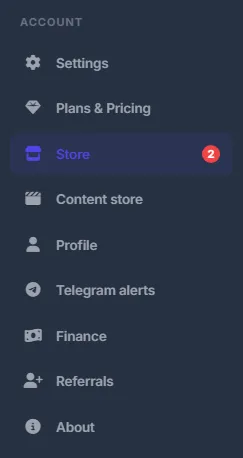
Fig. 2 The red counter shows how many invoices are waiting for payment. -
Open “Invoices”
The “Invoices” block sits next to “My orders”; the address
/Home/Store#invoicesscrolls straight to it. The header sums up what is unpaid — for example “2 to pay · $95.00” — or says “all paid”. Each line shows the invoice number and title, the description, the due date, the date issued, the amount and the status. Unpaid invoices are highlighted and have a “Pay” button.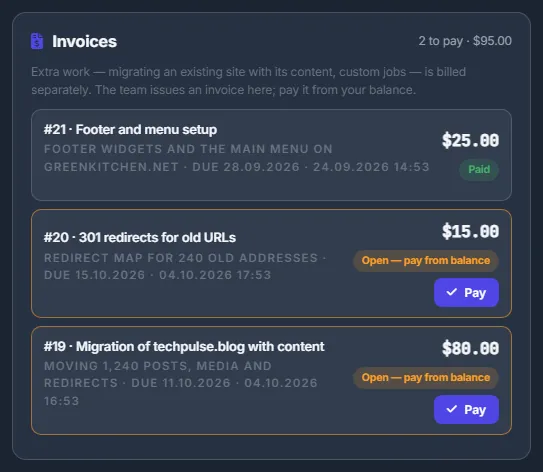
Fig. 3 Open invoices are highlighted; the header shows the total to pay. -
Click “Pay” and confirm
Click “Pay” on an open invoice and confirm “Pay invoice #N “Title” — $X from your balance?”. The notice “Invoice paid. Thank you!” appears, the balance updates, and a line about the payment is added to your support chat. If the balance is short, the panel tells you how much to add — “Top up $N more to pay this invoice” — and opens the top-up window instead.
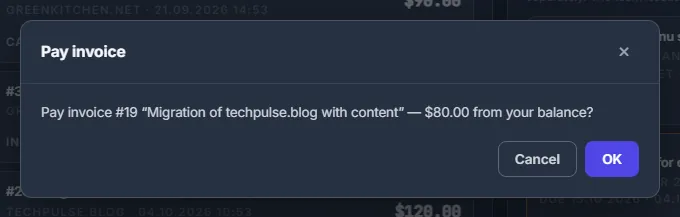
Fig. 4 One confirmation, and the amount comes off your balance.
Invoice statuses
| Status | What it means |
|---|---|
| Open — pay from balance | Waiting for your payment; the line has a “Pay” button. |
| Paid | The “Pay” button is gone and the tag reads “Paid”. |
| Cancelled | The team withdrew the invoice. There is nothing to pay. |
A paid invoice cannot be cancelled. If money has to come back, the team returns it to your balance.
Costs
Invoice amounts are set by the team for each job and paid from your USD balance. Store orders are paid in full at purchase; a cancelled order is refunded to the balance in full.
Troubleshooting
| What you see | What to do |
|---|---|
| “This invoice is not open” | It has already been paid (perhaps in another tab) or cancelled by the team. Reload the page to see its current status. |
| “Store” in the sidebar still shows a red counter after paying | The counter is refreshed when a page loads. Open any page again. |
FAQ
Is an invoice paid automatically when I top up?
No. Top up first, then click “Pay” on the invoice.
I paid an invoice by mistake. What now?
Write in the support chat. A paid invoice cannot be cancelled, but the team can return the amount to your balance.