
Video studio settings: crop, blur, watermark
Every setting of the video studio, tab by tab: codec and quality, size and frame rate, crop and blur areas drawn right on the picture, colour and speed, a text or logo watermark, sound, subtitles and where the result goes.
On this page
Where to find it: Content → Video studio → the tabs “Format”, “Video”, “Audio”, “Picture”, “Stamp”, “Subs” and “Result” on the right.
Before you start
- A video loaded in the studio — see Video studio: cutting, clips and batch conversion.
Format tab
The preset cards and “My presets” (see Built-in presets), then:
- “Container / output type” — MP4, MKV, WebM, MOV, MPEG-TS, GIF, WebP (animated), or sound only: MP3, M4A / AAC, Opus, FLAC, WAV.
- For GIF and WebP — “Frames per second” and “Width, px”. Mark a short piece first: long GIFs get huge.
- “Split into parts” — no (one file), into N equal parts, every N minutes, or parts of N MB with quick buttons from 500 MB to 10 GB.
Video tab
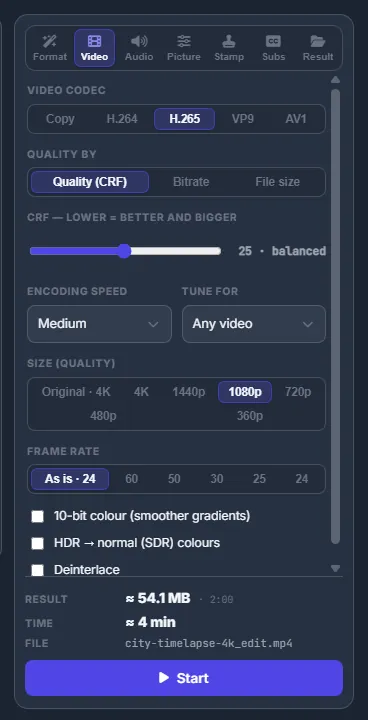
- “Video codec” — “Copy” (no re-encode: instant, but no changes to the picture), H.264, H.265, VP9 or AV1.
- “Quality by”:
- “Quality (CRF)” — lower means better and bigger; the label next to the slider says near-lossless, high, balanced, small or very small;
- “Bitrate” — with quick values from 480p · 1500 to 4K · 16000 kbit/s;
- “File size” — with quick values Discord, 50 MB, 500 MB, Telegram 2 GB and 4 GB.
- “Encoding speed” — from Ultrafast to Very slow; slower gives smaller files at the same quality.
- “Tune for” — adjusts the encoder to the kind of video.
- “Size (quality)” — Original, 4K, 1440p, 1080p, 720p, 480p or 360p, with “Do not enlarge smaller videos”.
- “Frame rate” — As is, 60, 50, 30, 25 or 24.
- 10-bit colour, “HDR → normal (SDR) colours” and “Deinterlace” — the last two are recommended automatically for HDR or interlaced sources.
Audio tab
- “Audio codec” — Copy, AAC, MP3, Opus, FLAC or “No sound”.
- “Bitrate, kbit/s” — 64 to 320.
- “Channels” — As is, Stereo or Mono.
- “Audio track” — when the file has several.
- “Even out loudness (EBU R128)” — quiet and loud videos end up at the same level.
- “Volume” — from −15 to +15 dB.
Picture tab
Crop the picture
-
Start drawing
Under “Crop” press “Draw on the picture”.
-
Drag a rectangle
Drag over the part of the picture you want to keep; the rest is darkened. The tab shows the size of the crop.
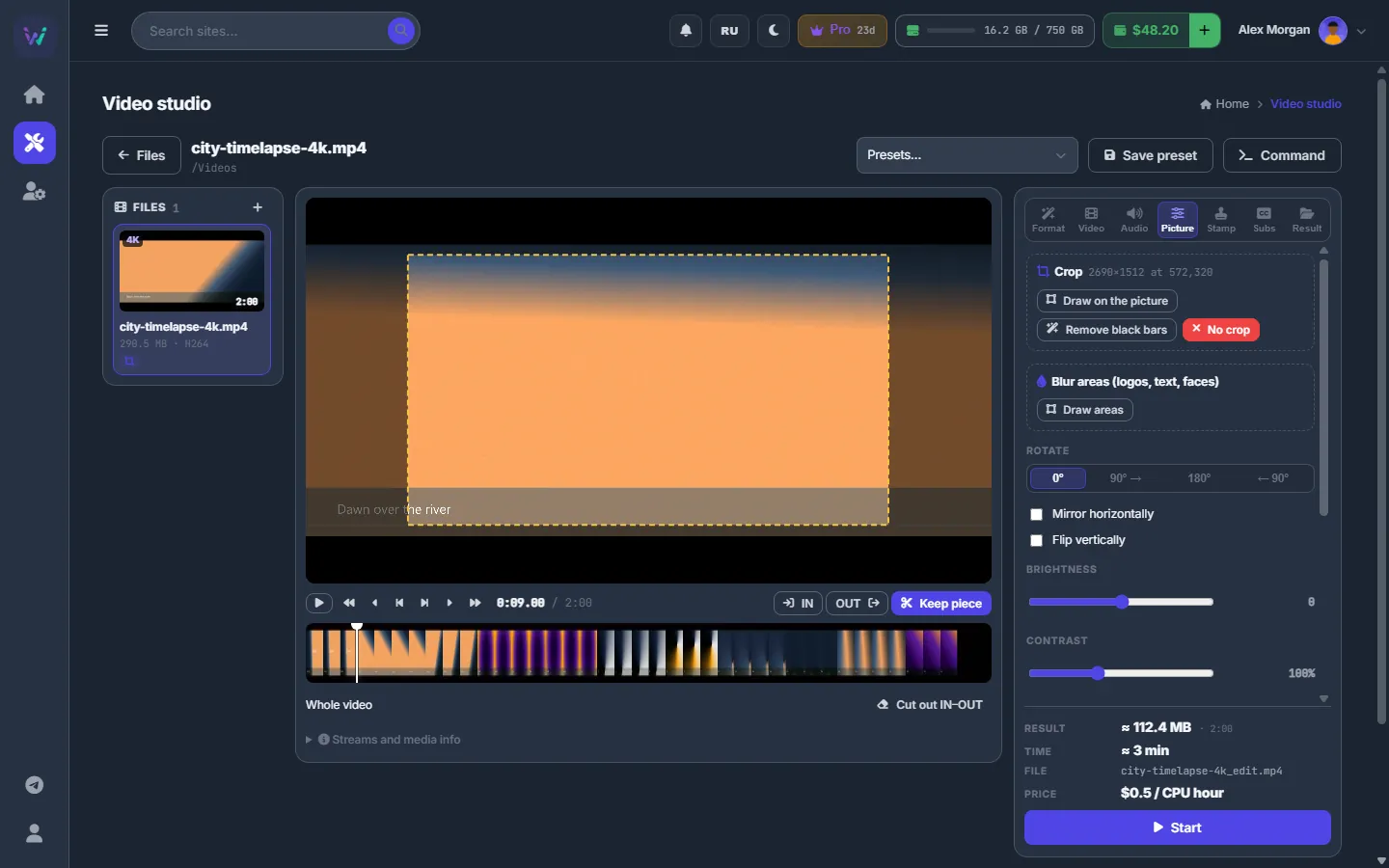
Fig. 2 The dashed rectangle is what stays; the darkened edges are cut away.
“Remove black bars” finds letterbox bars by itself and reports “Black bars found: W×H” or “No black bars in this video”. “No crop” removes the crop.
Blur logos, text or faces
-
Start drawing
Under “Blur areas (logos, text, faces)” press “Draw areas”.
-
Drag over what must be hidden
Draw as many rectangles as you need, then press “Done drawing” (or Esc).
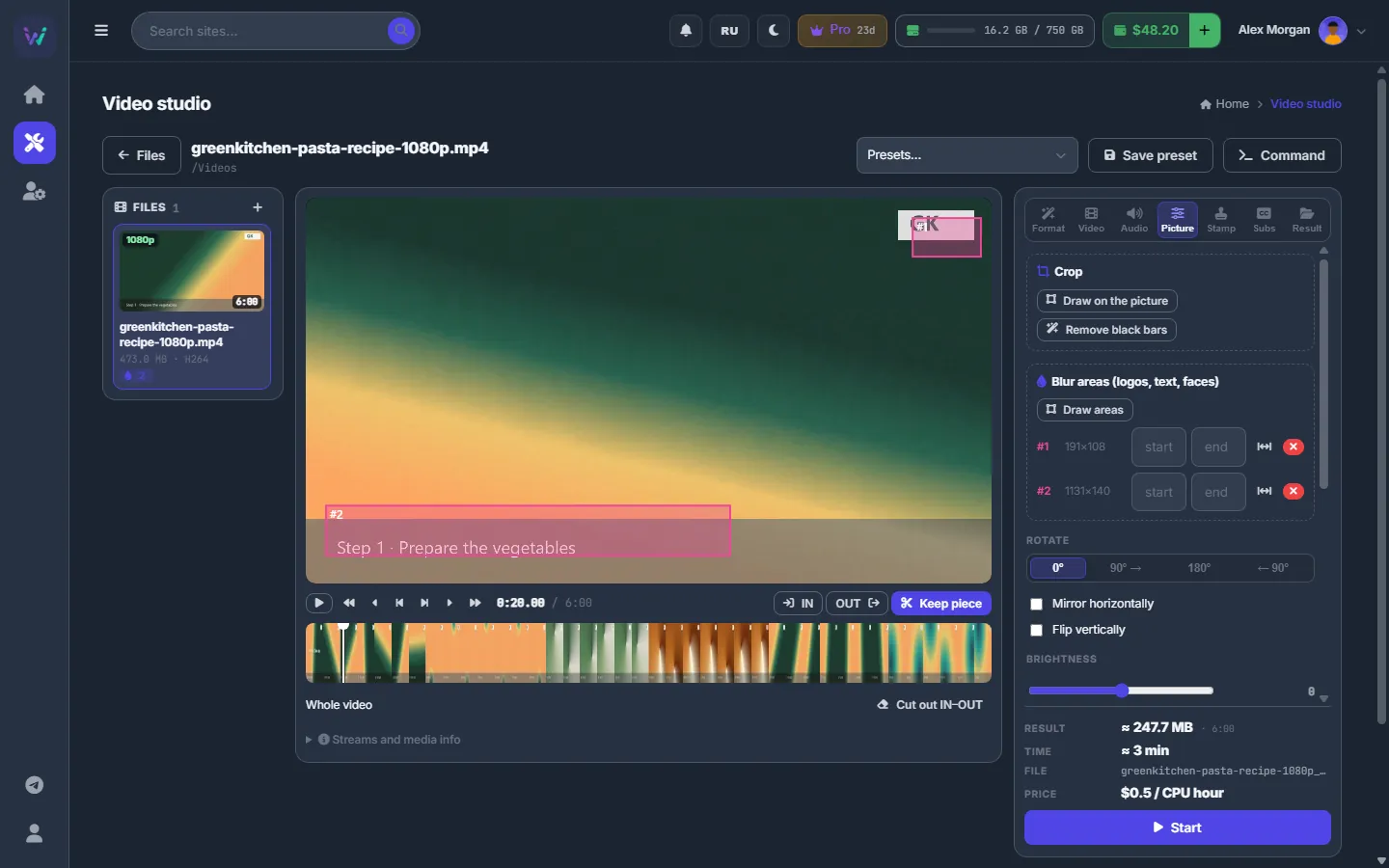
Fig. 3 Area #1 covers the corner logo, area #2 the caption at the bottom. -
Limit an area in time if needed
Each area has a row with its start and end time (m:ss; empty means the whole video), the button “Only between IN and OUT”, which takes the marks from the timeline, and × to delete the area.
Rotation, colour and speed
“Rotate” (0°, 90° →, 180°, ← 90°), “Mirror horizontally”, “Flip vertically”, “Brightness”, “Contrast”, “Saturation”, “Gamma”, “Noise reduction” (Off, Weak, Medium, Strong), “Sharpen” and “Speed” (0.5× to 4×). The player previews colour, rotation and speed live. “Reset colours and filters” brings everything back.
Stamp tab
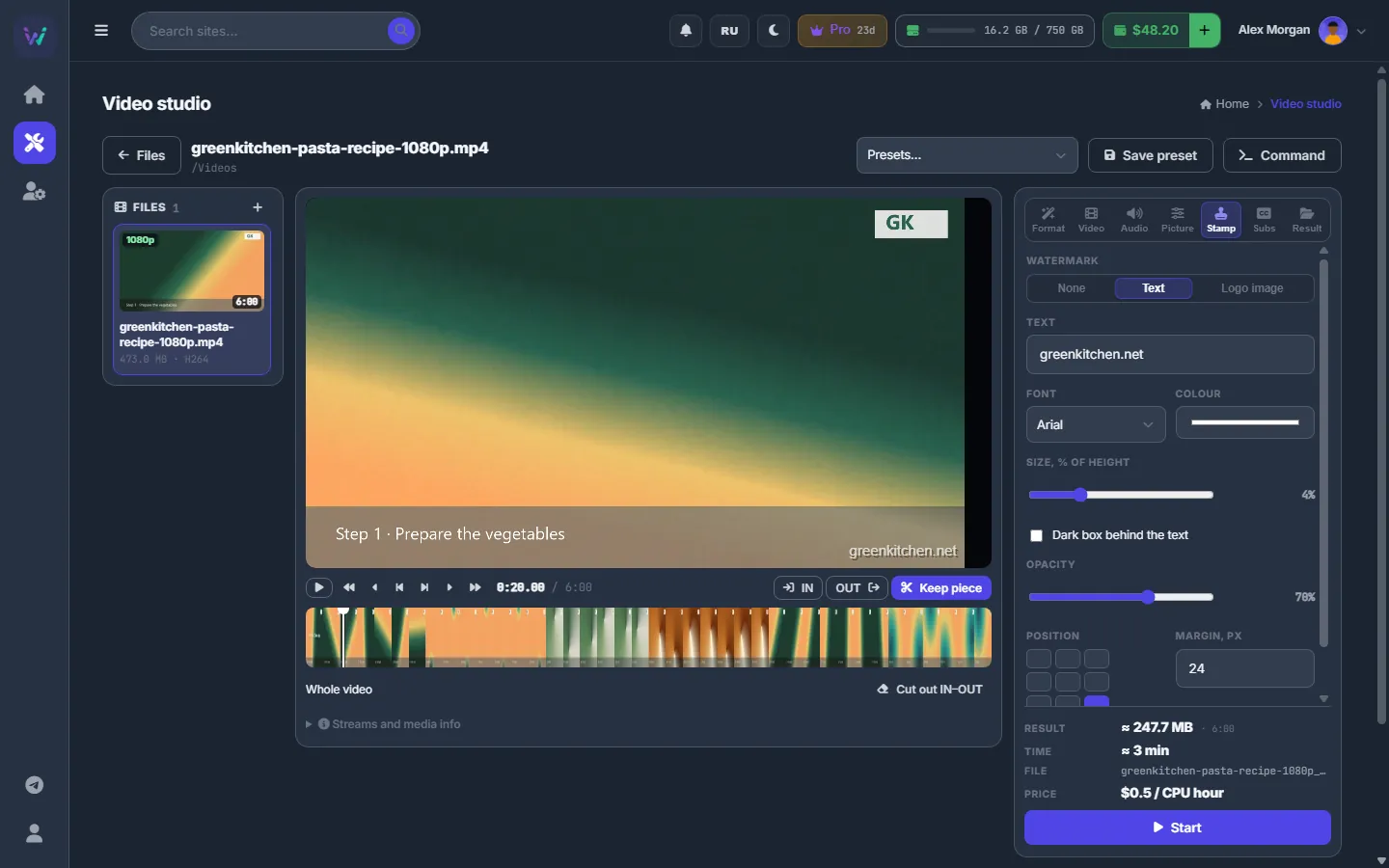
Under “Watermark” choose “Text” or “Logo image”:
- Text — the “Text” itself (for example your site address), “Font”, “Colour”, “Size, % of height” and “Dark box behind the text”.
- Logo image — a picture from your storage (a PNG with transparency works best) and its “Width, % of the video”.
Then set the “Opacity”, the “Position” (nine places) and the “Margin, px”. The preview on the player shows where the watermark lands.
Subs tab
“Subtitles”: “Remove”, “Keep tracks” (MKV keeps everything, MP4 only text subtitles) or “Burn into the picture”. For burning, choose the source: a text subtitle track of the video, a subtitle file next to it, or “Pick a subtitle file” (.srt, .ass, .ssa, .vtt) from the storage. In a batch, a picked file is used for every video, while a track means each video’s own subtitles.
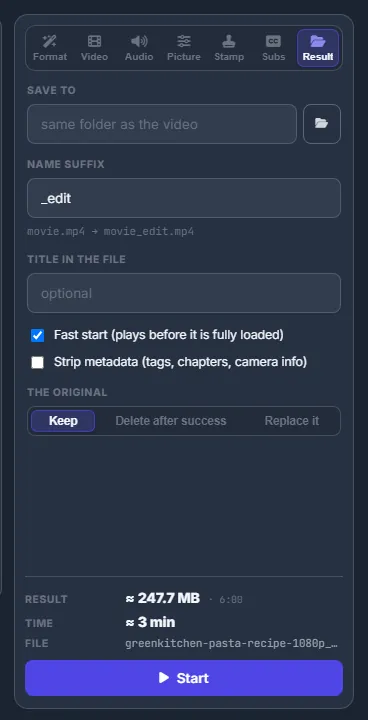
Result tab
- “Save to” — empty means the same folder as the video; the folder button picks another one.
- “Name suffix” —
movie.mp4→movie_edit.mp4by default; presets set their own suffix. - “Title in the file” — optional title stored inside the file.
- “Fast start” (MP4, MOV, M4A) — the video starts playing before it is fully loaded.
- “Strip metadata (tags, chapters, camera info)”.
- “The original” — “Keep”, “Delete after success” or “Replace it”.
Settings
| Setting | What it does |
|---|---|
| CRF | 0–51 for H.264 and H.265, 0–63 for VP9 and AV1. Defaults: 22 / 25 / 32 / 34. |
| Do not enlarge smaller videos | For batches of different sizes: bigger videos are reduced, smaller ones stay as they are. Without it a smaller source is enlarged with a light clean-up and sharpening. |
| The original | Keep / Delete after success / Replace it. The original is removed only after the new file was written successfully; never saved in presets. |
Costs
The same as for the whole studio: the converter may be paid per CPU hour beyond your plan minutes. See Video studio: costs.
Troubleshooting
| What you see | What to do |
|---|---|
| A red note under the settings, and “Start” is disabled | The note explains what does not fit — for example a codec the container cannot hold. Change that setting; the estimate updates by itself. |
| “No text subtitles found in this video or next to it” | Picture-based subtitle tracks cannot be burned in. Pick a .srt, .ass or .vtt file instead. |
| Crop, blur or the watermark have no effect | The video codec is set to “Copy”. Choose H.264 or another codec on the Video tab. |