
Sign in, sign out and password recovery
Sign in with a password or with Google, sign out from the account menu, and reset a forgotten password by email. This page also explains how long you stay signed in and how the sign-in protection works.
On this page
Where to find it: the sign-in page (/Account/Login) · the account menu (your name in the top right corner) → “Logout”.
Before you start
- A confirmed account — see Create an account.
Sign in
-
Open the panel
Go to wpmanager.online and click “Sign in” in the top bar, or open
wpmanager.online/Account/Login. The page “Sign in to your account” opens.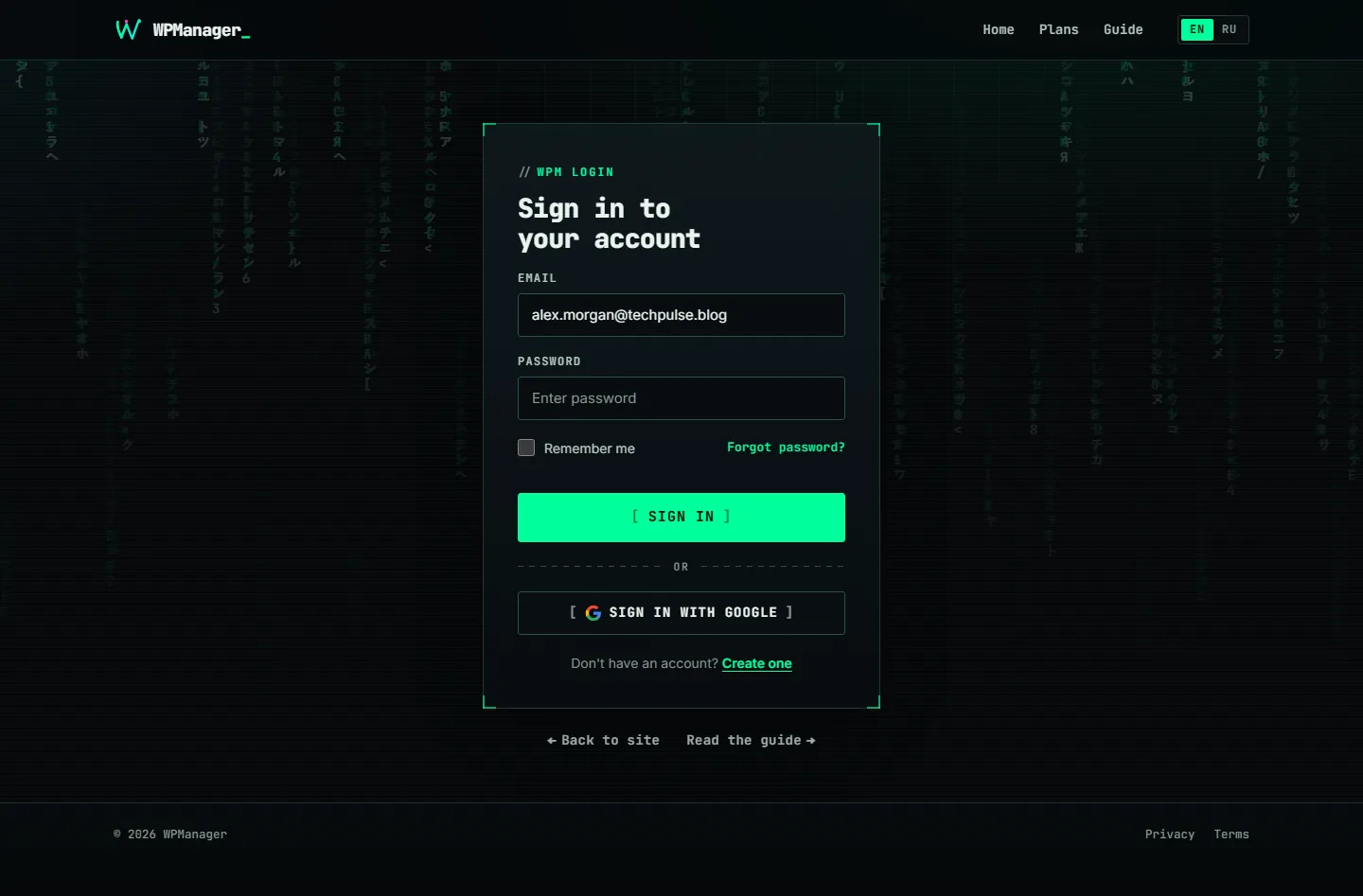
Fig. 1 The sign-in page. The EN | RU switch in the corner changes its language. -
Sign in with a password
Enter “Email” and “Password”. On your own computer tick “Remember me” to stay signed in for 30 days. Click “Sign In”. You land on the Dashboard, or on the page you were opening before.
-
Or sign in with Google
Click “Sign in with Google” and pick the Google account you signed up with, or one with the same email address.
Sign out
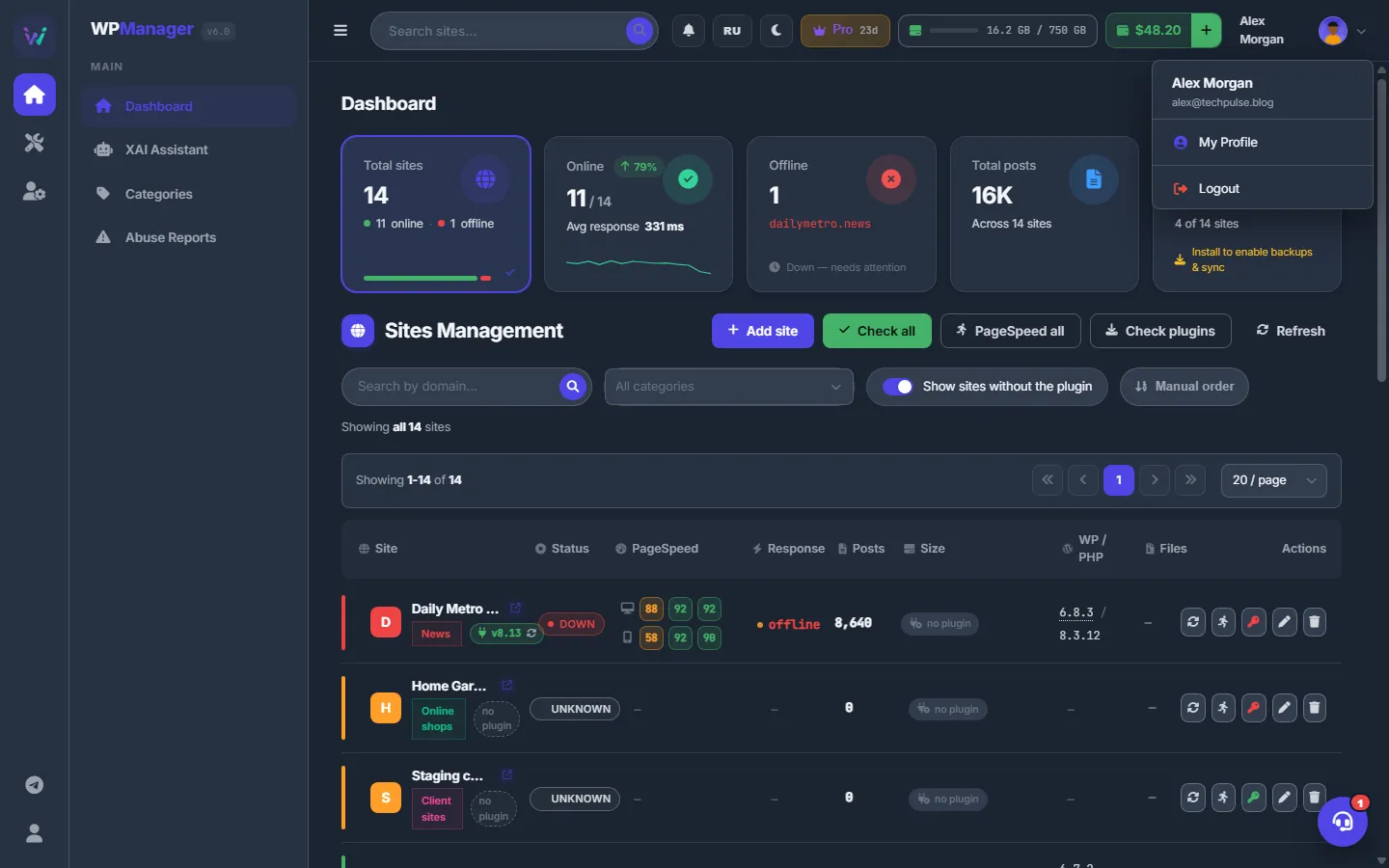
Click your name and avatar in the top right corner and choose “Logout”. The same menu has “My Profile”.
Reset a forgotten password
-
Request the link
On the sign-in page click “Forgot password?”, enter your email and click “Send Reset Link”. For your safety the next page always says the link was sent, whether or not the address has an account.
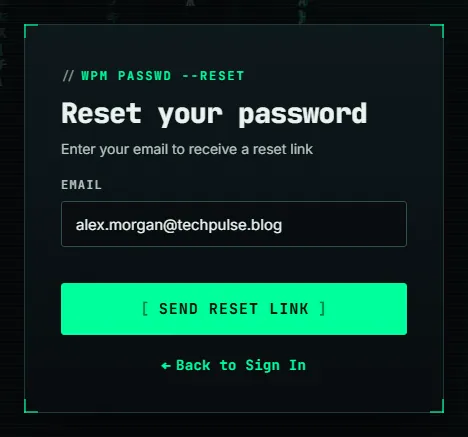
Fig. 3 Request a password reset link. -
Open the email
Open the email “Reset your password — WPManager” and click “Set a new password”. The link works for 1 hour.
-
Set the new password
Enter “New Password” and “Confirm Password” (at least 6 characters) and click “Set New Password”. The sign-in page then says the password was changed — sign in with the new one.
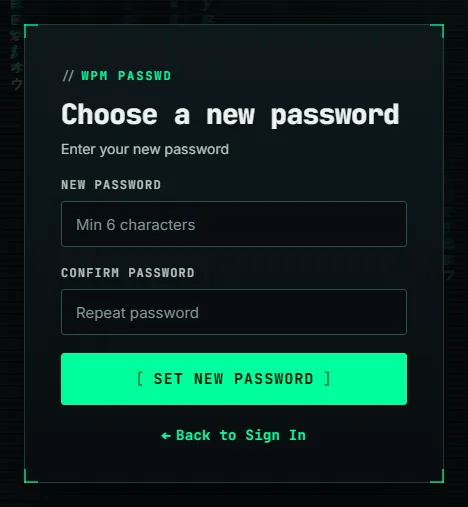
Fig. 4 The page from the reset email: set a new password.
You can request a new reset email 2 minutes after the previous one, at most 5 times an hour. While a link is still valid, the same link is sent again, so an older email keeps working.
How long you stay signed in
| How you signed in | Session length |
|---|---|
| Password with “Remember me” | 30 days |
| Password without “Remember me” | Until you close the browser, at most 7 days |
| 30 days |
When you change or reset the password, every other session of the account ends.
Protection against password guessing
After 10 wrong passwords within 15 minutes, sign-in to the account from new browsers is paused for 15 minutes with “Too many failed sign-in attempts. Please wait 15 minutes or reset your password.” A browser you have signed in from before keeps its own counter, so someone else's guesses do not lock you out there. Resetting the password lifts the pause immediately. One network is also limited to 30 failed attempts in 15 minutes.
Accounts made with Google
An account created with Google has a random password that nobody knows. Keep signing in with Google, or set your own password with “Forgot password?” on the sign-in page. After that you can also change it on the Profile page.
If the email is not confirmed yet
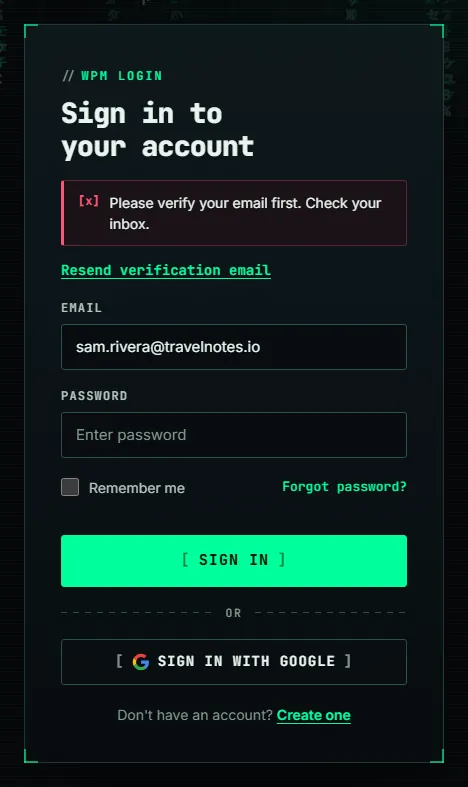
If you sign in before you confirm the address, the page shows “Please verify your email first. Check your inbox.” and a “Resend verification email” link above the form. Click it, open the new email, confirm the address and sign in again.
Troubleshooting
| What you see | What to do |
|---|---|
| “Invalid email or password” | Check the keyboard layout and Caps Lock. If you signed up with Google, use “Sign in with Google”. Otherwise reset the password. |
| “Please verify your email first. Check your inbox.” | Open the confirmation email, or click “Resend verification email” right below the message. |
| “Too many failed sign-in attempts…” | Wait 15 minutes, or reset the password — that lifts the pause immediately. |
| “Your account has been disabled. Contact administrator.” | WPManager has disabled the account. Email support@wpmanager.online. |
| “This email is linked to a different Google account…” | Sign in with the Google account you used before, or with your password. |
| “Invalid or expired reset link. Please request a new one.” | The 1-hour link has expired or was replaced by a newer one. Request a new link with “Forgot password?”. |
FAQ
I am signed in on another computer. How do I end that session?
Change your password on the Profile page: every other session ends on its next request.
Is there two-factor authentication?
Not built in. For a second factor, sign in with Google and turn on 2-Step Verification in your Google account.
I cannot sign in at all. Where do I ask for help?
The support chat works only inside the panel. Try “Forgot password?” first; if that does not help, email support@wpmanager.online.