
Conveyor: build a plan
The Conveyor turns routine file work into a plan: a chain of steps such as download, unpack, screenlist, archive, upload, AI text and publishing. You build the plan once, then start it on any files or links. The server runs it in the background, so you can close the browser.
On this page
Where to find it: Content → Conveyor → tab “Conveyor plans”.
Before you start
- Something to work on: files in your storage (Files) or links you want to download. A plan works on one or the other.
- For the step “Upload to file hosts”: at least one file-host account that can take uploads, i.e. one with an API key (Keep2Share family, XFileSharing hosts) or FTP access. Accounts without upload access are not offered. See File host accounts.
- For the step “Pictures to an image host”: an image host in Links & files → File Hosters → “Image hosts” (see Image hosts).
- For the step “Publish on a site”: a site with the WPManager plugin connected. Other sites are not offered.
- For AI steps: money on your balance (see USD balance and top-up).
The Conveyor page
The header has two tabs, “Conveyor plans” and “Runs”, and two buttons on the right: “From a template” and “New plan”. On the “Conveyor plans” tab your plans are listed on the left, and the selected plan opens in the editor on the right. Each plan in the list shows its icon, whether it works on “Files” or “Links”, a strip of step icons and the date and status of its last run. Once you have more than six plans, a “Find a plan…” box appears above the list.
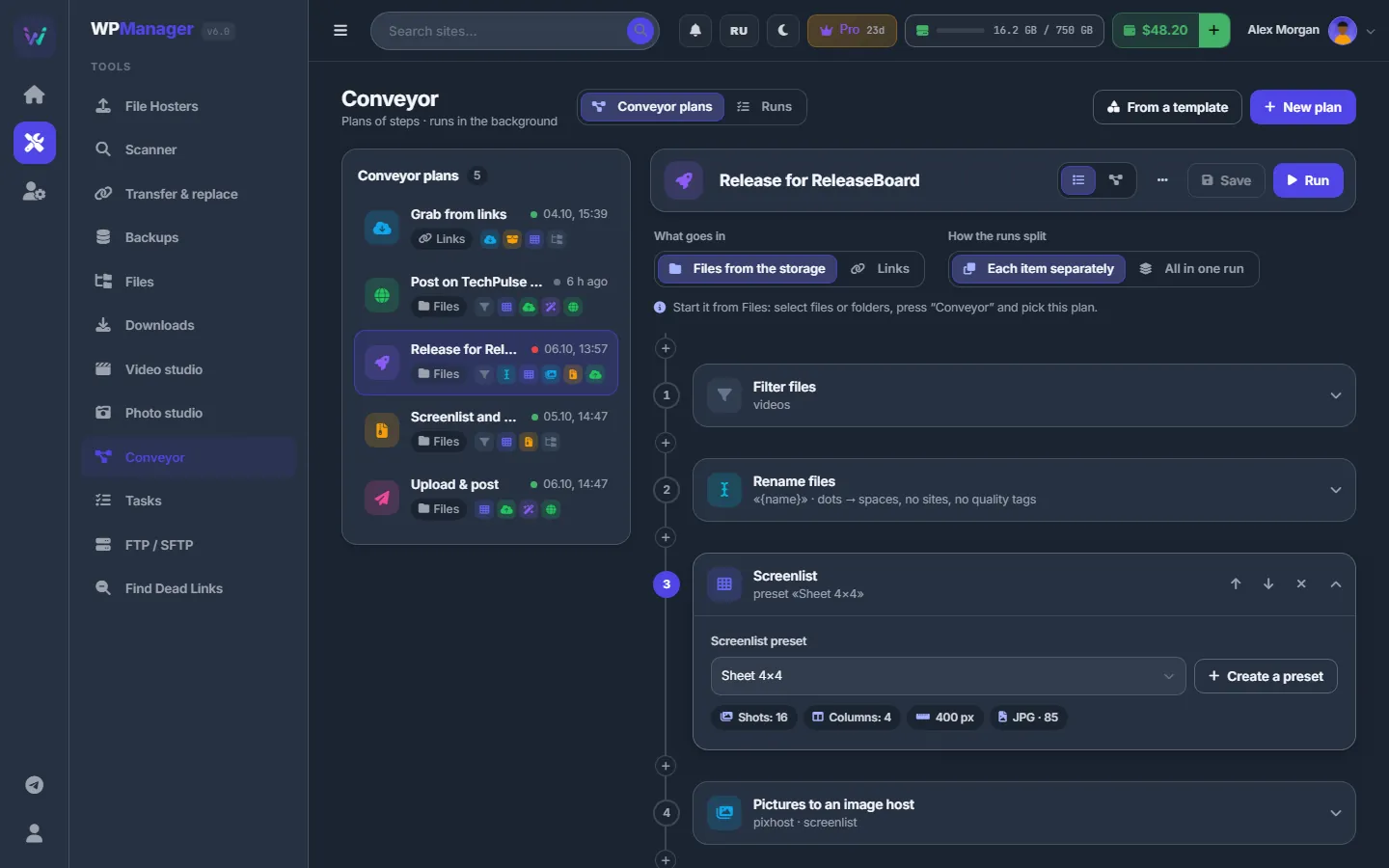
Build a plan
-
Start empty or from a template
Press “New plan” for an empty plan, or “From a template” to open “Start from a template” with five ready chains (listed below). A template opens as a new, unsaved plan. Steps that still need your choice — file hosts, image host, forum, site, presets — carry a yellow chip such as “Choose at least one file host”.
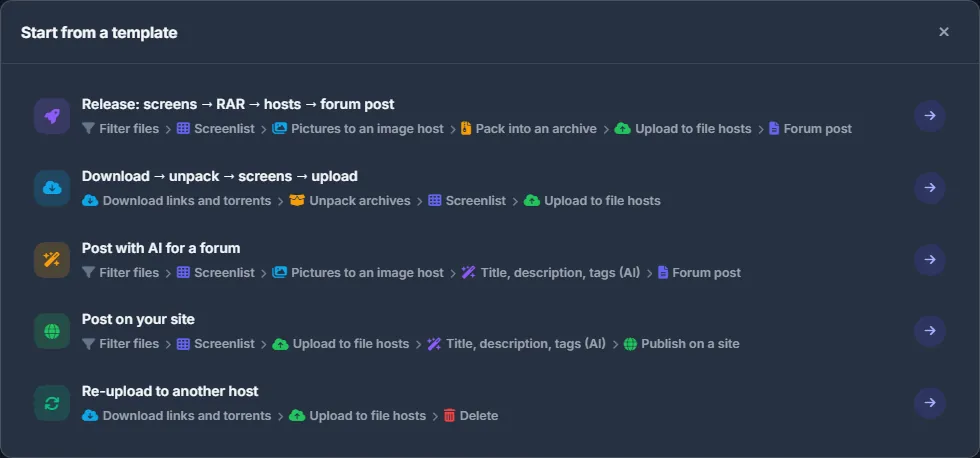
Fig. 2 Each template shows its whole chain, so you can see what it does before you open it. -
Name the plan and pick its look
Click the name field at the top of the editor and type a name, up to 80 characters. Names are unique: if you save a new plan under a name that is taken, the panel asks “A plan with this name exists. Replace it with this one?”. The square button left of the name (“Icon and colour”) offers 12 icons and 8 colours, which make the plan easy to spot in lists and in the launcher.
-
Choose what goes in
“What goes in” has two choices:
- “Files from the storage” — the plan runs on the files and folders you select in Files.
- “Links” — the plan starts from pasted links: file hosts, direct links, magnets, links to .torrent files, web pages. Such a plan must begin with “Download links and torrents” (optionally preceded by “Links from web pages”), so the editor adds the Download step for you.
Switching back to “Files from the storage” takes those first steps out. They come back if you switch to “Links” again before you leave the page.
-
Choose how the runs split
“How the runs split” decides how many runs a start makes:
- “Each item separately” — one run per selected file, folder or link, grouped into one batch on the Runs tab. This is the usual choice for releases: a failure on one file does not stop the others.
- “All in one run” — every item goes into a single run. Use it when the plan should treat the selection as one set, for example to pack everything into one archive.
-
Add steps
Press “Add a step” at the end of the chain, or the thin “+” strip between two steps (“Add a step here”). The step palette opens, grouped the way a release is made: Input, Files, Pictures and video, Pack, Upload, Post, Folders. Type in “Find a step…” to filter the list; Enter adds the first match. The Input steps appear only in a plan that starts from links. A plan holds up to 30 steps.
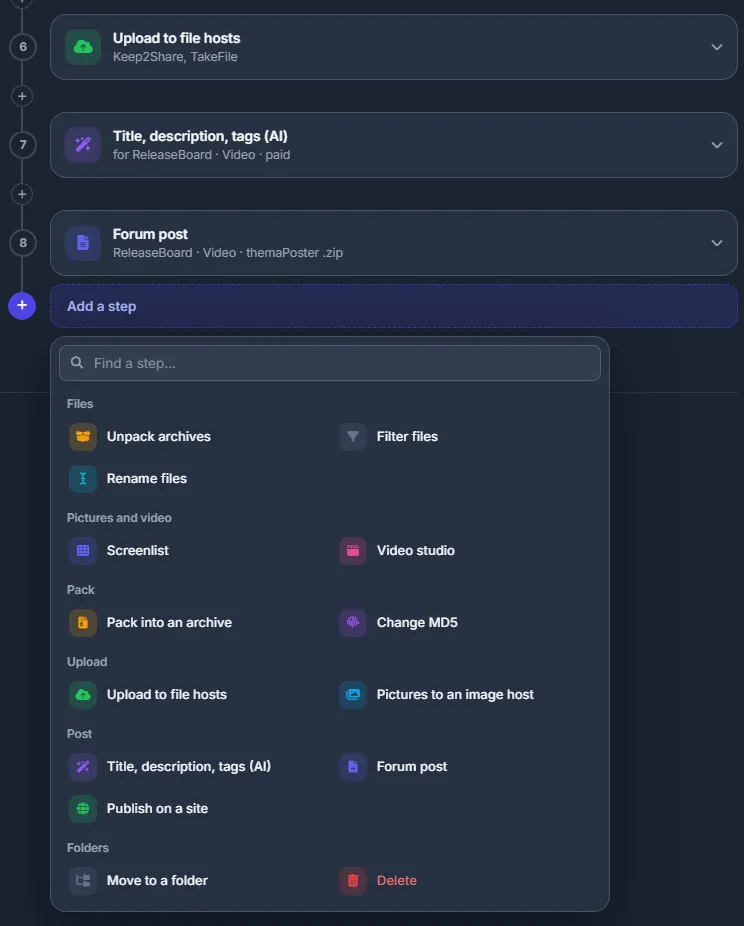
Fig. 3 The palette under the chain. Every step and its settings are described in Conveyor: all steps and their settings. -
Set up each step
A new step opens immediately; click a step’s header to open or fold it. The header shows the step number, its title, a one-line summary of its settings and, while something required is missing, a yellow chip that says what to do (“Choose the site”, “Type the folder”…). The arrows “Move up” and “Move down” reorder steps, and × (“Remove the step”) deletes one.
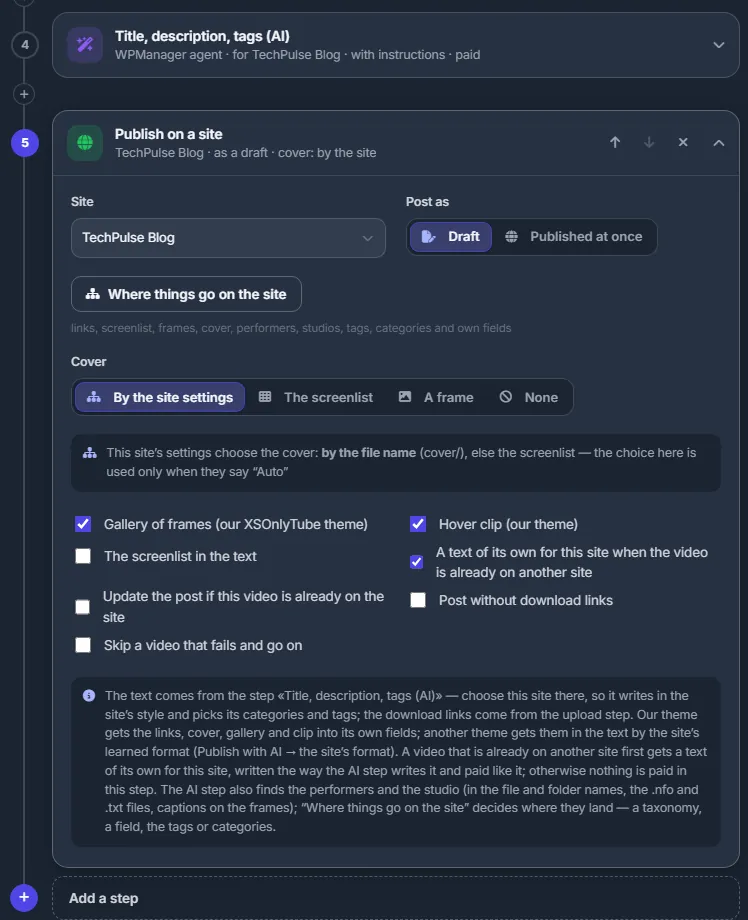
Fig. 4 An open step: its settings below, the summary in the header, the move and remove buttons on the right. -
Save the plan
Press “Save” or Ctrl + S. The button is active only when there are changes, and next to the name you see “Unsaved” (or “Not saved yet” for a new plan). When you save, the server checks the plan: every required setting must be filled, and everything the plan points to — presets, file hosts, image hosts, forums, sites — must belong to your account. A problem is reported with the step it is in, for example “Step 3 (Upload to file hosts): choose at least one file host”.
If you leave a plan with unsaved changes, the panel asks “The plan has unsaved changes. Drop them?”.
List and Scheme views
The “List / Scheme” switch in the plan toolbar changes how the chain is drawn. Your choice is remembered in this browser.
- List — numbered step cards on a vertical rail, with an insert point between every two steps.
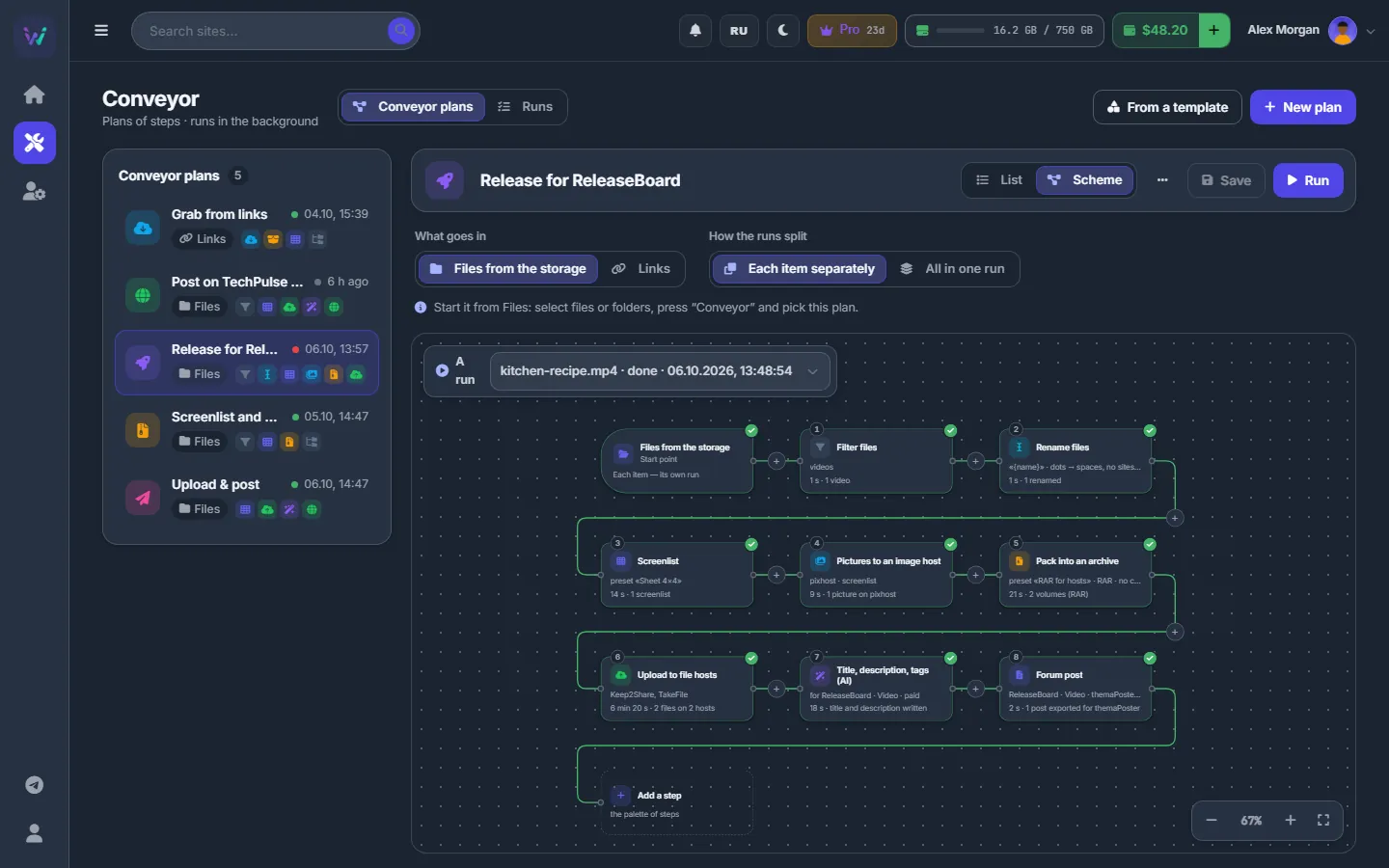
- Scheme — a canvas of connected nodes: the start point (“Files from the storage” or “Links”, with the run split under it), one node per step and a last node “Add a step”. Click a node to open its settings in the side panel (“Done” closes it, “Remove the step” deletes the step). Drag a node to move the step; the “+” on a connection inserts a step there. Zoom with the − and + buttons or Ctrl + mouse wheel, press “Fit the scheme” to see everything, and drag the empty canvas to pan.
Once the plan has runs, the scheme gets an “A run” selector. The nodes light up as done, running or failed, the connection into the running step flows, and the “Right now” panel lists live downloads, uploads and AI work. Before the first run it says “Run the plan — its steps light up here as they go”.
The five ready templates
| Template | Starts from | Chain | You choose |
|---|---|---|---|
| Release: screens → RAR → hosts → forum post | Files, one run per video | Filter files (videos) → Screenlist → Pictures to an image host → Pack into an archive (RAR, no compression, 3% recovery record) → Upload to file hosts → Forum post saved as a themaPoster .zip | Image host, file hosts, forum |
| Download → unpack → screens → upload | Links, one run per link | Download into “Downloads” → Unpack archives (and delete them) → Screenlist → Upload to file hosts | File hosts |
| Post with AI for a forum | Files, one run per video | Filter files → Screenlist → Pictures to an image host → Title, description, tags (AI) → Forum post saved as .txt next to the video | Image host, forum |
| Post on your site | Files, one run per video | Filter files → Screenlist → Upload to file hosts → Title, description, tags (AI) for the site → Publish on a site as a draft | File hosts, site |
| Re-upload to another host | Links, one run per link | Download into “Reupload” → Upload to file hosts → Delete the downloaded files (permanently) | File hosts |
What the editor checks
- At least one step and no more than 30.
- “Links from web pages” only as the first step of a links plan, followed by “Download links and torrents”. The Download step only at the very start of a links plan.
- The required settings of each step: a preset for the Video studio, a site for publishing, a folder for “Move to a folder”, a file mask when torrent files are chosen by mask, at least one file host or an image host, and so on.
- Everything the plan names belongs to your account. If a preset is deleted later, the plan reports it when you save or start it (“there is no screenshot preset …”).
Duplicate, delete, run
The “⋯” button (“More actions”) of a saved plan offers:
- “Duplicate” — an unsaved copy named “… (copy)”. Save it to keep it.
- “Delete the plan” — asks for confirmation. The plan’s finished runs stay on the Runs tab.
“Run” saves the plan if needed and asks for the files or links to start it on. See Conveyor: start plans and follow runs.
How a plan does its work
Each step does exactly what the matching button in the panel does: the Conveyor calls the panel’s own functions on your behalf. So billing, storage quota, ownership checks and the activity log work as if you had clicked the buttons yourself, and the files a step makes appear in your storage like any others.
The output of one step is the input of the next. After “Pack into an archive” the following steps get the archive volumes; after “Unpack archives” they get what came out of the archives, and so on.
Settings
| Setting | What it does |
|---|---|
| What goes in | “Files from the storage” or “Links”. Decides where the plan is started from (Files or Downloads) and which steps may come first. |
| How the runs split | “Each item separately” — one run per item, grouped in a batch. “All in one run” — every item in one run. |
| Plan name | Up to 80 characters, unique among your plans. |
| Icon and colour | 12 icons and 8 colours, shown in the plan list, in the launcher and on the scheme. |
Costs
Building and saving plans is free. A run costs what its steps would cost if you did them by hand:
- The AI text step, and the text of its own that “Publish on a site” writes for a site, are paid from the balance per AI call.
- The Video studio step is billed by CPU time, beyond any minutes your plan includes.
- Downloads, archives, screenlists, uploads and moving files have no separate charge, but the files take space in your storage quota.
See also What you pay for.
Troubleshooting
| What you see | What to do |
|---|---|
| “Save” refuses with “Step N (…): …” | Open step N and fill in what its yellow chip asks for. If a preset, host or forum is “not one of yours”, it was deleted or switched off — pick another one. |
| “Upload to file hosts” says “No file host is connected — add one” | Only accounts that can take uploads are offered. Add an API key (Keep2Share family, XFileSharing) or FTP access to the account on Links & files → File Hosters. |
| “Publish on a site” says “No site with the WPManager plugin connected” | Connect the WPManager plugin on the site’s page, then reload the Conveyor page. |
| The Download step is not in the palette | It exists only in plans whose “What goes in” is “Links”. Switch the plan to “Links” and the step is added for you. |
FAQ
Does a plan keep running if I close the browser?
Yes. Runs are executed on the server; the page only shows their progress.
Can I change a plan while it is running?
Yes. A run keeps the copy of the plan it was started with, so your edits apply to the next runs.
How many plans can I have?
As many as you need. Each plan holds up to 30 steps.